You sit down to work, open Safari or Chrome, and before you even reach the tab you needed you've already typed "r-e-d" into the address bar out of muscle memory. Forty minutes later you surface from a thread about whether hot dogs are sandwiches. The work is still waiting.
This isn't a willpower problem. It's a design problem. Browsers are built to get you to content as fast as possible — including the content you're trying to avoid.
Why macOS Doesn't Solve This
Apple added Screen Time website limits in macOS Catalina, but they only work in Safari. If you also use Chrome, Firefox, Arc, or any other browser, those limits do nothing. You can also dismiss Screen Time prompts with a single click — it's a speed bump, not a wall.
Editing your /etc/hosts file works in theory, but it requires Terminal commands, sudo access, and manual cleanup when you're done. It's not practical for daily use and it doesn't run on a timer.
Block Websites System-Wide with Lock In!
Lock In! uses a macOS system extension to block distracting websites across every browser on your Mac — Safari, Chrome, Firefox, Arc, Brave, all of them. You pick the sites, set a timer, and they're gone until the session ends.
Preset Blocklists
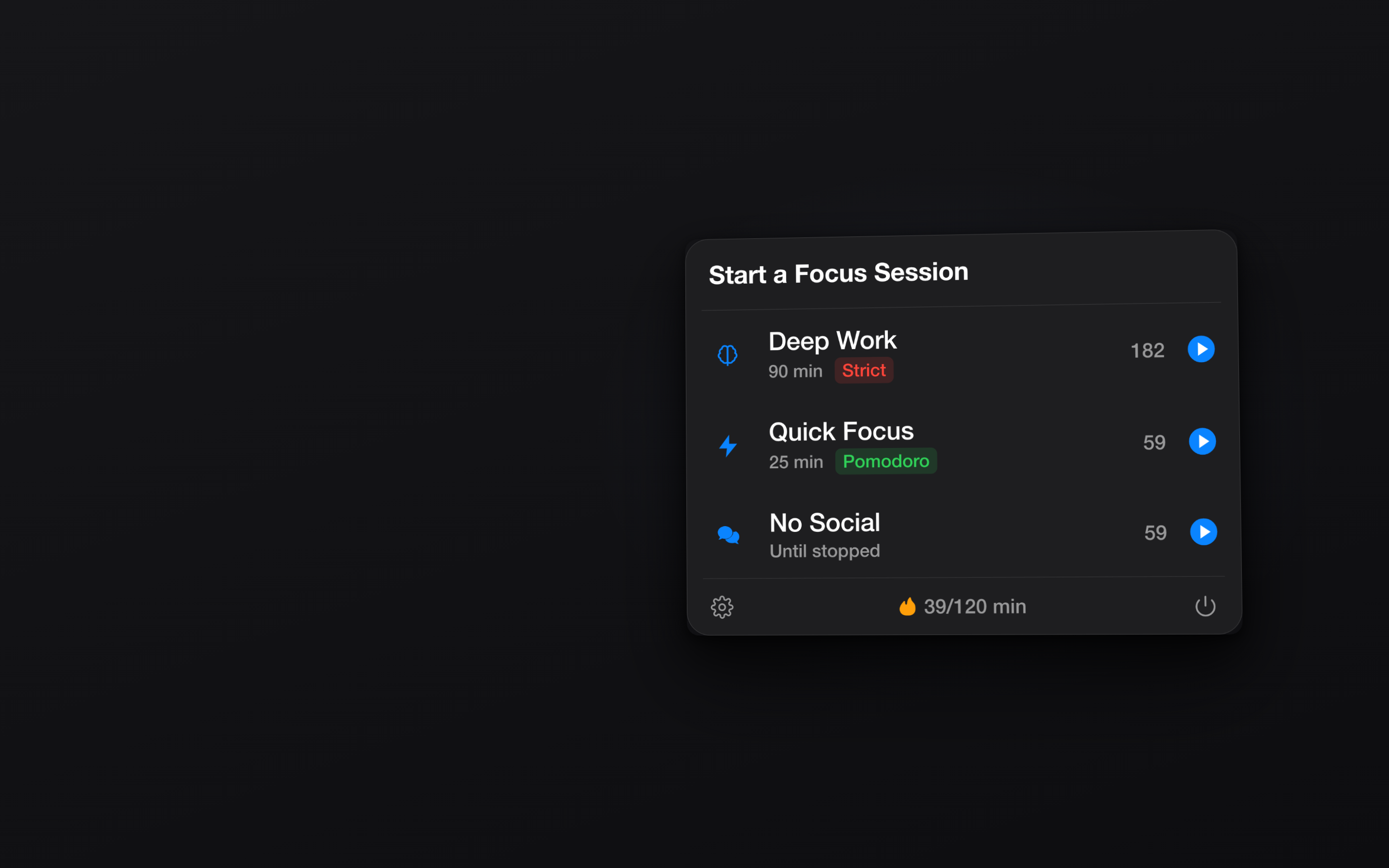
Lock In! ships with curated blocklists for Social Media, Entertainment, News, and Shopping. One click blocks dozens of time-sink domains. You can also add custom URLs for anything specific to your own browsing habits.
Timed Sessions
Set a focus session for 25 minutes, an hour, or any custom duration. The blocked sites stay blocked until the timer runs out. No browser extension to disable, no hosts file to revert — it works at the system level.
Strict Mode
If you're the type to cancel a block two minutes in, enable Strict Mode. Once a session starts, there's no way to end it early. The sites stay blocked. Period.
Blocking distracting websites shouldn't require a computer science degree. It should take two clicks from your menu bar. Get Lock In! on the Mac App Store