News sites operate on a similar mechanism to social feeds: there's always another headline, another related story, another live-updating thread. Checking in "for a minute" during a work session routinely turns into fifteen, because the next article is one click away and the site is specifically designed to make that click frictionless.
It's not that the news isn't important. It's that most of it isn't time-sensitive to you personally in the middle of a focused work block, and it can wait until a designated break without anything being lost.
Why This Category Sneaks Past Willpower
News-checking often masquerades as productive behavior — "I'm staying informed" feels different from "I'm scrolling Instagram," even though the time cost and the interruption to focus are similar. That framing makes it easier to justify in the moment, which is exactly why it needs a structural block rather than a mental rule you're relying on yourself to enforce.
Blocking News Sites During Work
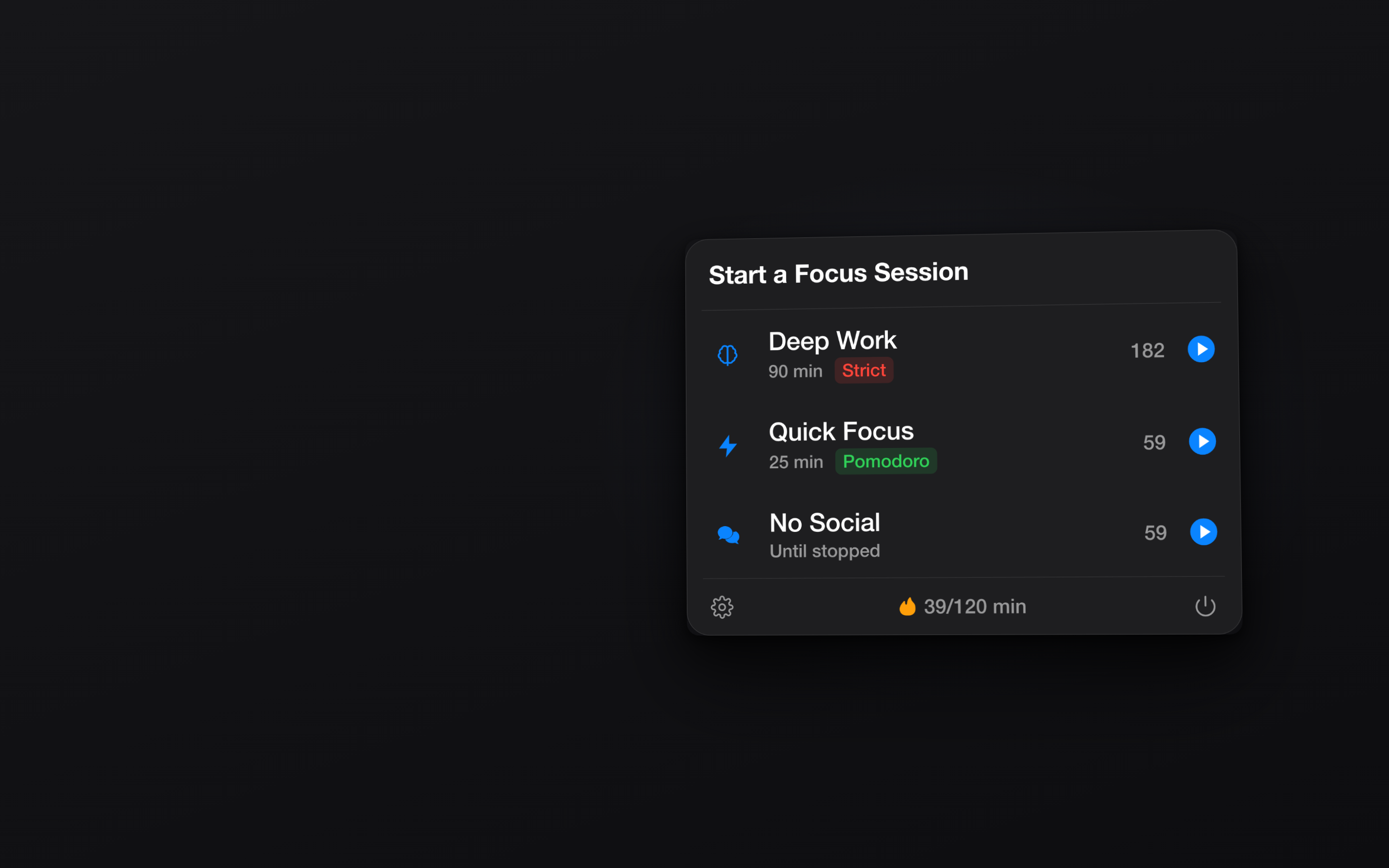
Lock In! includes a News preset blocklist covering major outlets and aggregators, so you can remove the temptation for the hours it matters without deciding to swear off news entirely.
One Preset, Major Outlets Covered
The News preset saves you from manually typing out every outlet you tend to check. Add it to a session and the common destinations are handled immediately.
Add Your Own Habitual Sites
If you have a specific aggregator, subreddit, or niche outlet that's your personal rabbit hole, add it as a custom domain alongside the preset. The block isn't limited to a fixed list.
Scoped to Work Hours, Not All Day
Set a session for your working hours and news sites unblock automatically once it ends, so catching up over lunch or in the evening is unaffected. The goal is protecting focus time, not cutting off information entirely.
Works Across Every Browser
The block applies system-wide, so switching from Safari to Chrome to check a headline doesn't work — the same rule holds everywhere on the Mac.
Stay informed on your schedule, not the news cycle's. Get Lock In! on the Mac App Store