You've blocked Reddit and Twitter in your browser. You're feeling disciplined. Then you click on Discord "to check one message," and 30 minutes vanish into a meme channel. Or you open Slack to reply to a thread and end up reading every channel you're in.
Website blocking solves half the distraction problem. The other half lives in your Applications folder.
Почему режима Focus macOS недостаточно
Apple's built-in Focus mode filters notifications — it can silence pings from specific apps. But it doesn't prevent you from opening those apps. You can still launch Discord, Slack, Messages, or Steam during a "Do Not Disturb" session. Focus mode hides the alerts; it doesn't block the source.
This means Focus mode only helps with interruptions, not with self-inflicted distractions. If you're the one opening the app, Focus mode does nothing.
Lock In! блокирует приложения и веб-сайты вместе
Lock In! goes beyond website blocking. When you add an app to your blocklist and start a session, any attempt to open that app triggers a full-screen interrupt panel. It covers your screen, tells you the app is blocked, and sends you back to what you were doing.
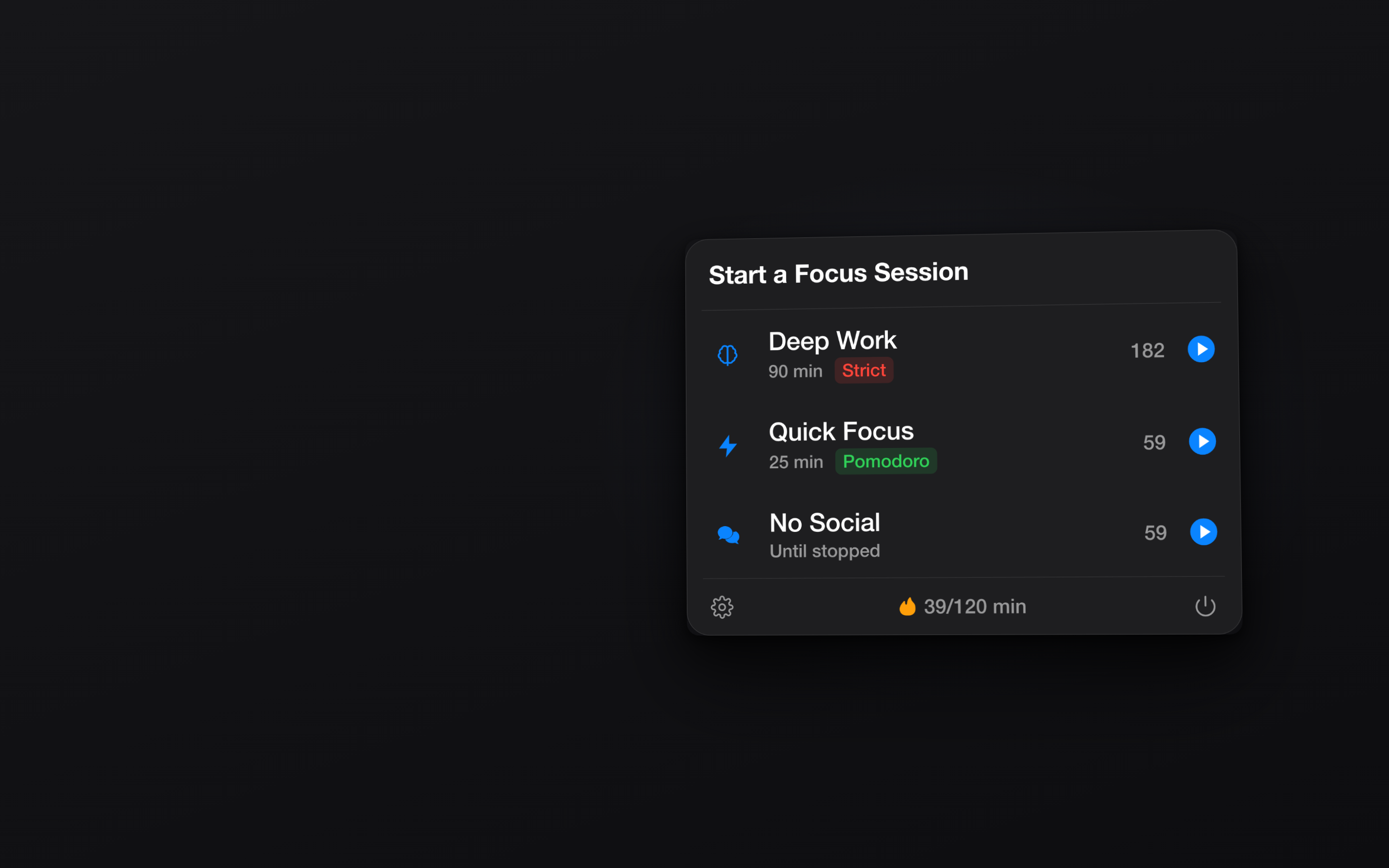
Полноэкранное прерывание, а не мягкий толчок
Some blockers show a small notification when you open a blocked app. That's easy to dismiss. Lock In!'s interrupt panel takes over the entire screen. It's impossible to ignore and impossible to use the blocked app behind it. This is the point — if the block is easy to bypass, it's not a block.
Комбинируйте с блокировкой веб-сайтов
The real power is combining both. Block social media websites in every browser via the system extension, and block messaging and entertainment apps via the app blocker. During a Lock In! session, every common distraction path is closed — browser and app.
Предустановленные списки помогут вам начать
Lock In! includes preset blocklists for common distraction categories: Social, Entertainment, News, and Shopping. These cover popular websites, and you can add specific apps alongside them. Build a blocklist once, and reuse it every session.
Block the apps, not just the notifications. Get Lock In! on the Mac App Store