Вы садитесь работать, открываете Safari или Chrome, и прежде чем вы даже дойдете до нужной вкладки, вы уже напечатали "r-e-d" в адресную строку из мышечной памяти. Через сорок минут вы всплываете из темы о том, являются ли хот-доги бутербродами. Работа все еще ждет.
Это не проблема силы воли. Это проблема дизайна. Браузеры построены так, чтобы как можно быстрее доставить вас к контенту — включая контент, который вы пытаетесь избежать.
Почему macOS этого не решает
Apple added Screen Time website limits in macOS Catalina, but they only work in Safari. If you also use Chrome, Firefox, Arc, or any other browser, those limits do nothing. You can also dismiss Screen Time prompts with a single click — it's a speed bump, not a wall.
Editing your /etc/hosts file works in theory, but it requires Terminal commands, sudo access, and manual cleanup when you're done. It's not practical for daily use and it doesn't run on a timer.
Block Websites System-Wide with Lock In!
Lock In! uses a macOS system extension to block distracting websites across every browser on your Mac — Safari, Chrome, Firefox, Arc, Brave, all of them. You pick the sites, set a timer, and they're gone until the session ends.
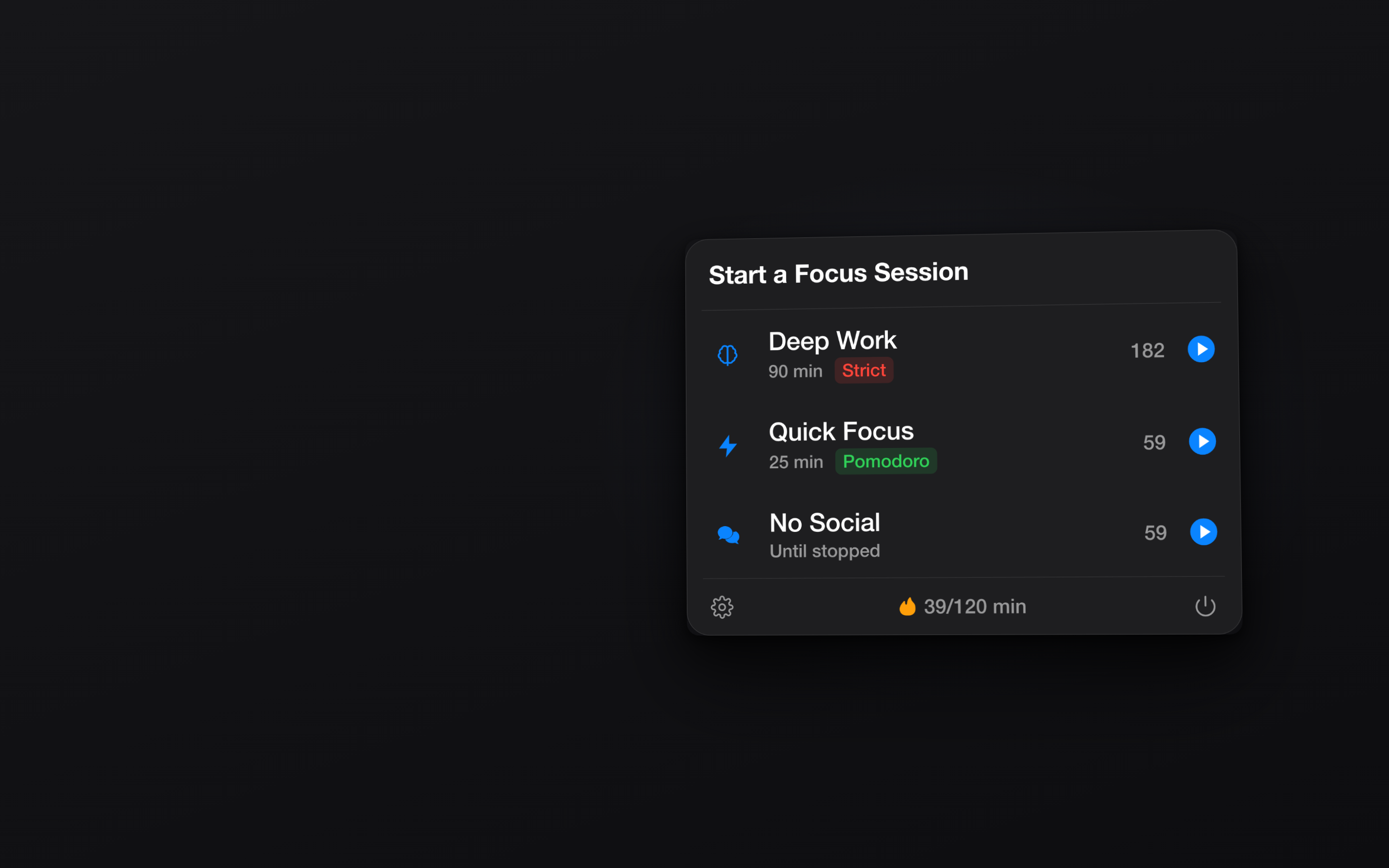
Предустановленные списки блокировок
Lock In! ships with curated blocklists for Social Media, Entertainment, News, and Shopping. One click blocks dozens of time-sink domains. You can also add custom URLs for anything specific to your own browsing habits.
Сеансы с таймером
Set a focus session for 25 minutes, an hour, or any custom duration. The blocked sites stay blocked until the timer runs out. No browser extension to disable, no hosts file to revert — it works at the system level.
Строгий режим
If you're the type to cancel a block two minutes in, enable Строгий режим. Once a session starts, there's no way to end it early. The sites stay blocked. Period.
Blocking distracting websites shouldn't require a computer science degree. It should take two clicks from your menu bar. Get Lock In! on the Mac App Store