A folder of camera photos or exported graphics can easily run into gigabytes, and most of that size is invisible to the eye — a photo compressed at 80% JPEG quality looks nearly identical to the uncompressed version but takes up a fraction of the space. The problem isn't knowing that compression works; it's doing it across dozens or hundreds of files without opening each one.
Why "Just Compress It" Is Harder Than It Sounds on Mac
macOS doesn't have a built-in batch compression tool. Preview lets you export one image at a time with a quality slider, which works fine for a single photo but doesn't scale. Mail's "Image Size" option when attaching photos does a form of compression, but it's tied to sending an email, not producing compressed files you can keep or upload elsewhere. For real batch work, you need a queue-based tool.
Batch Compression That Doesn't Touch Originals
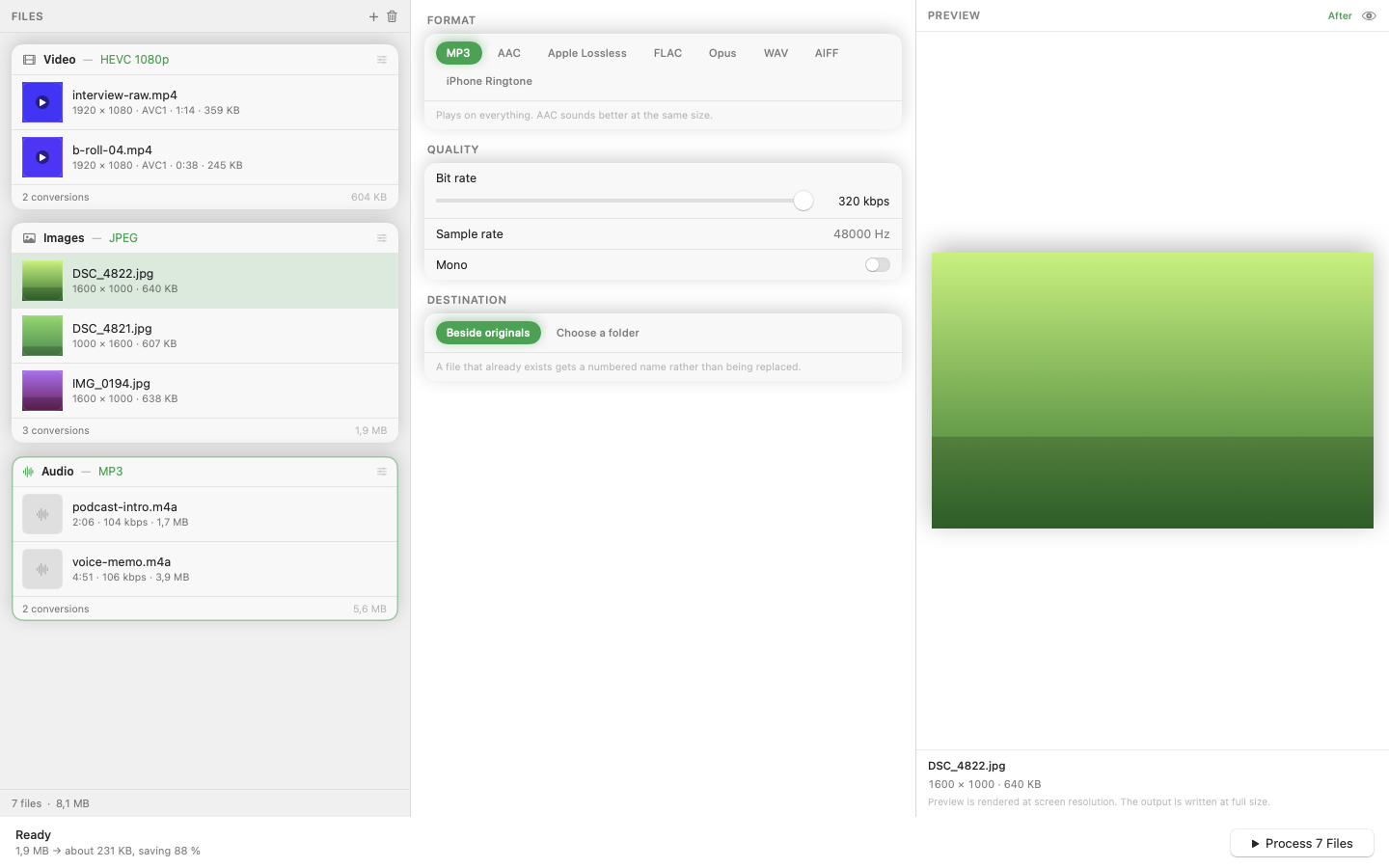
Mediasmith handles this through its image queue. Drop in a folder, keep the same output format (or switch formats if you're also converting), and set a quality level. The whole batch compresses in one run, with jobs processing concurrently so large folders don't take forever.
Finding the Right Quality Level
There's no universal "correct" compression setting — it depends on the image and its destination. Product photography for an online store can usually go lower than a portfolio piece meant to be viewed full-screen. Run a small test batch first, check the output at actual size, and adjust before committing to a thousand files.
Resize as Part of Compression
File size comes from two places: quality and dimensions. A 6000px-wide photo destined for a web page that displays it at 800px is carrying pixels nobody will ever see. Because resize and compression sit in the same pipeline, you can cut dimensions down before the quality pass, which often shrinks file size more than compression alone.
Presets for Recurring Jobs
If you compress the same type of image regularly — say, weekly product shots for a store — save the format, quality, and resize settings as a preset so future batches are a single click.
Once compression is a batch operation instead of a per-file chore, there's no reason to keep shipping oversized images.