PNG is a fine format for screenshots and graphics with transparency, but it's a poor default for photos and web images — files end up two to five times larger than an equivalent JPG for no visible quality gain. If you've got a folder of a hundred PNGs destined for a website, an email attachment, or a client deliverable, converting them one at a time in Preview is not a serious option.
Why PNG Piles Up in the First Place
Screenshot tools default to PNG. Design software exports flattened images as PNG by default. Scanners and some cameras save PNG too. None of that is wrong — PNG is lossless and handles transparency — but it means PNGs accumulate in Downloads and Desktop folders even when JPG would serve the actual use case better.
The Manual Route and Why It Falls Apart
Preview can convert a single PNG to JPG through File > Export. Select multiple files in Finder, right-click, and you'll find a Quick Action for image conversion too — but it doesn't let you set JPG quality, and it silently keeps the same filenames, meaning you'd overwrite originals unless you're careful. For a handful of files that's tolerable. For a hundred, you want control over quality and a queue that runs unattended.
Batch Convert With Quality Control
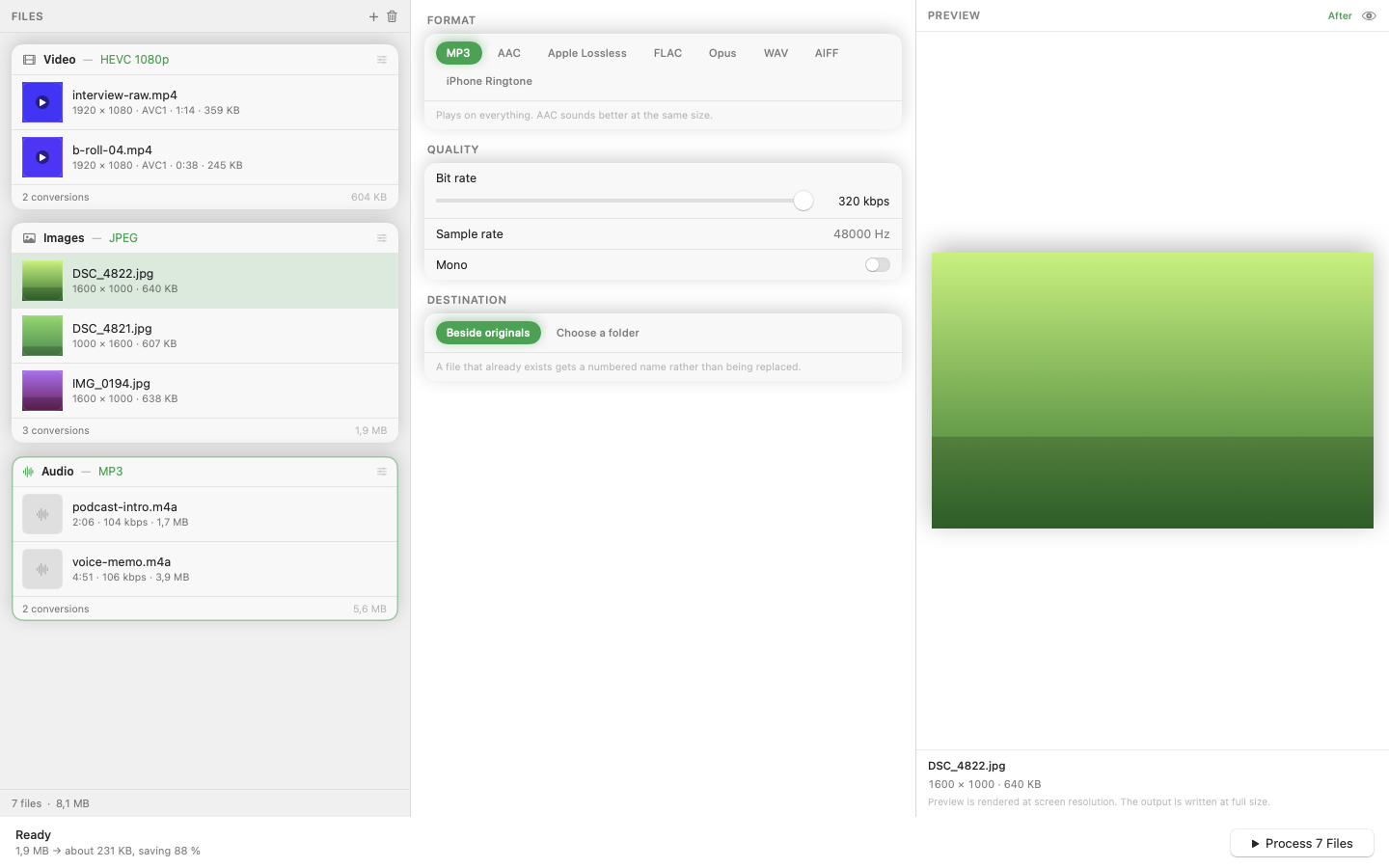
Mediasmith has a dedicated image queue built for exactly this. Drag a folder of PNGs in, choose JPG as the output format, set your compression quality, and convert the whole batch in one pass. Files process concurrently rather than one after another, so a hundred-image folder doesn't mean waiting a hundred times as long as a single file.
Resize While You're At It
Since the format conversion sits on the same pipeline as resize and crop, you can shrink oversized screenshots to a sane width at the same time you convert them — useful if the PNGs came from a 5K display and are destined for a blog post.
Originals Stay Untouched
Converted files are written as new outputs, so your source PNGs aren't overwritten. That matters if you ever need the transparency or lossless quality back.
Batch PNG-to-JPG conversion is a five-minute job, not an afternoon one, once you're not doing it file by file.