TIFF is the format of choice for scanners, professional cameras shooting uncompressed, and print workflows, because it preserves every bit of image data without lossy compression. That's exactly why TIFF files are enormous — a single scanned document page can run tens of megabytes — and why most web forms, email clients, and messaging apps either reject them outright or handle them poorly.
Why TIFF Doesn't Travel Well
Browsers generally can't display TIFF inline. Most content management systems won't accept it as an upload. And because TIFF files are so much larger than JPG for photographic content, keeping them around after you no longer need the print-quality original just wastes disk space. Converting to JPG solves both problems: smaller files that actually display where you need them.
Converting a Single File
Preview opens TIFF files natively and can export to JPG through File > Export — pick JPEG, set a quality level, and save. For one or two scanned pages, this is fast enough and requires no extra software.
Converting a Scanned Batch
Scanners rarely produce just one file. A multi-page document scan, a box of old photos run through a flatbed, or a batch export from a DSLR shooting TIFF can leave you with dozens of files that need the same treatment. Manually opening and exporting each one in Preview turns a five-minute task into an hour.
Mediasmith handles this as a queue instead of a series of manual exports. Drop the whole folder of TIFFs onto the image queue, set JPG as the output format and choose a quality level, and convert everything in one pass.
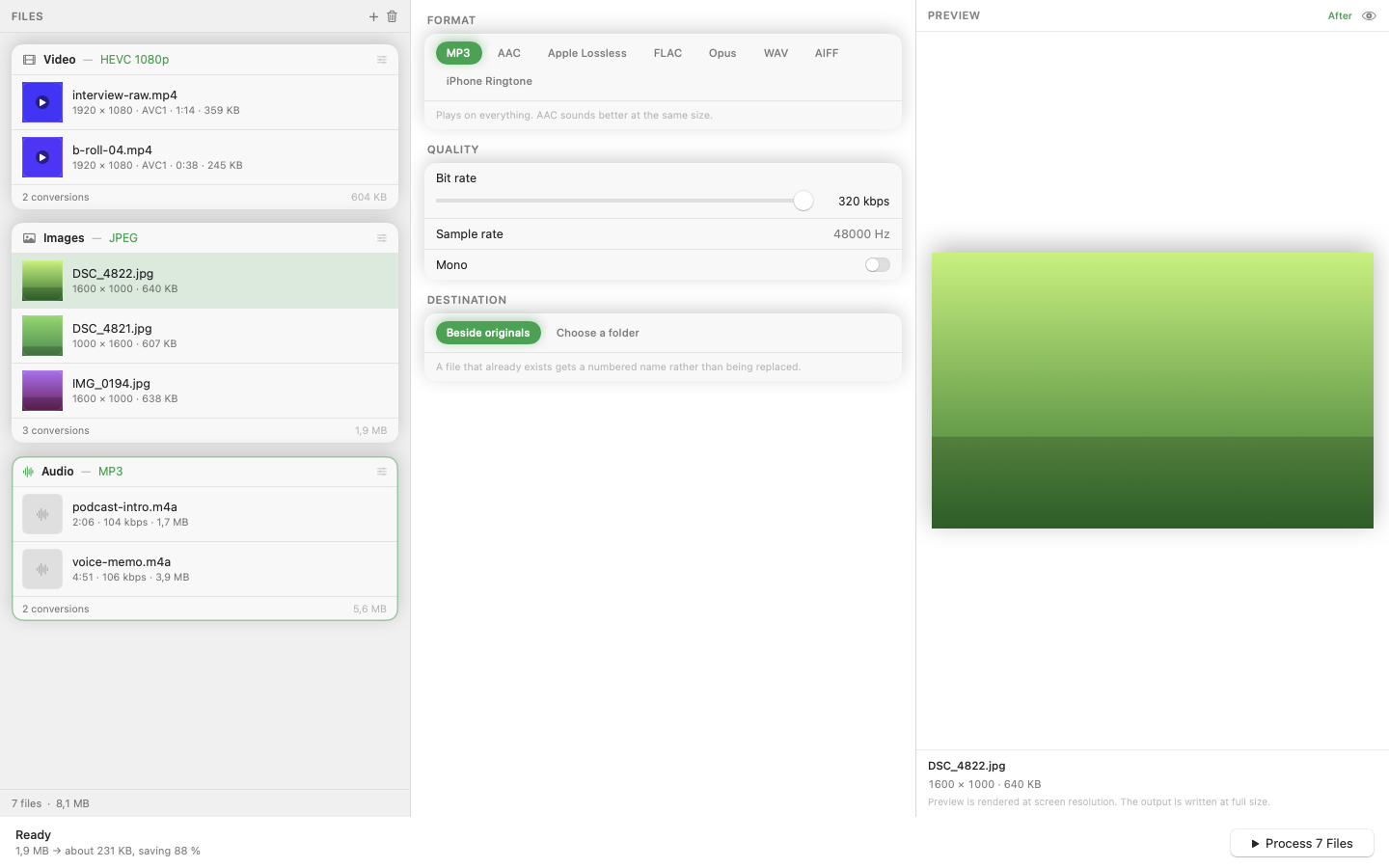
Resize Scanned Pages While Converting
Scanner output is often set to a print-resolution DPI that produces far more pixels than any screen needs. Since resize sits on the same pipeline as format conversion, you can scale scanned pages down to a sane width in the same batch run, cutting file size further on top of the format change.
Keep the TIFF Originals
If the TIFFs are archival scans or came from a print job, don't delete them after converting — TIFF's lossless quality is exactly why they were created that way in the first place. Treat the JPGs as the distribution copies and the TIFFs as the archive.
TIFF has its place, but it's not a format for sharing. Converting a whole scanned batch to JPG in one pass turns hours of manual exports into minutes.