Your e-commerce site needs product images at exactly 1200×1200 pixels. Your blog template breaks if hero images are wider than 1600px. Your client's brand guidelines spec a maximum file dimension for social media assets. You have 400 images at camera resolution, and each one needs to be resized before upload.
Preview on macOS can resize images — one at a time, with a dialog box, then File > Export. For a handful of files, it's fine. For hundreds, it's unpaid labor.
Built-in Batch Resize Options
macOS doesn't ship a dedicated batch resizer. Finder's Quick Actions can convert formats but don't offer resize controls. Automator (or Shortcuts) can be configured to resize images, but building a reliable workflow means learning the Automator interface, handling edge cases like portrait vs. landscape orientation, and hoping the workflow doesn't silently fail on unusual formats. The sips CLI can resize in a loop, but a shell script isn't a workflow you can hand to a colleague.
Batch Resize With an Ordered Pipeline
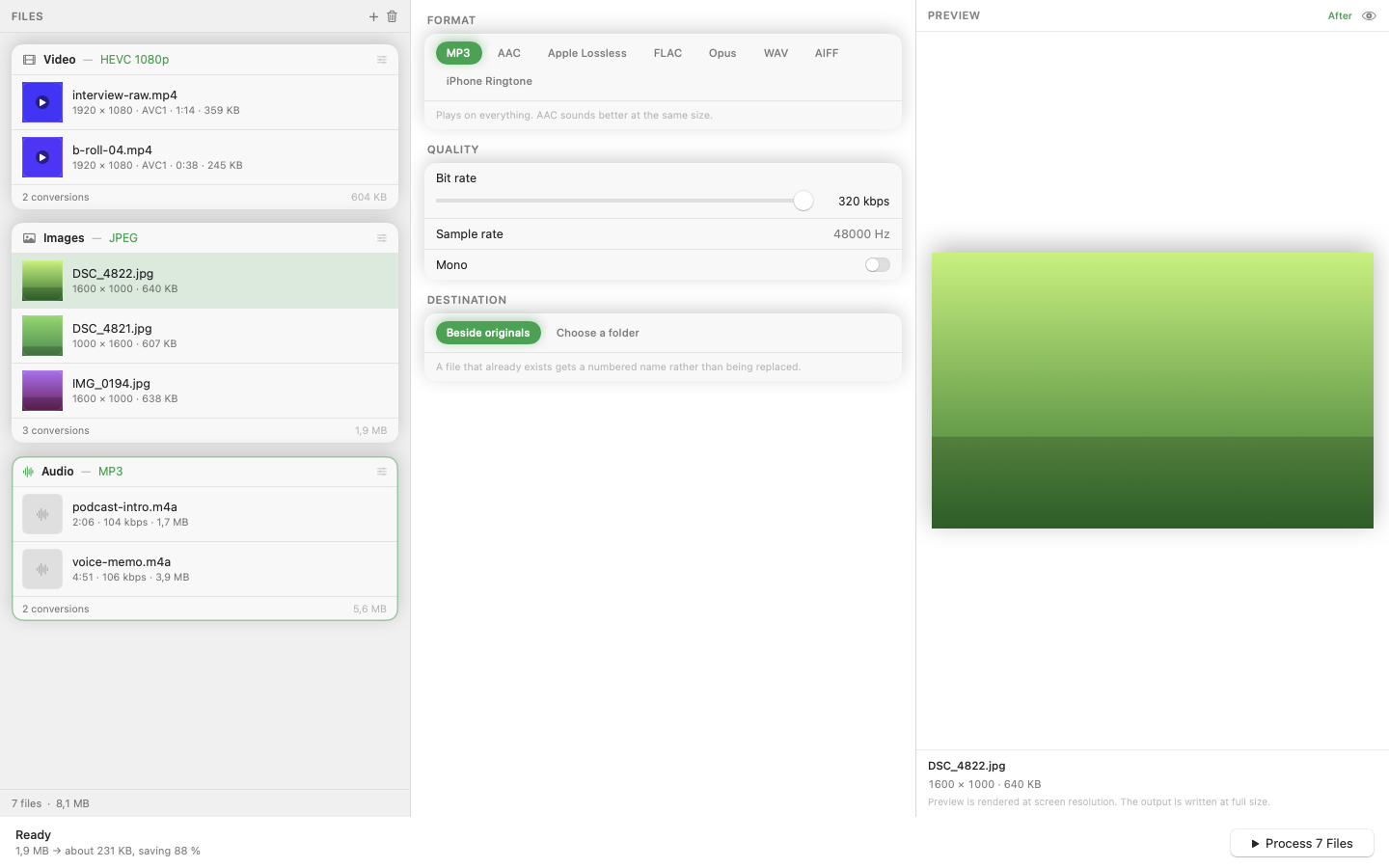
Mediasmith handles batch resizing as part of its pixel pipeline. Drag images onto the image queue, add a resize operation, set your target dimensions or maximum width, and process the batch. The app resizes every image in the queue with configurable concurrency.
Chain Operations
Resizing is often just the first step. The pixel pipeline lets you chain operations in sequence: resize to 1200px wide, then crop to square, then add a watermark. Each operation executes in the order you set, so you get predictable, repeatable results across the entire batch.
Format Conversion Included
If you're resizing for web use, you probably also want to convert from TIFF or PNG to JPEG or WebP. The output format is set alongside the pipeline, so resizing and format conversion happen in a single pass — no need to run the batch through a second tool.
Presets for Recurring Jobs
If you regularly resize to the same specs — "Instagram: 1080×1080, JPEG, 90% quality" or "web hero: 1600px wide, WebP" — save the pipeline as a preset. Next time, drag, select the preset, and convert. The entire specification is saved, not just the format.
Batch resizing is one of those tasks that feels like it should be built into the OS. Until Apple agrees, a dedicated tool with a proper pipeline is the fastest path from camera resolution to upload-ready.