You just exported 200 product shots from Lightroom as TIFF files and now your web developer wants JPEG. Or you downloaded a folder of WebP images from a client and need them as PNG for a Keynote deck. Opening each file in Preview, choosing Export, picking a format, and saving — 200 times — is not a real workflow.
Batch image conversion is one of those tasks that should take thirty seconds but somehow eats an entire afternoon on macOS.
What macOS Gives You (and Where It Stops)
Finder's Quick Actions let you convert selected images, but only between HEIC, JPEG, and PNG. There's no WebP output, no TIFF, and no way to control quality or resolution. Preview can export one image at a time — functional but painfully slow for batches. The sips command-line tool handles some conversions but chokes on formats like WebP and has limited pipeline options.
For anything beyond the basics, you need a dedicated tool.
Batch Conversion With a Pixel Pipeline
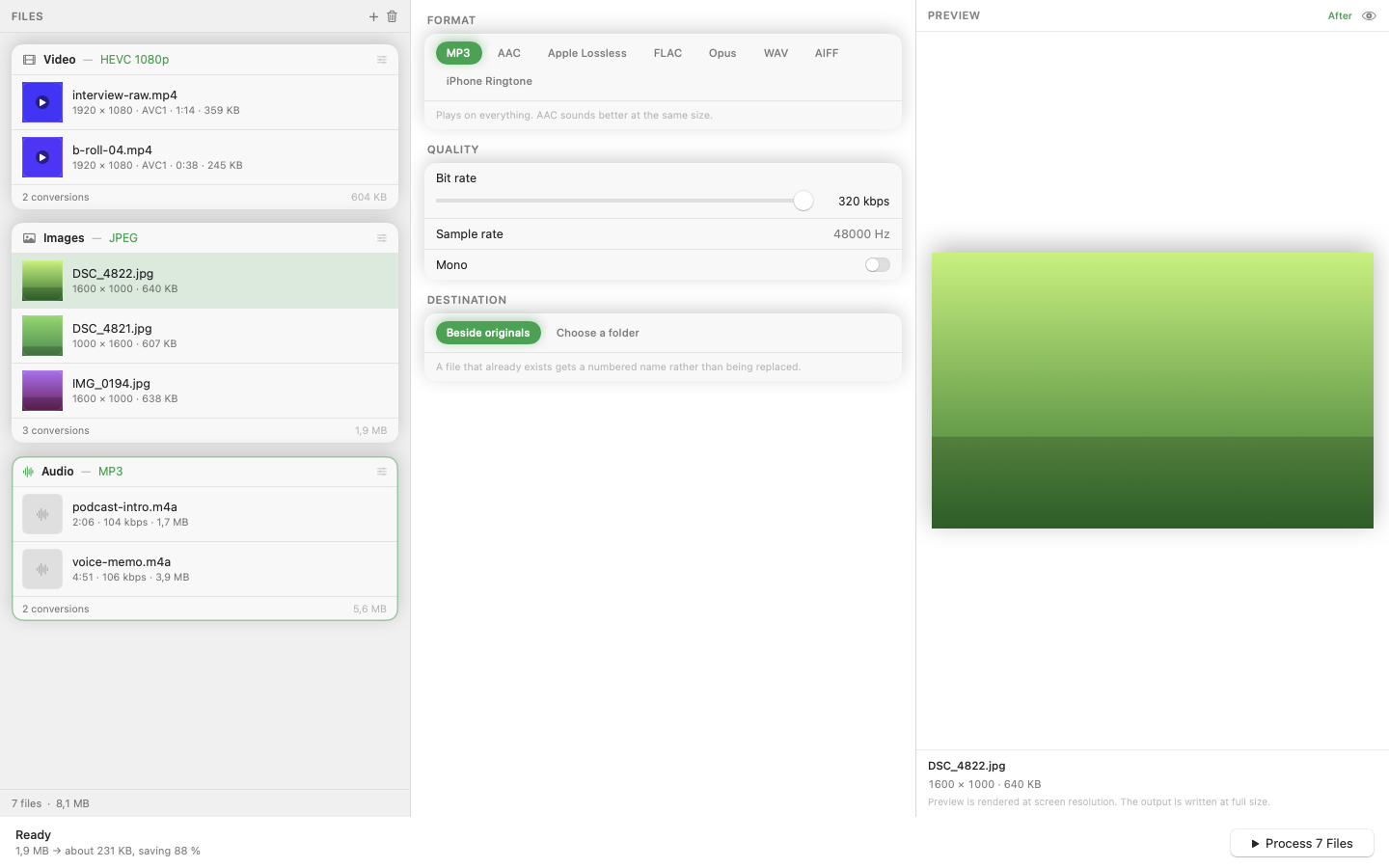
Mediasmith is a native macOS converter built for exactly this. Drag a folder of images onto the image queue, pick your output format — JPEG, PNG, WebP, HEIC, or TIFF — and convert. All files process in parallel with configurable concurrency.
Ordered Operations
The pixel pipeline lets you chain resize, crop, and watermark operations in a specific order. Need to resize to 1200px wide, then crop to 4:3, then stamp your logo? Set the pipeline once and it applies identically to every image in the batch.
Quality Control
JPEG and WebP output includes quality sliders so you can balance file size against visual fidelity. For e-commerce where every kilobyte matters, this alone saves a round trip through an online compressor.
Preset System
If you run the same conversion regularly — say, "client deliverables: JPEG, 2000px wide, 85% quality, watermarked" — save it as a preset. Next time, one click applies the entire pipeline to a new batch.
Batch image conversion is a solved problem. The trick is finding a tool that's native, fast, and doesn't ask you to upload your files to someone else's server.