Preview is the app most Mac users reach for first when they need to convert a handful of images, and for basic jobs it works: select several files in Finder, open them in Preview, and use File > Export Selected Images to pick a new format. It's built into the OS, it's free, and for a quick one-off it does the job. But the more you lean on it for real batch work, the more its limitations show.
What Preview's Batch Export Actually Does
Select multiple images, choose Export Selected Images, and Preview lets you pick one output format and one destination folder for the whole batch. That's genuinely useful for a simple format swap — HEIC to JPEG, for instance — across a modest number of files.
Where It Runs Out of Road
No Per-File Quality Control
You get a single quality setting applied uniformly. There's no way to compress a batch of photos differently based on content, and no live preview of the output size before you commit.
No Resize, Crop, or Watermark in the Same Pass
Preview's Markup tools can resize one image at a time if you open it manually, but batch export doesn't offer resizing, cropping, or watermarking as part of the conversion. If you need to convert and resize a hundred images, that's two separate manual passes, or a hundred manual edits.
No Video or Audio Support
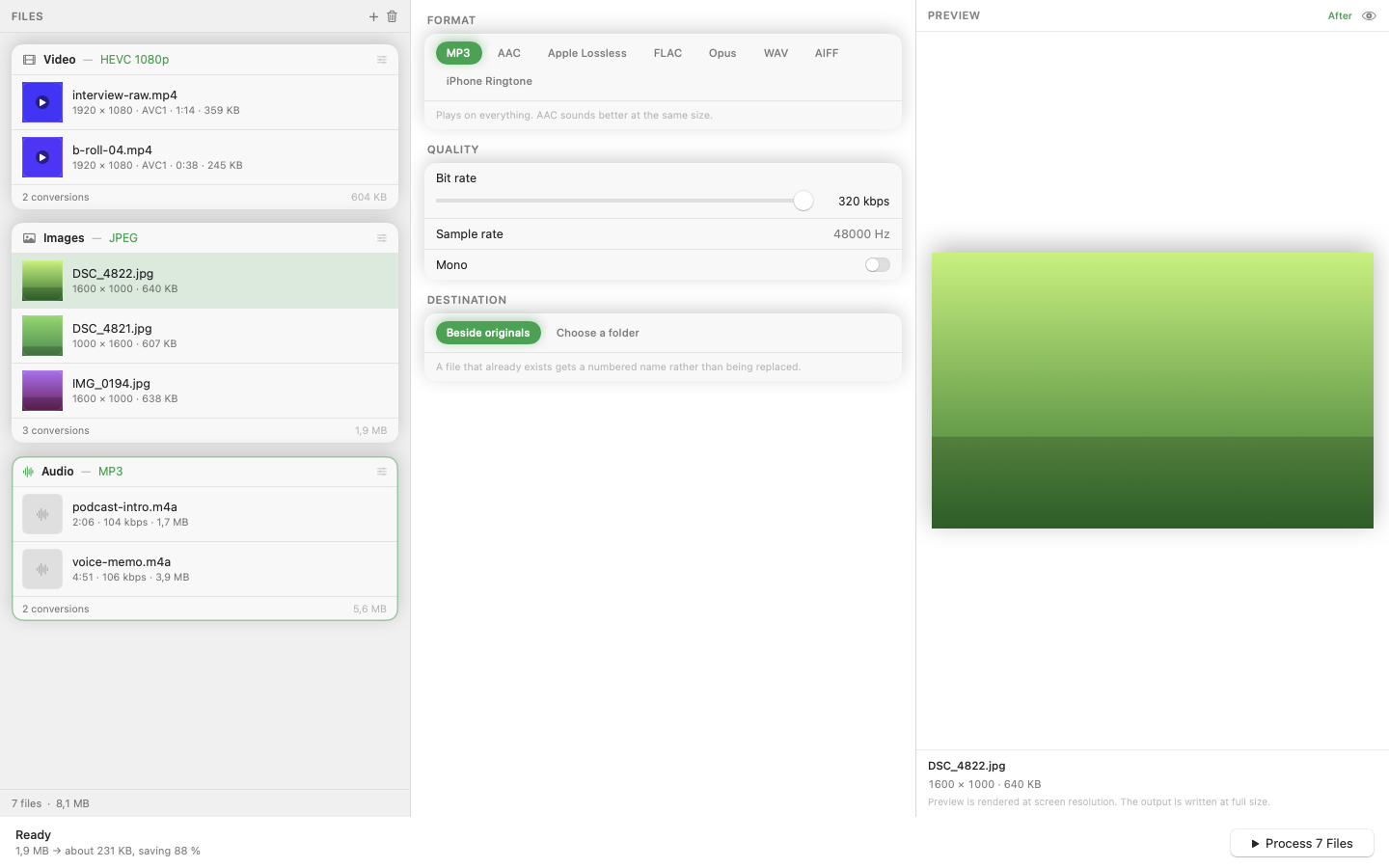
Preview's batch tools are images-only. It has no concept of converting video files or exporting audio, so the moment your workflow spans media types, you're already reaching for other software anyway.
No Presets or Queues
Every batch export starts from scratch. There's no way to save "resize to 1200px, convert to JPG, watermark bottom-right" as a repeatable action — you re-select the same options every time.
When a Dedicated Batch Tool Makes Sense
If your batches are occasional and simple — just a format change, nothing else — Preview is genuinely fine and there's no reason to install anything else. But once you need resize, crop, and watermark to happen together, or you're converting images, video, and audio as part of the same workflow, a dedicated tool like Mediasmith closes those gaps with an ordered pixel pipeline and separate queues for each media type.
Preview covers the basics well. Knowing exactly where it stops helps you decide when it's time to reach for something built for batch work specifically.