Buried in macOS is sips — Scriptable Image Processing System — a command-line tool that's been part of the OS for years and that most Mac users have never heard of, let alone used. It can resize, rotate, and convert image formats entirely from the terminal, with no third-party installation required. For scripting purposes, it's a genuinely useful tool. For everyday batch work, it has real friction.
What sips Does Well
A single command like sips -s format jpeg input.png --out output.jpg converts a file without installing anything — it's already on every Mac. Wrapped in a shell loop, it can process a whole folder: for f in *.png; do sips -s format jpeg "$f" --out "\${f%.png}.jpg"; done. If you're comfortable in the terminal and need a quick one-off script, sips gets the job done with zero setup cost.
Where It Gets Uncomfortable
The syntax is unintuitive and easy to get wrong — flags like -Z for resizing with aspect ratio preserved versus --resampleWidth for exact dimensions aren't things most people remember between uses. There's no visual queue, no progress indication beyond terminal output, and no way to chain resize, crop, and watermark together without writing a more elaborate script. And if you're not comfortable with shell loops, converting a folder rather than a single file is its own small research project.
When a GUI Tool Wins
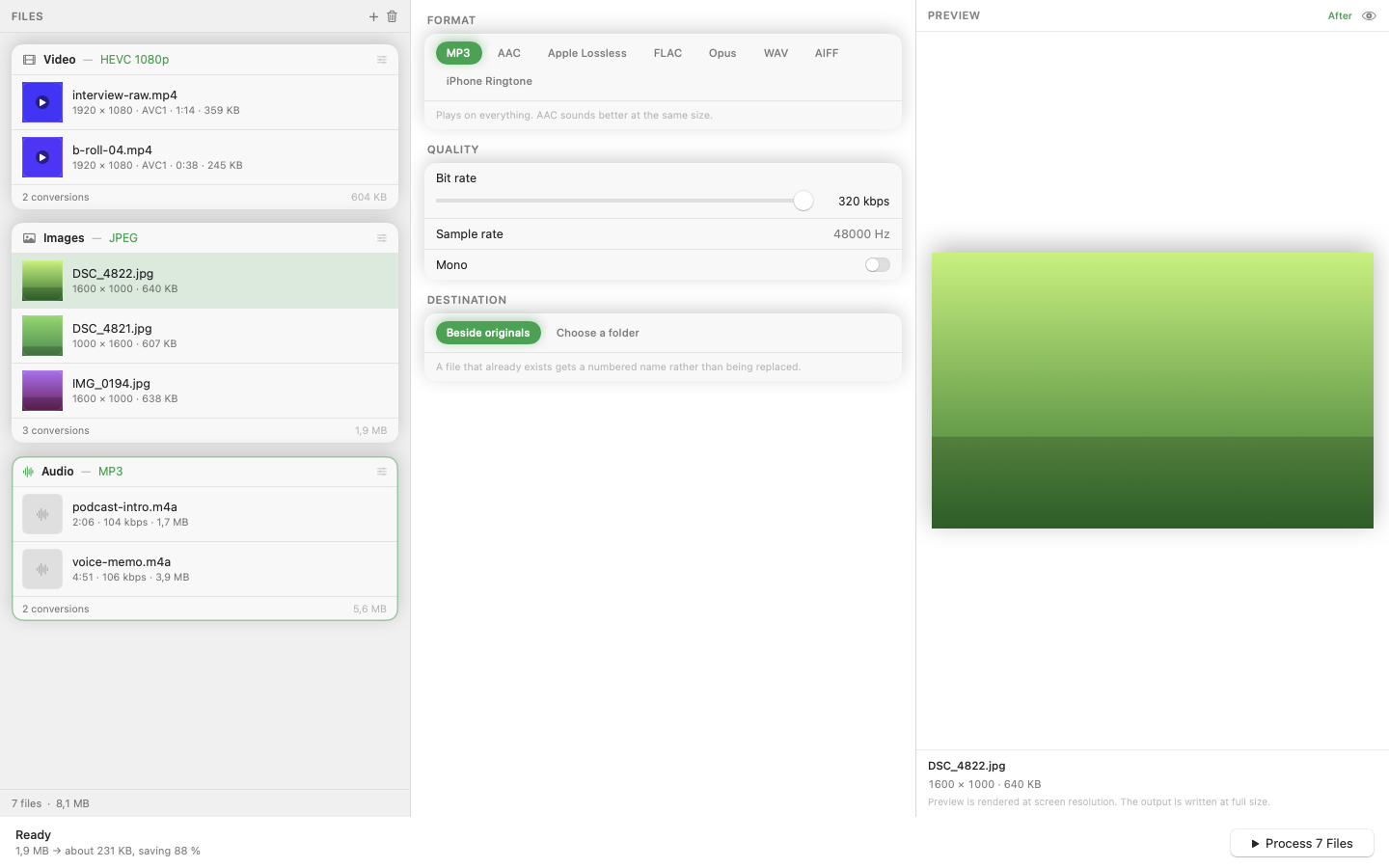
If batch conversion is a recurring part of your workflow rather than a rare scripted task, a graphical tool like Mediasmith removes the syntax entirely. Drag files onto a queue, set format, resize, crop, and watermark as visual options, and convert.
The Honest Comparison
sips is free, pre-installed, and perfect for scripting into a larger automated workflow if you're already writing shell scripts for other reasons. A GUI converter is faster to use for everyday one-off and batch jobs, especially anything involving resize, crop, or watermark chains, and it doesn't require remembering command syntax months apart between uses.
Neither is universally better — it depends on whether you're building an automated pipeline or just need to convert some files today.