You've run a data migration and need to verify the results. Or you're comparing a development database against a staging copy. Or a colleague sent you their version of a shared database and you need to spot the differences. In each case, the task is the same: look at two SQLite databases and figure out what changed. On Mac, most tools make this surprisingly difficult because they're designed around a single database connection.
Why Comparing Databases Is Usually Painful
With the sqlite3 CLI, comparing two databases means opening two Terminal windows, running the same query in each, and visually scanning the output for differences. For small tables this works. For tables with hundreds of rows and dozens of columns, it's error-prone and slow. There's no side-by-side view, no highlighting of differences — just two streams of plain text.
Some developers use sqldiff, a command-line tool that outputs the SQL statements needed to transform one database into the other. It's powerful for scripted comparisons but produces raw SQL output, not a visual diff. Understanding what actually changed requires reading INSERT, UPDATE, and DELETE statements rather than seeing the data itself.
Most GUI database browsers compound the problem by only supporting one database at a time. You open database A, inspect it, close it, open database B, and try to remember what you saw in database A. Some tools support multiple connections but require manual setup for each one.
Open Both Databases Side by Side With Tome
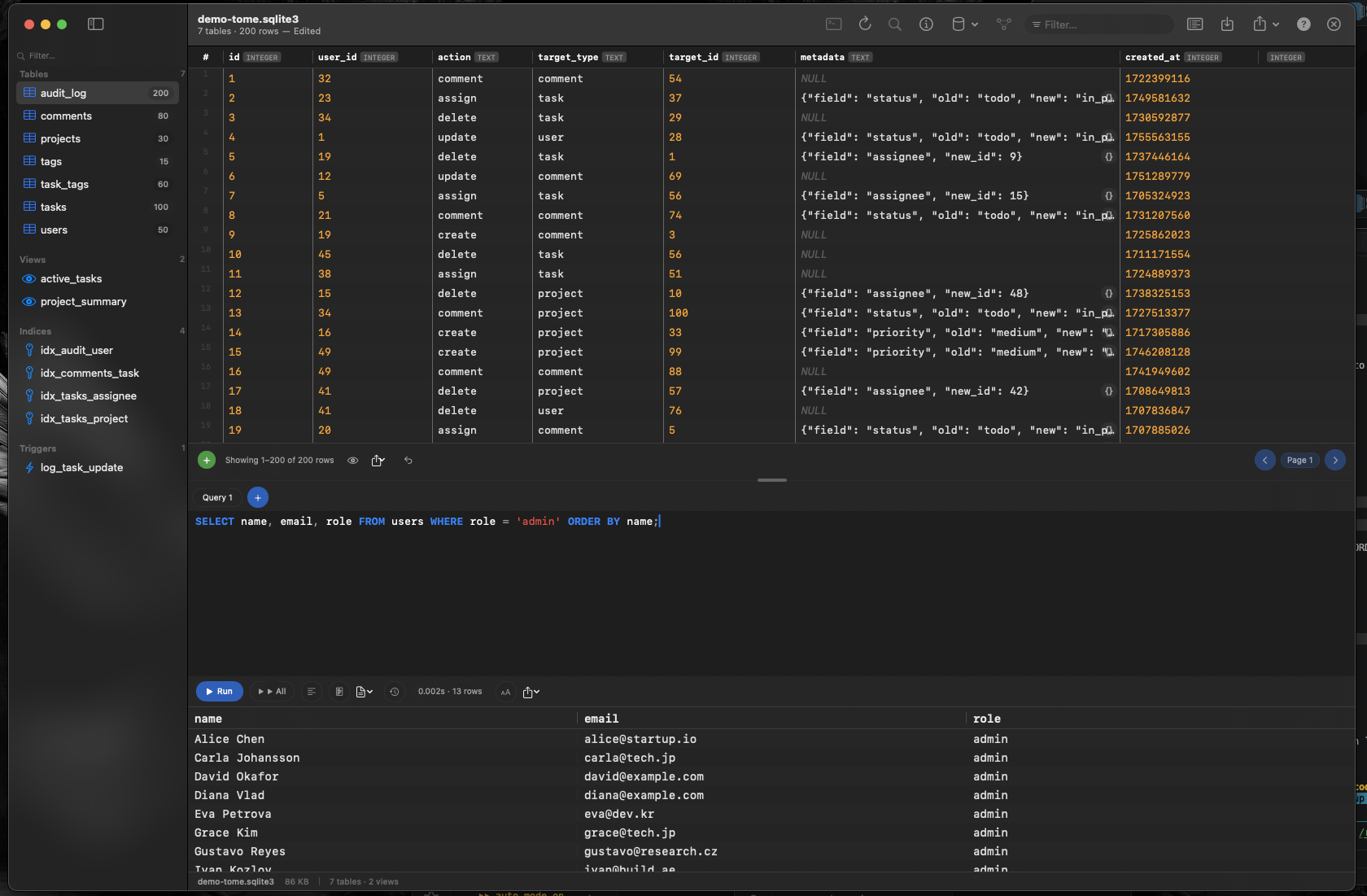
Tome is a document-based macOS app, meaning each database opens in its own window with its own full interface. Open two databases and arrange them side by side using macOS Split View or by dragging windows — the same way you'd compare two text files.
Visual Schema Comparison
With both databases open, check the sidebar of each window. Does the source have tables that the destination doesn't? Are indexes present in one but missing in the other? A visual scan of both sidebars answers these questions instantly.
Row-Level Comparison
Open the same table in both windows and scroll through the data. Sort both by the same column to align rows. Differences in row count or data values become visible when you can see both grids simultaneously.
Query Both Independently
Each window has its own SQL query editor. Run the same aggregation query in both — SELECT COUNT(*) FROM users; — and compare results side by side. Write more complex queries to check sums, averages, or specific record existence in each database independently.