You need to get data from a SQLite database into a CSV file — maybe to share with a colleague who uses Excel, to import into a data visualization tool, or to archive records in a portable format. The sqlite3 CLI can do this, but the workflow is clunky: set the mode to CSV with .mode csv, set the output file with .output filename.csv, run your query, then remember to reset the output with .output stdout. Miss any step and you either get no file or your terminal goes silent because output is still redirected.
The CLI Export Workflow Is Error-Prone
Exporting to CSV with sqlite3 requires multiple dot-commands in the right order. A typical session looks like this:
sqlite3 mydb.sqlite
.headers on
.mode csv
.output export.csv
SELECT * FROM products WHERE category = 'electronics';
.output stdout
Forget .headers on and your CSV has no column headers. Forget .output stdout and your next query result goes to the file instead of the screen. Want to export a second table? Repeat the whole sequence with a different filename. For a one-time export it's tolerable. For regular exports across multiple tables, it's tedious and error-prone.
You could write a Python script with the csv and sqlite3 modules, but that's engineering overhead for what should be a simple data extraction task.
Export With Tome's Query Editor
Tome lets you run any SQL query and see the results in a native grid. From there, selecting and copying the data gives you a format you can paste directly into a spreadsheet or save as CSV. Write your query with auto-complete, run it, and get the data out — no dot-commands, no mode switching.
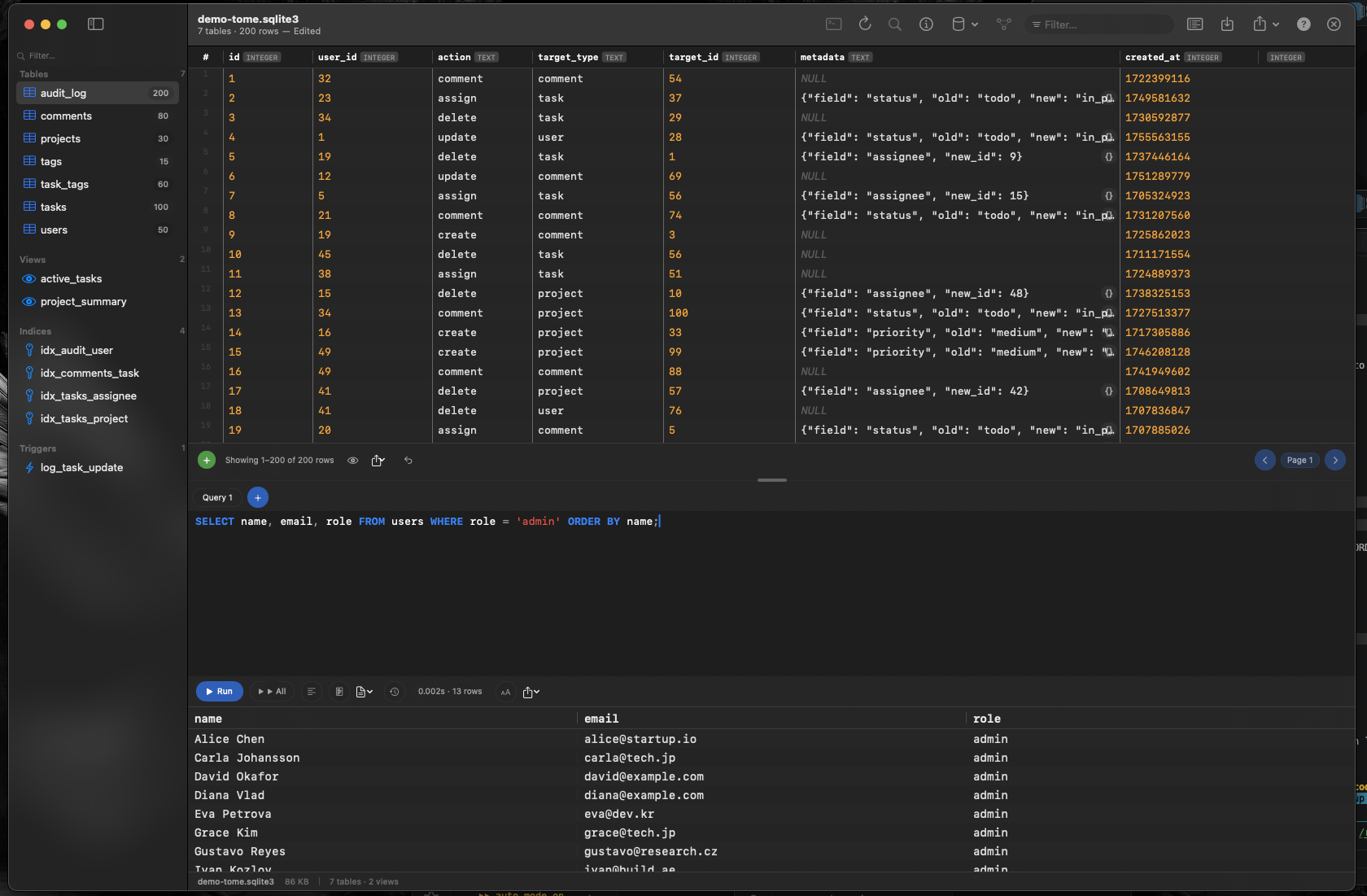
Query First, Export What You Need
Instead of exporting an entire table and filtering in Excel, write a targeted query in Tome: filter rows, join tables, aggregate values, and format columns with SQL. Export only the data you actually need, already shaped the way you want it.
Visual Verification Before Export
See your query results in a scrollable grid before exporting. Check that columns are correct, data looks right, and the row count matches expectations. Catching errors before export saves you from re-doing the work after opening a bad CSV in Excel.
Browse the Full Schema First
Not sure which table has the data you need? Browse tables, views, and their columns in Tome's sidebar. Click through sample data to understand the schema before writing your export query. This visual exploration is far faster than running .schema commands in Terminal.