Firefox keeps your entire browsing history, bookmarks, and site metadata in a SQLite database called places.sqlite. You might want to search through old history that Firefox's built-in search doesn't surface well, export your browsing data, or analyze your habits. But opening this file isn't straightforward — Firefox locks it while running, and once you get a copy, macOS has no built-in way to view it visually.
Locating and Copying the Database
Firefox's profile folder lives at ~/Library/Application Support/Firefox/Profiles/xxxxxxxx.default-release/. Inside, you'll find places.sqlite alongside other databases like cookies.sqlite and formhistory.sqlite. The catch: Firefox locks these files while the browser is running. You need to either quit Firefox first or copy the file to another location while it's running (though the copy may be inconsistent if Firefox is writing at that moment).
Once you have the file, the Terminal approach means running sqlite3 places.sqlite and writing queries against tables like moz_places, moz_historyvisits, and moz_bookmarks. The schema isn't intuitive — visit timestamps are stored in microseconds since epoch, URLs are in one table while visit metadata is in another, and getting a readable history list requires a JOIN. This is workable for someone fluent in SQL but unreasonable for most users.
Browse Firefox History Visually With Tome
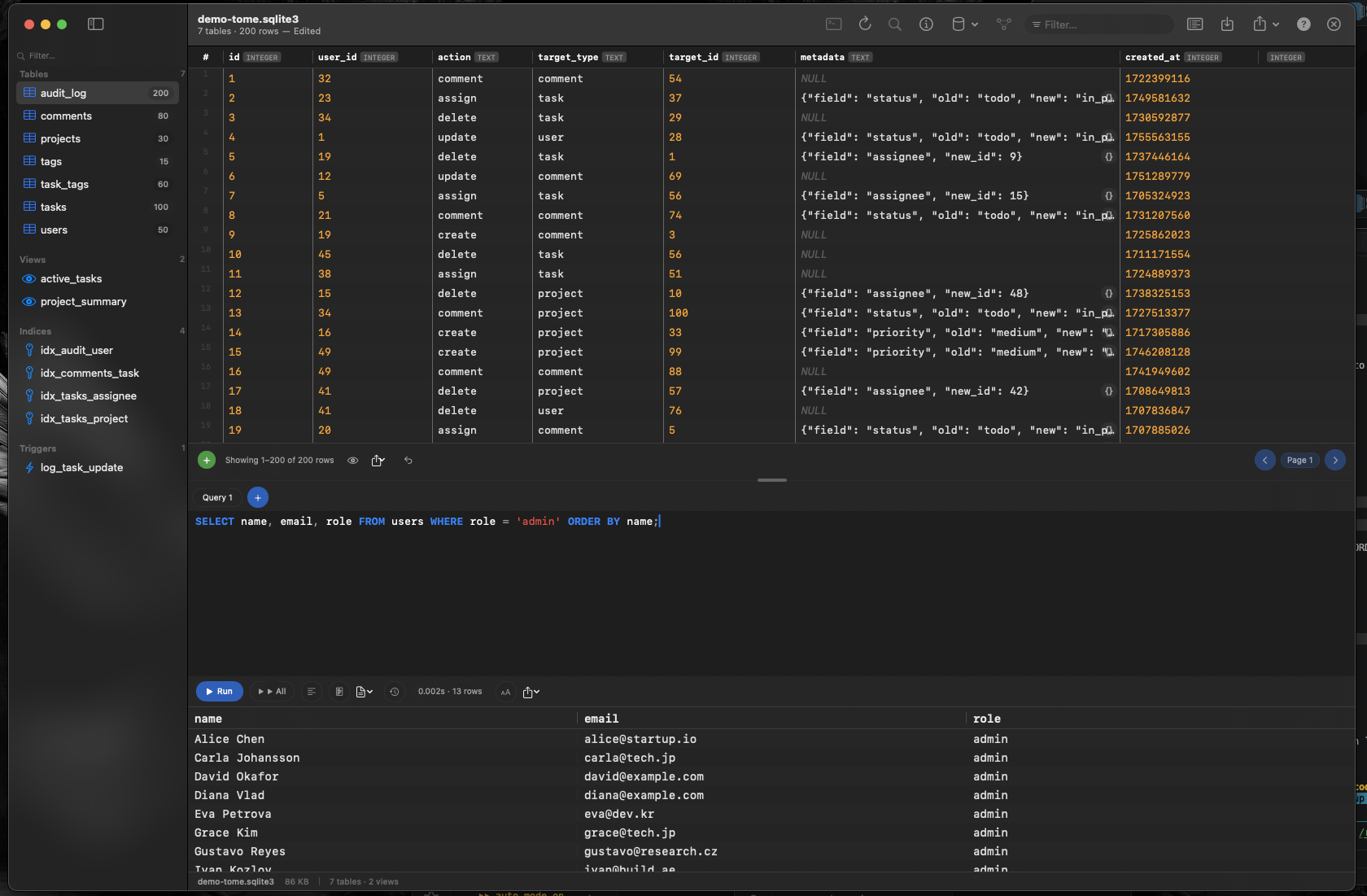
Tome opens places.sqlite like any other database file. Drag the copied file onto Tome and immediately see every table — moz_places, moz_historyvisits, moz_bookmarks, and more — listed in the sidebar. Click any table to browse its contents in a scrollable grid.
Search and Filter Your History
Use Tome's SQL query editor to write targeted searches. Find every visit to a specific domain, filter by date range using the microsecond timestamps, or count how many times you visited a particular site. Syntax highlighting and auto-complete make writing these queries fast.
Explore Bookmarks and Metadata
The moz_bookmarks table stores your bookmark tree structure with parent-child relationships. Browse it in Tome to see your full bookmark hierarchy, including folder structure and sort order — details that Firefox's bookmark manager sometimes obscures.
Inspect Other Firefox Databases
The same profile folder contains cookies.sqlite, formhistory.sqlite, and content-prefs.sqlite. Each is a standard SQLite database that Tome can open. Check what cookies a site set, review saved form entries, or inspect per-site preferences — all visually, without writing raw queries in Terminal.