You're writing a SELECT query against a SQLite database with thirty tables. You remember the table is called something likeuser_sessionsorsession_logs— but which one? And the timestamp column — is itcreated_at,timestamp, ordate_created? In thesqlite3CLI, you'd switch to.schemamode, look up the table, go back to writing your query, and repeat for every column reference. This context-switching is where most of your query-writing time actually goes.
The Cost of No Auto-Complete
Thesqlite3CLI has no auto-complete for table or column names. You type from memory, and if you misspell something, you get an error after executing — not while typing. For simple databases with a few tables, this is manageable. For databases with dozens of tables and hundreds of columns, it's a constant tax on your productivity.
Some developers copy table schemas to a notes file and reference it while writing queries. Others run.tablesandPRAGMA table_info(tablename);repeatedly. Both approaches are workarounds for a missing feature — the query editor should know your schema and help you write correct SQL.
Full database IDEs like DataGrip offer excellent auto-complete, but they're expensive, heavy, and designed for enterprise workflows. For a local SQLite file, you shouldn't need a subscription-based IDE just to get table name suggestions.
Tome's Auto-Complete Query Editor
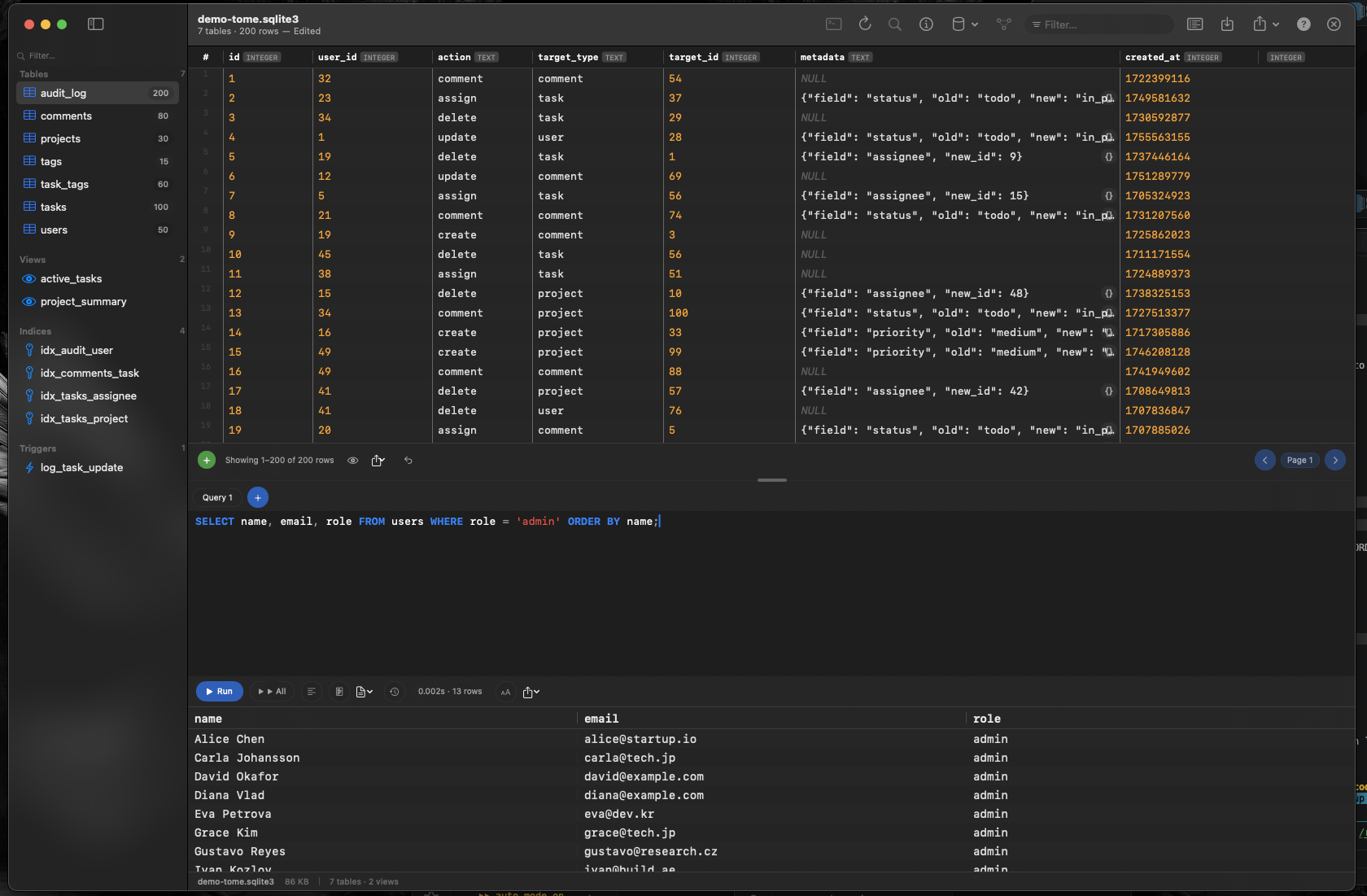
Tomeincludes a SQL query editor that knows your database schema. Start typing a table name and it suggests matches. Reference a table and column names appear as completions. It's not a full IDE — it's exactly the level of assistance that makes writing SQLite queries fast without adding complexity.
Schema-Aware Suggestions
Tome reads your database schema when you open the file. Table names, column names, and SQLite keywords all appear as suggestions while you type. No need to memorize column names or switch to a schema browser mid-query.
Destaque de Sintaxe
SQL keywords, string literals, numbers, and identifiers are color-coded. Spot a missing quote or a misspelled keyword before you run the query, not after reading an error message.
Resultados em uma Grade Nativa
Query results appear instantly in a native macOS table view. Sort columns, resize them, and scroll through large result sets smoothly. Copy results or select specific cells — the grid behaves like a proper Mac data view, not an HTML table rendered in a web view.