A QA tester needs to change a user's role to reproduce a permission bug. A designer wants to swap placeholder text in a prototype's database. A product manager needs to update a config value to test a feature flag. None of them should have to learn SQL syntax to make a simple data change — but on Mac, the default tool for editing SQLite databases is the sqlite3 command line, where even a one-cell edit requires writing UPDATE tablename SET column = 'value' WHERE id = 42;.
SQL Is a Barrier for Non-Developers
SQL isn't difficult to learn in theory, but getting it right under pressure is another matter. Forgetting the WHERE clause in an UPDATE statement changes every row in the table. Using the wrong quotes causes a syntax error. Misspelling a column name produces a confusing error message. For someone who just needs to flip a boolean or change a string, this ceremony is disproportionate to the task.
Even developers often prefer not to write SQL for trivial edits. Opening Terminal, navigating to the file, launching sqlite3, remembering the exact table and column names, and writing a syntactically correct statement — all to change one cell — is slow compared to just clicking and typing.
Edit SQLite Like a Spreadsheet With Tome
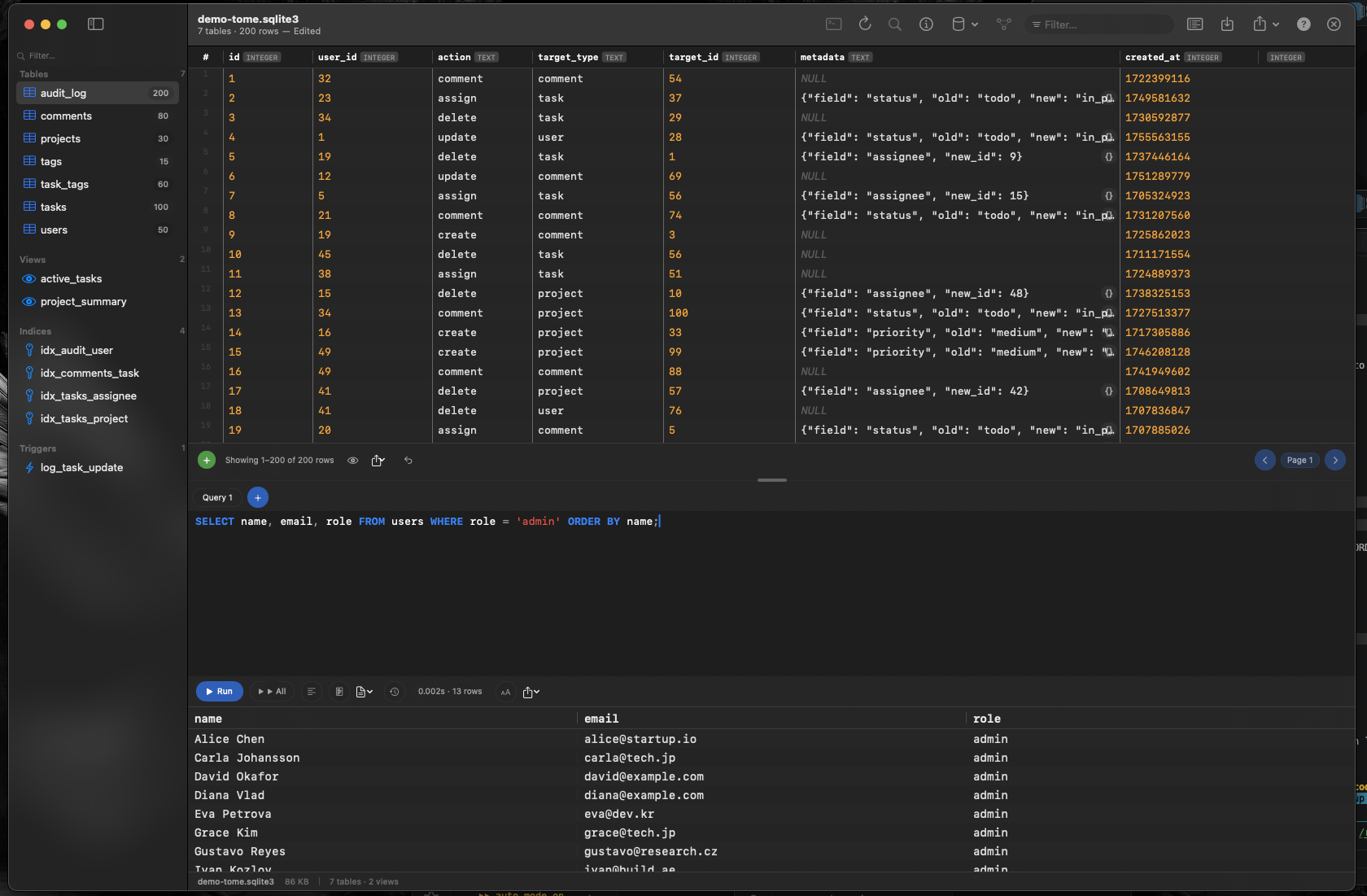
Tome lets anyone edit a SQLite database on Mac without writing a single line of SQL. Open the file, find the table, click the cell, type the new value. It works like editing a spreadsheet — because for simple changes, that's exactly the interface you want.
Click-to-Edit Any Cell
Every cell in Tome's data grid is editable. Click it, change the value, and the update targets that exact row and column. No WHERE clause to forget, no risk of bulk changes, no SQL knowledge required.
Insert and Delete Without Commands
Add a new row by clicking the insert button. Remove rows by selecting and deleting them. Tome handles the INSERT and DELETE SQL behind the scenes, so you interact with your data using familiar actions instead of database commands.
Create Tables Visually
Need a new table? Tome's visual table editor lets you define column names, types, and constraints in a form — no need to write CREATE TABLE syntax from memory. Fill in the fields and the table is created correctly.