Every app on your Mac that persists data locally — notes, bookmarks, messages, health records, to-do lists — likely stores it in a SQLite database tucked inside ~/Library/ or ~/Library/Containers/. Maybe you want to see what data an app collected. Maybe you need to recover something that was deleted from the UI. Maybe you're debugging your own app and need to verify what was actually written to disk. Whatever the reason, macOS gives you no built-in way to inspect these files visually.
Finding and Opening App Databases Is Tedious
First, you need to locate the file. Sandboxed apps store their data in ~/Library/Containers/com.developer.appname/Data/, while non-sandboxed apps may use ~/Library/Application Support/. The Library folder is hidden by default — you need to use Finder's "Go to Folder" or navigate via Terminal. Once you find the .sqlite or .db file, you're stuck using sqlite3 in Terminal, reading raw query output with no visual structure.
For iOS apps running in the Simulator, the path is even deeper: ~/Library/Developer/CoreSimulator/Devices/ followed by a UUID, then another nested path to the app's Documents or Library folder. Finding the right database among dozens of simulator device folders is a scavenger hunt.
Inspect Any App Database With Tome
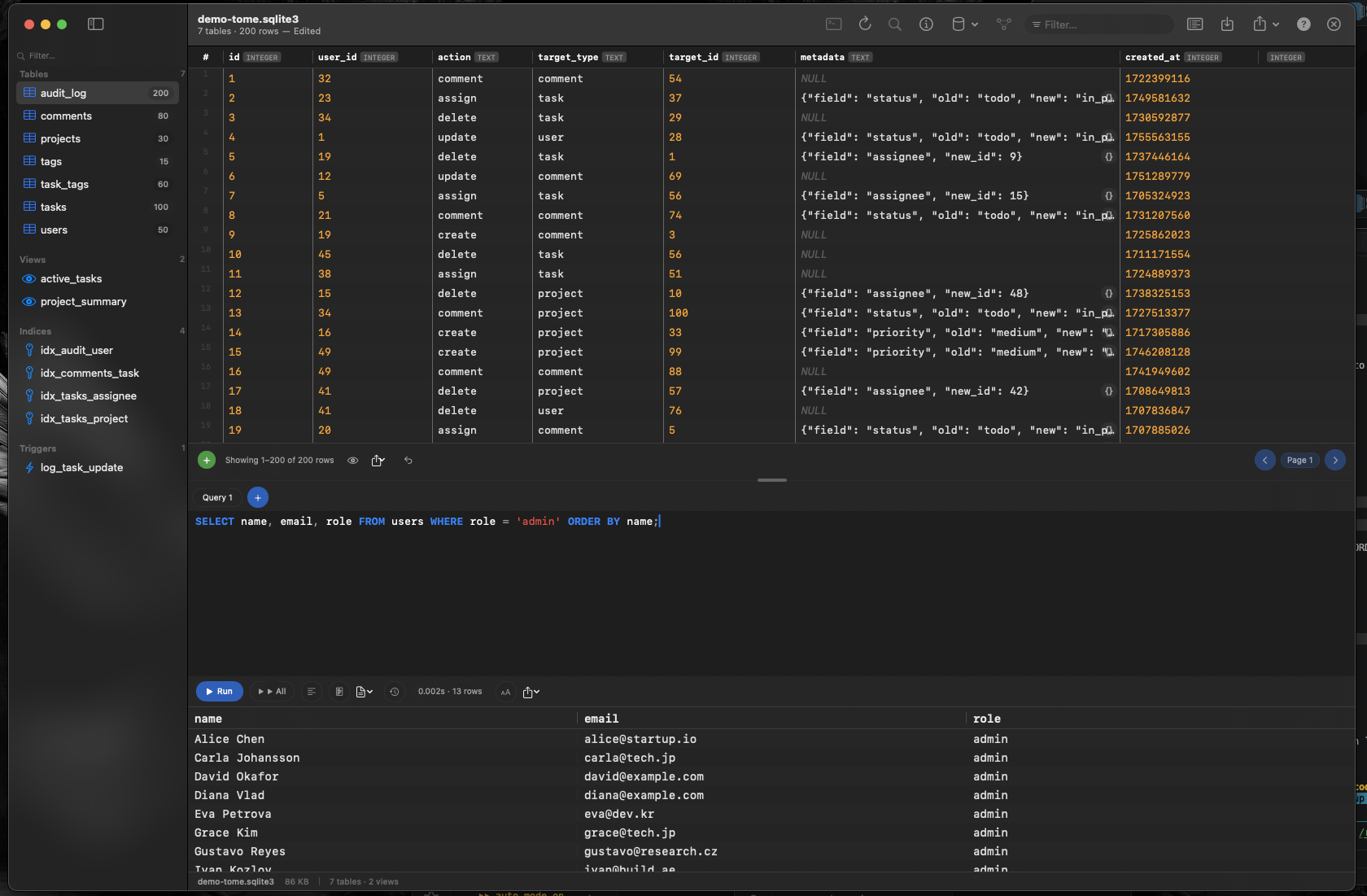
Tome lets you open any SQLite database file and immediately see its contents — tables, views, indexes, triggers, and row data — in a native macOS interface. Once you've located the file, just drag it onto Tome or use File → Open.
Understand What an App Stores
Browse every table to see exactly what data the app persists. Column names reveal the schema design. Row data shows the actual values. No guesswork, no Terminal commands — just click through tables in the sidebar and scroll through their contents.
Debug Your Own App's Data Layer
If you're developing a macOS or iOS app that uses SQLite or Core Data, Tome lets you verify that your writes landed correctly. Check that relationships are intact, inspect auto-generated columns, and run diagnostic queries with syntax highlighting and auto-complete.
Recover or Export Data
Need a record that was deleted from an app's UI but might still exist in the database? Open the file in Tome and search the relevant table. If the data is there, you can read it directly or use a SQL query to extract exactly what you need.