There's a specific kind of search that goes something like "how to set parental controls on my own Mac." It's not a typo — plenty of adults want the same restriction a parent would put on a kid's laptop, just applied to themselves, because they know exactly which sites eat their afternoons and want a wall they can't easily talk themselves past.
The instinct makes sense. The tool doesn't quite fit.
Why Screen Time Feels Wrong for This
Screen Time's parental controls are built around a Family Sharing structure — a parent account managing a child account, with a Screen Time passcode the child doesn't know. When you try to apply that to your own single-user Mac, you're setting a passcode you obviously know, on an account you fully control, which you can just disable whenever the block becomes inconvenient. The entire security model assumes an adult is restricting someone else. Turn it inward and it stops functioning as a real barrier.
It also only limits Safari for website restrictions, so any other browser you have installed is untouched.
A Tool Built for Self-Imposed Blocking
Lock In! is designed specifically for people restricting their own Mac, not a parent managing a child's account — the whole interaction model assumes you're the one setting and honoring the limit.
Session-Based, Not Account-Based
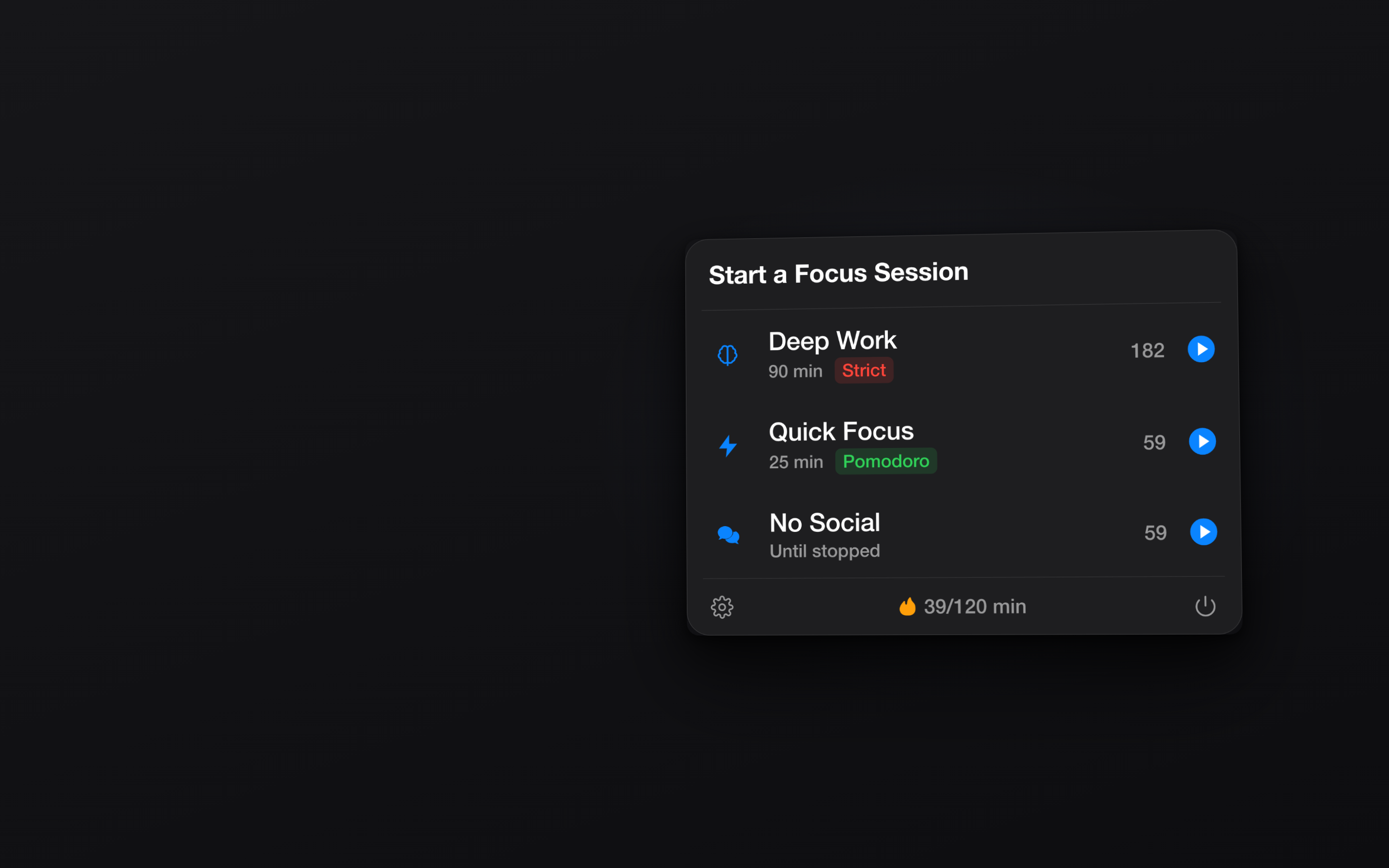
Instead of a permanent restriction tied to a managed account, you start a timed session whenever you want to focus. It blocks your chosen sites and apps for that window, then lifts automatically — no separate account structure required.
Strict Mode Instead of a Passcode You Know
Since a self-set passcode isn't a real deterrent, Strict Mode removes the ability to cancel a session early at all. The commitment is made once, at the start, rather than being one click away from undone.
Covers Every Browser, Not Just Safari
The block runs at the system level, so it applies whether you're in Safari, Chrome, Firefox, or Arc — no gaps left by browser-specific restrictions.
Restriction that's built for you, not for a kid's account you're borrowing. Get Lock In! on the Mac App Store