If you've tried to use Screen Time on your Mac to block distracting websites, you've already discovered the frustration. Apple built Screen Time primarily for parental controls on iPhones. The Mac version is an afterthought, and its website blocking features reflect that.
The Problems with Screen Time Website Blocking
Safari Only
Screen Time's website restrictions only apply to Safari. If you use Chrome, Firefox, Arc, Brave, or any other browser — and most professionals use at least one non-Safari browser — the limits don't apply. You can block twitter.com in Screen Time and still scroll Twitter in Chrome without any restriction.
One-Click Dismiss
When you hit a Screen Time website limit in Safari, you see a prompt. That prompt has an "Ignore Limit" button. One click and you're back on the site. The limit resets the next day and you do it again. It's a reminder, not a block — and reminders don't work against habitual distractions.
Unreliable Across Updates
Screen Time on Mac has a history of bugs. Limits that stop syncing, restrictions that silently disable themselves, categories that don't include the right websites. Each macOS update seems to fix some issues and introduce others. It's not a tool you can depend on for daily focus discipline.
No Timer-Based Sessions
Screen Time uses daily time limits — "30 minutes of social media per day." But that's not how focus work happens. You need to block sites for the next 2 hours while you finish a project, not manage a daily budget. Screen Time doesn't support timed focus sessions at all.
Lock In! Does What Screen Time Should
Lock In! was built specifically because Screen Time fails at this job. It uses a macOS system extension to block websites across every browser — Safari, Chrome, Firefox, Arc, all of them. No browser is exempt.
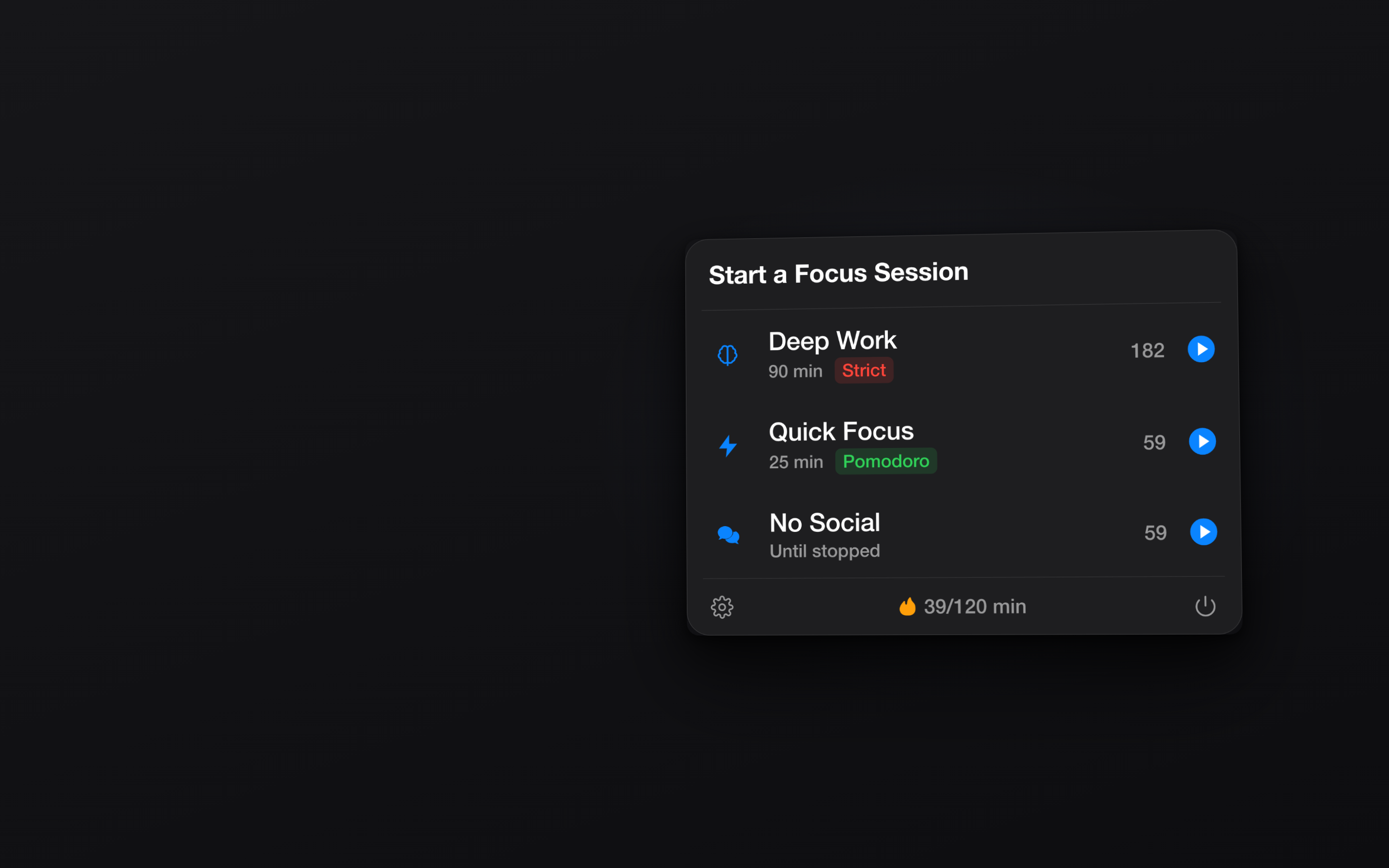
No Dismiss Button
Blocked websites simply don't load. There's no prompt to ignore, no button to click through. In Strict Mode, you can't even end the session early. The block is absolute.
Session-Based, Not Budget-Based
Lock In! uses timed sessions. Block your distractions for 25 minutes, 1 hour, or 4 hours. When the session ends, everything unblocks automatically. This fits how real work sessions function — concentrated bursts, not all-day rationing.
Stop fighting Screen Time's limitations. Get Lock In! on the Mac App Store