You recorded a screen capture for a tutorial, and macOS saved it as a .mov file. You drag it into your CMS, and the upload fails — MP4 only. You try to attach it to an email or upload it to a client portal, and same thing. MOV is Apple's default container, but MP4 is what the rest of the world expects.
This is the single most common video conversion on macOS, and the OS itself doesn't offer a clean one-click way to do it.
Your Options Without Third-Party Software
iMovie can export as MP4, but importing a screen recording into iMovie just to re-export it is absurd overhead for a container change. QuickTime Player's File > Export As menu offers fixed resolution presets (1080p, 720p, 480p) but no option for "same resolution, just MP4." The ffmpeg command-line tool does this perfectly — ffmpeg -i input.mov -c copy output.mp4 — but requires installation via Homebrew and comfort with the terminal.
There's a gap between "open iMovie" and "install Homebrew" that should be filled by a simple converter.
MOV to MP4 in a Native Converter
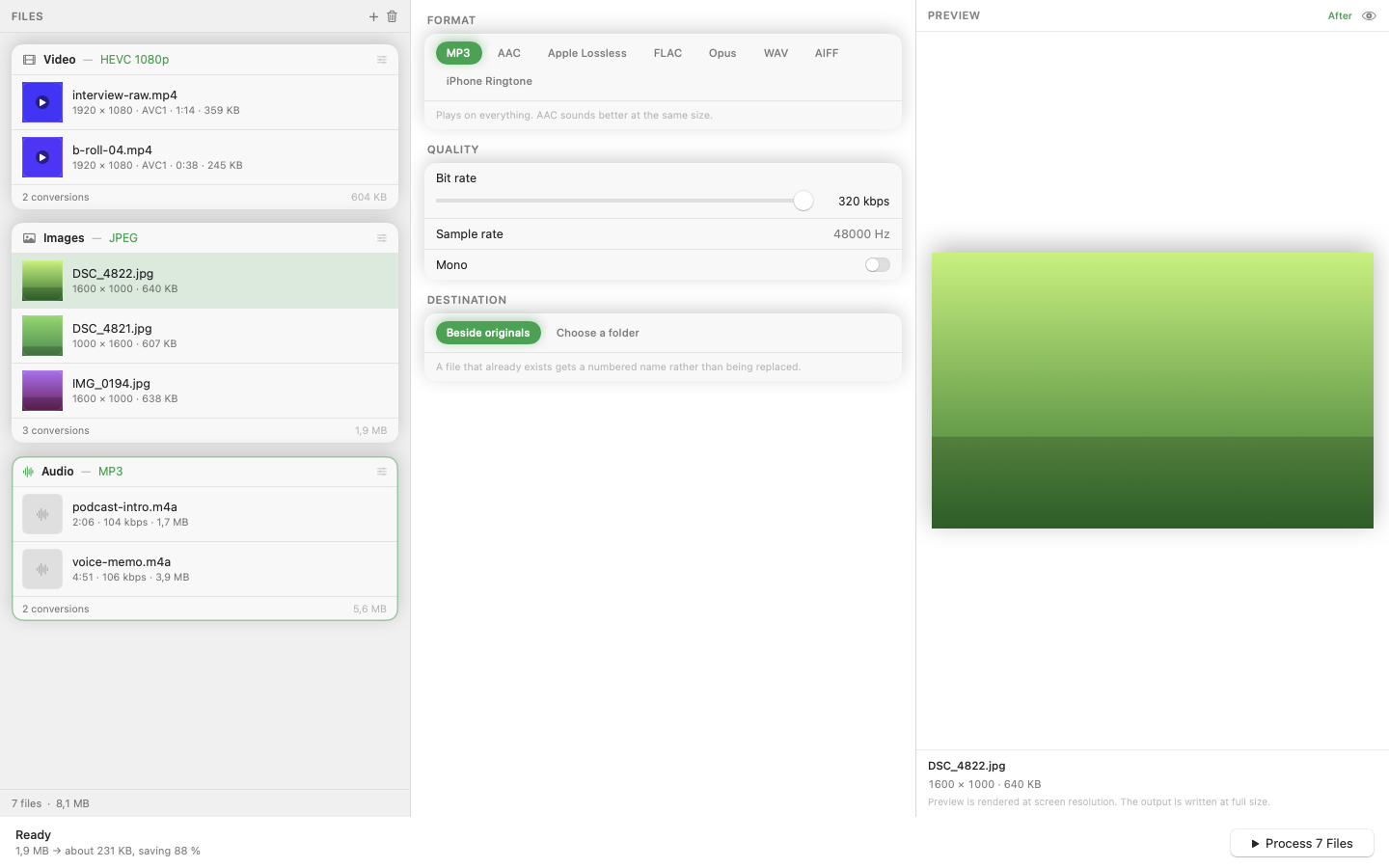
Mediasmith handles this conversion with drag and drop. Drop the MOV file onto the video queue, select MP4 as the output format, and convert. On Apple Silicon, hardware-accelerated encoding means even long videos finish fast with minimal battery impact.
Batch MOV Conversion
If you have a folder of screen recordings, iPhone videos, or camera footage — all MOV — drop them all at once. The batch processes concurrently, so you're not waiting for each file to finish before the next starts.
Beyond Video
The same app also handles images and audio in separate queues. If your workflow involves converting screen recordings (MOV to MP4), optimizing screenshots (PNG to WebP), and exporting audio clips (WAV to MP3), all three happen in one window without switching tools.
MOV to MP4 is a two-second task that macOS makes surprisingly difficult. A native converter puts it back where it belongs — drag, drop, done.