Shooting RAW gives you the maximum editing latitude a camera can offer — full dynamic range, no in-camera compression decisions baked in, complete control in post. It also means every file is enormous and unreadable by almost anything outside a dedicated photo editor. Before a RAW photo can go on a website, into a client gallery, or onto social media, it needs to become a JPG.
Where RAW Conversion Usually Happens
Most photographers convert RAW to JPG as part of editing in Lightroom, Capture One, or Photos, exporting the final edited version. That's the right workflow when every image needs individual adjustment. But sometimes you just need a batch of RAW files turned into JPGs with no editing — a quick client preview set, a backup of unedited shots, or images that were already color-corrected in camera and just need the format changed.
Batch Conversion Without Opening an Editor
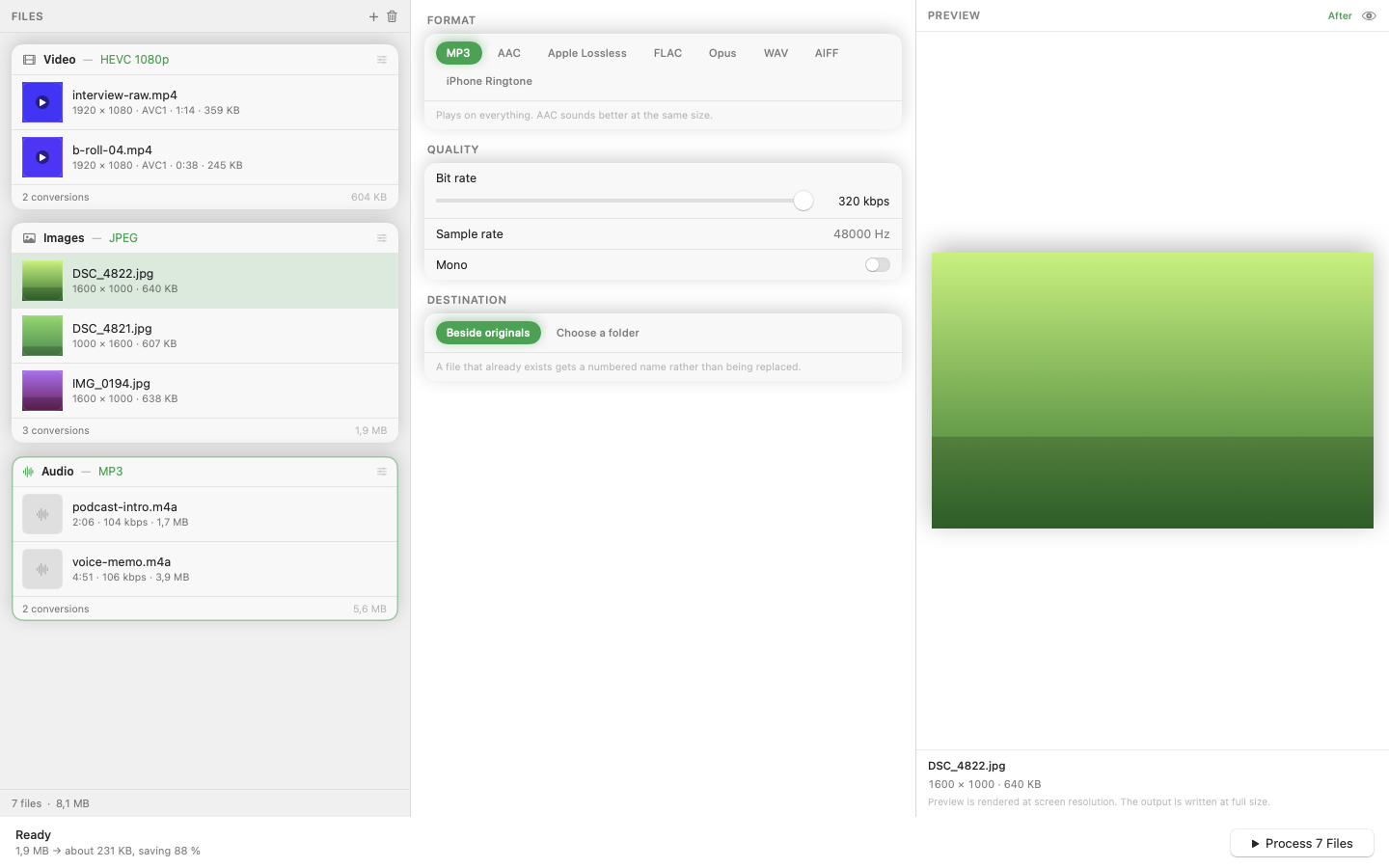
Mediasmith handles straightforward RAW-to-JPG conversion as a batch job on its image queue, without requiring you to open each file in an editing app first. Drop the folder in, set JPG as the output and choose a quality level, and convert the whole shoot in one pass.
When This Approach Makes Sense
Batch RAW conversion without editing is right for images that don't need individual correction — well-exposed shots, a quick contact sheet for a client to choose from, or images you'll edit selectively later and just need previewable in the meantime. If every image needs its own exposure and color adjustment, a full RAW editor is still the correct tool for that pass.
Resize at the Same Time
RAW files often produce JPGs at full sensor resolution, which is far more than most destinations need. Since resize sits in the same pipeline as format conversion, you can scale the output down to a web-appropriate size in the same batch run instead of a separate resize step afterward.
Keep the RAW Files
Treat the JPGs as disposable previews or delivery copies. The RAW originals remain your actual asset — don't delete them once you have JPGs, since the RAW file is what preserves the option to re-edit later.