Watermarking a photo before sharing it publicly — a photographer's logo, a copyright notice, a brand mark on product shots — is a reasonable thing to want on every image you publish. Doing it manually in Preview's Markup tools, positioning a logo image by hand on each photo, is reasonable for one photo and miserable for a hundred, and manual placement means the watermark ends up in a slightly different spot on every image.
The Manual Watermarking Problem
Preview technically lets you overlay one image on another using Markup, but there's no batch mode, no way to lock the watermark's position and size across a set of images, and no way to automate it. Every photo becomes a small manual editing session, and consistency across a large batch is nearly impossible to maintain by eye.
Consistent Placement Across a Whole Batch
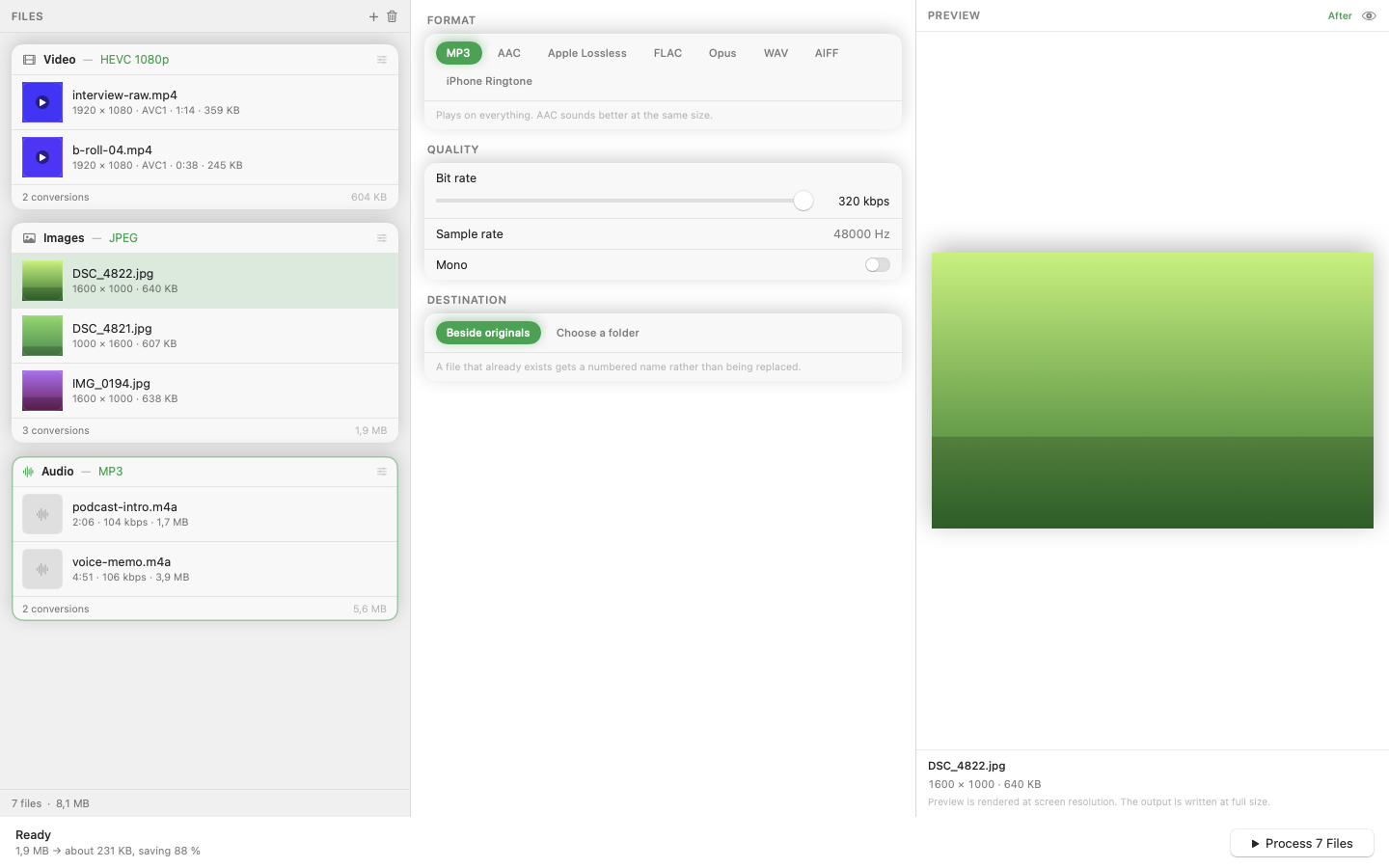
Mediasmith includes watermarking as a stage in its ordered image pipeline. Set the watermark image, position, and size once, drop your batch of photos onto the queue, and every photo gets the same watermark in the same place — no manual repositioning per file.
Resize First for Consistent Watermark Scale
If your source photos vary in dimensions, a watermark sized for one photo can look tiny on a larger image or oversized on a smaller one. Running resize first in the pipeline so every photo hits the same dimensions before the watermark stage keeps the watermark's relative size consistent across the whole batch.
Format Convert on the Way Out
If the watermarked photos also need a format change — HEIC to JPG for wider compatibility, for instance — that happens in the same pass rather than as a separate step, so a single queue run produces resized, watermarked, format-converted output ready to publish.
Save It as a Preset
If you watermark every batch of photos you publish, save the watermark settings as a preset so future shoots skip the setup and go straight to converting.
A consistent watermark across a whole gallery reads as intentional and professional. A slightly-off-position one on every third photo reads as an afterthought — batch tooling is the difference between the two.