सुबह 9 बजे आप Zoom call पर हैं — Zoom 100%, Spotify muted, Slack muted चाहते हैं। सुबह 10 बजे call खत्म — Spotify 40%, Slack 15% चाहते हैं। दोपहर में gaming — game 60%, Discord 100%, बाकी सब muted। हर situation के लिए एक अलग ideal volume configuration है।
Volume profiles क्या हैं?
एक volume profile हर ऐप की volume और mute state का एक saved snapshot है। आप अपने apps configure करते हैं — Spotify 30%, Zoom 100%, Slack muted — फिर उसे "Work" या "Meeting" जैसे named profile के रूप में save करते हैं।
macOS में volume profiles नहीं हैं
macOS में Focus modes हैं लेकिन वे volume levels control नहीं करते। वे notification sounds पूरी तरह suppress कर सकते हैं, लेकिन Spotify को 30% या Zoom को 100% सेट नहीं कर सकते।
SoundDial के साथ profiles setup करना
SoundDial में एक built-in profile system है:
- Menu bar से SoundDial खोलें
- एक specific situation के लिए हर app की volume adjust करें
- Profile section में "+" button click करें
- इसे नाम दें (जैसे "Meeting") और icon चुनें
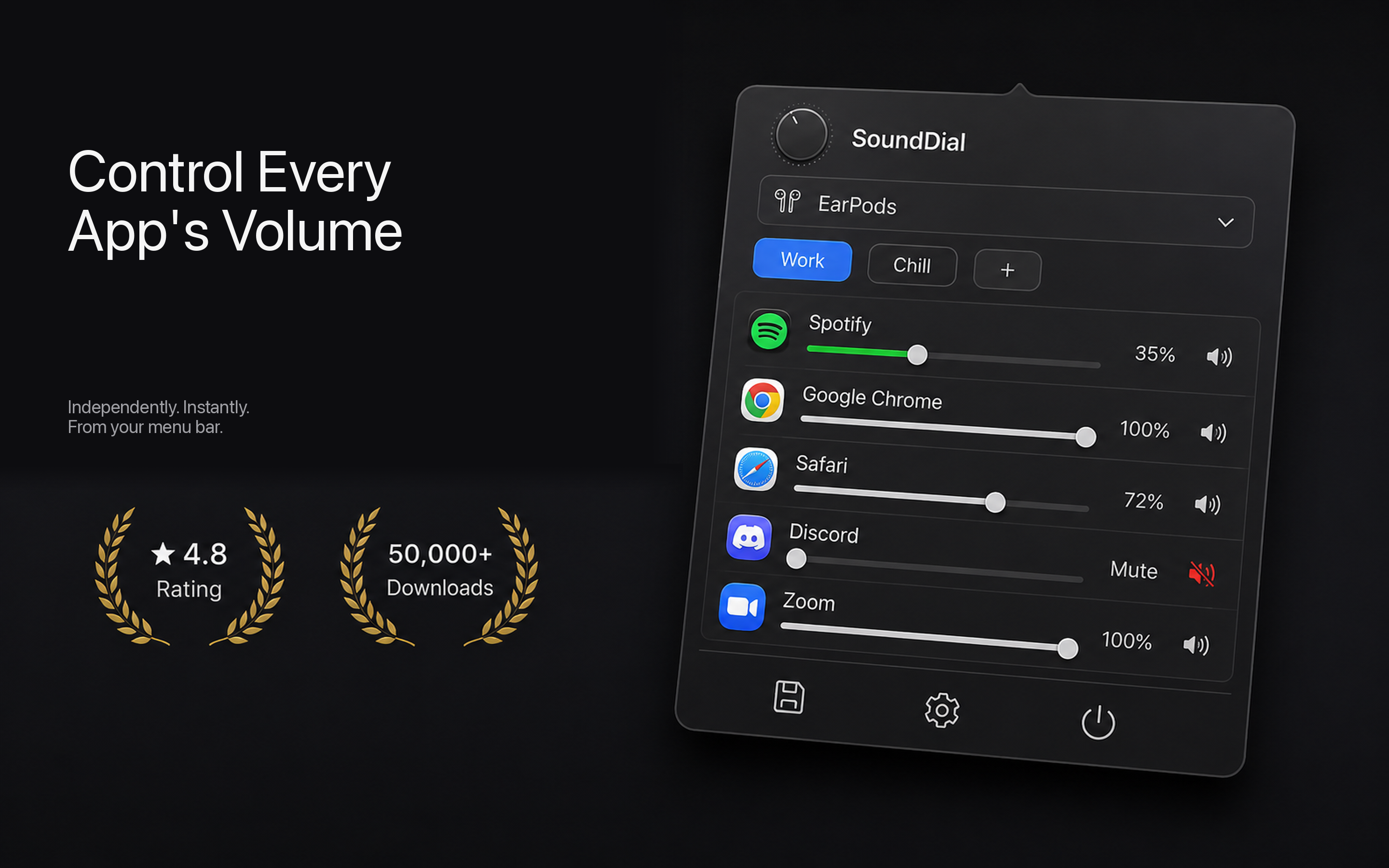
उदाहरण profiles
Meeting: Zoom/Teams: 100%, Spotify: मम्यूट, Slack: म्यूट
Focus Work: Spotify: 35%, Slack: 10%, Browser: 50%
Gaming: Game: 60%, Discord: 100%, Spotify: 20%
Chill: Spotify: 70%, Browser: 60%, Notifications: 20%
Profiles + auto-ducking = पूरी तरह automatic
Profiles को SoundDial के auto-ducking feature के साथ मिलाएं और आपको शायद ही volume touch करनी पड़े।
Mac App Store पर SoundDial पाएं — €14.99 एकमुश्त खरीद, कोई सदस्यता नहीं, macOS 14.2+।