Some timer apps insist on being seen: a floating always-on-top window, a full-screen countdown, or a widget that claims a chunk of your desktop. The intention is good — keep the timer visible — but the execution gets in the way of the actual work you're timing. You end up resizing windows around the timer or shrinking it into a corner where it half-covers something else.
A timer's job is to run in the background of your attention, not the foreground of your screen. If it needs its own dedicated space, it's already asking for more than it should.
Where floating timers go wrong
An always-on-top window has to sit somewhere, and wherever it sits, it's blocking a few square inches of whatever app is underneath. Move it and it might drift back. Full-screen countdown tools are worse — they take over the entire display, which works for a projector in a classroom but nowhere else. None of these respect that a timer is a secondary tool, not the main thing you're looking at.
The fix: Tickpull
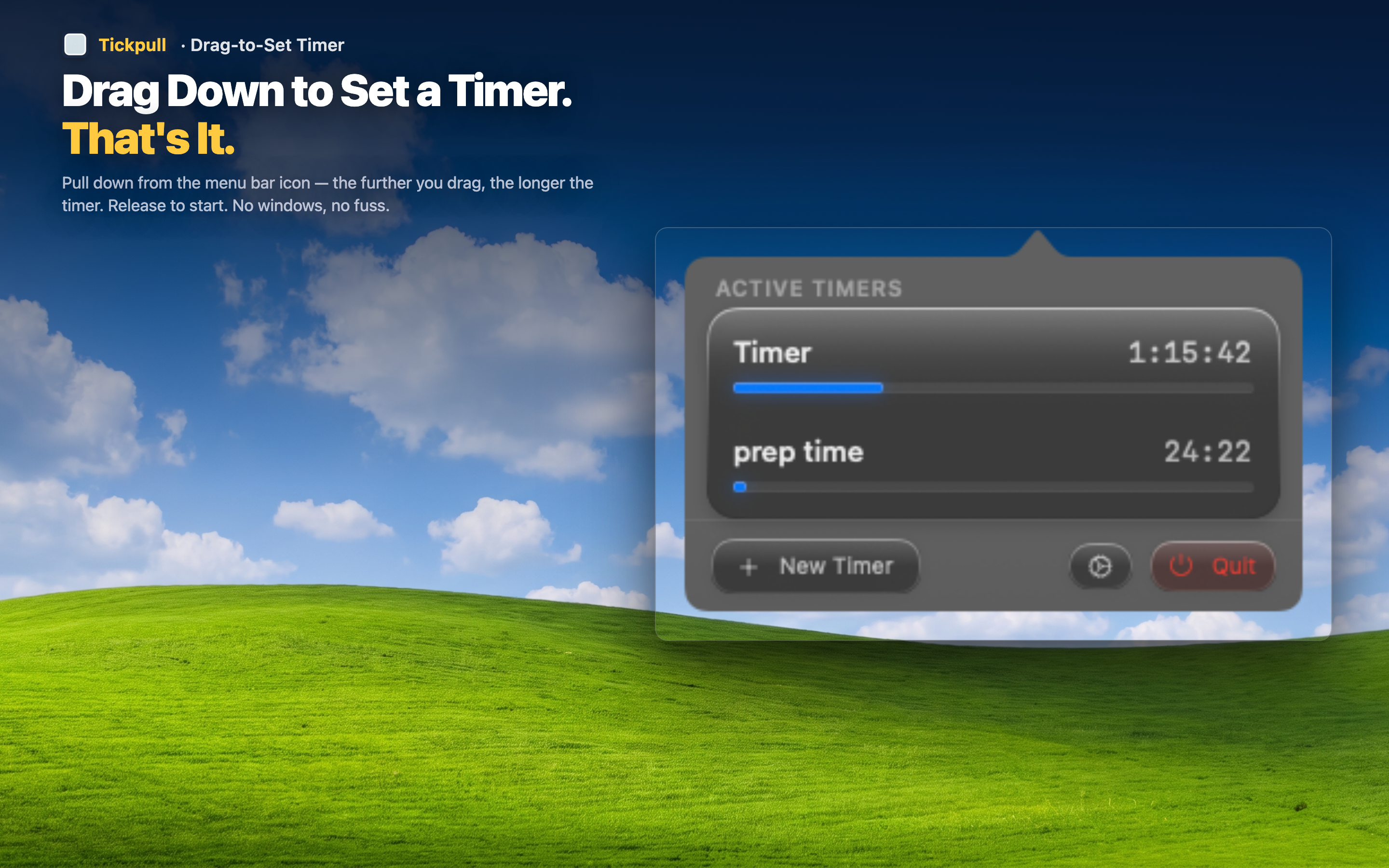
Tickpull has no window at all. The entire interface is a small ring around a menu bar icon — a sliver of space that was already unused. It never covers your document, your code editor, or your video call, no matter how you arrange your other windows.
Small screens and single monitors
On a 13-inch laptop, every pixel of screen space matters. A menu bar timer costs none of it — there's nothing to position or resize to make room.
Video calls and screen sharing
A floating timer window risks appearing in a screen share by accident. Since Tickpull lives outside the shareable window area, it never shows up uninvited on a call.
Full-screen apps and multiple desktops
Because the menu bar persists across full-screen apps and Spaces, the timer stays visible no matter which desktop or app you switch to, without needing a dedicated window to follow you around.