You've got 12 minutes for your slot at the all-hands. Halfway through, you have no idea if you're on pace, behind, or about to run long. Checking your phone mid-presentation reads as distracted to the audience, and turning around to look at a wall clock breaks your flow entirely. What you actually need is a countdown visible on the same screen you're already looking at while you present.
This matters even more for conference talks, client pitches, and recorded webinars, where running long either cuts into someone else's time or gets edited out later.
Why screen-sharing makes this harder
When you're screen-sharing slides or a deck app in presenter mode, most of your display is occupied by content the audience can also see if you're not careful. A separate timer window either has to hide behind your slides or risk showing up in the share. Presentation software timers exist in some tools, but not all of them, and they don't help when you're presenting from Keynote, a PDF, or a browser tab.
The fix: Tickpull
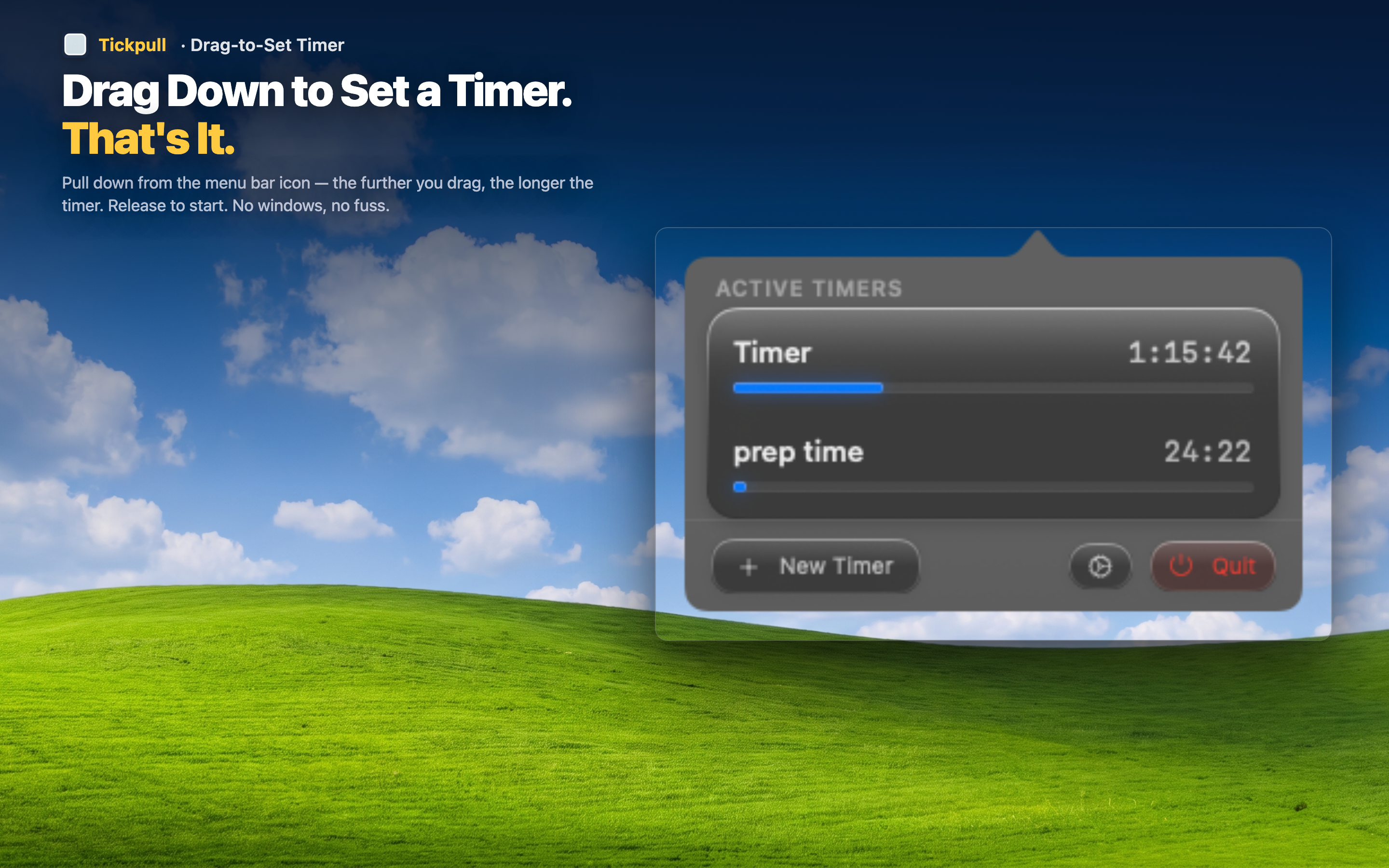
Tickpull keeps the countdown in the menu bar — outside the area you're sharing, but still in your own line of sight. Drag to your allotted time before you start talking, release, and present. The ring fills quietly in the corner, giving you a pacing cue without a window to manage or hide.
Conference and all-hands slots
Set the timer to your exact allotted time before walking on stage or unmuting. A glance at the ring tells you if you need to speed up or if you have room to take a question.
Client pitches
Staying within a scheduled time slot signals respect for the client's calendar. The ring keeps you aware without you having to announce "let me check the time" mid-pitch.
Recorded webinars and demos
When you're recording for later editing, staying close to a target length saves post-production time. A visible countdown helps you naturally wrap sections instead of running long and cutting it down after the fact.