You're debugging a Core Data issue in your iOS or macOS app. The data looks wrong in the UI, and you need to see what's actually stored in the underlying SQLite file. Xcode's Core Data model editor shows your schema, but it doesn't let you browse the actual persisted data. So you go hunting — find the app container, locate the .sqlite file, open Terminal, and start running raw queries against tables with names like ZUSER and ZPOST, where every column is prefixed with Z and nothing matches your entity names intuitively.
Core Data's SQLite Files Are Hard to Inspect
Core Data uses SQLite as its default persistent store, but it adds its own conventions. Entity names get a Z prefix in the table name. Attributes get Z-prefixed column names. Relationships are stored as integer foreign keys in columns you might not immediately recognize. There's a Z_METADATA table and a Z_PRIMARYKEY table that Core Data manages internally.
None of this is documented in a way that makes manual inspection easy. You end up running queries like SELECT * FROM ZUSER; and trying to match the Z-prefixed columns back to your managed object model. In Terminal, with no syntax highlighting and no visual grid, this is tedious.
Xcode doesn't help here. There's no built-in SQLite browser. The Instruments tool can profile Core Data operations, but it won't show you the actual row data. You need a separate tool.
Browse Core Data SQLite Files With Tome
Tome opens Core Data's SQLite files like any other database. Navigate to your app's container, find the .sqlite file, and open it in Tome. Every Z-prefixed table appears in the sidebar. Click one to see all rows and their values in a scrollable grid.
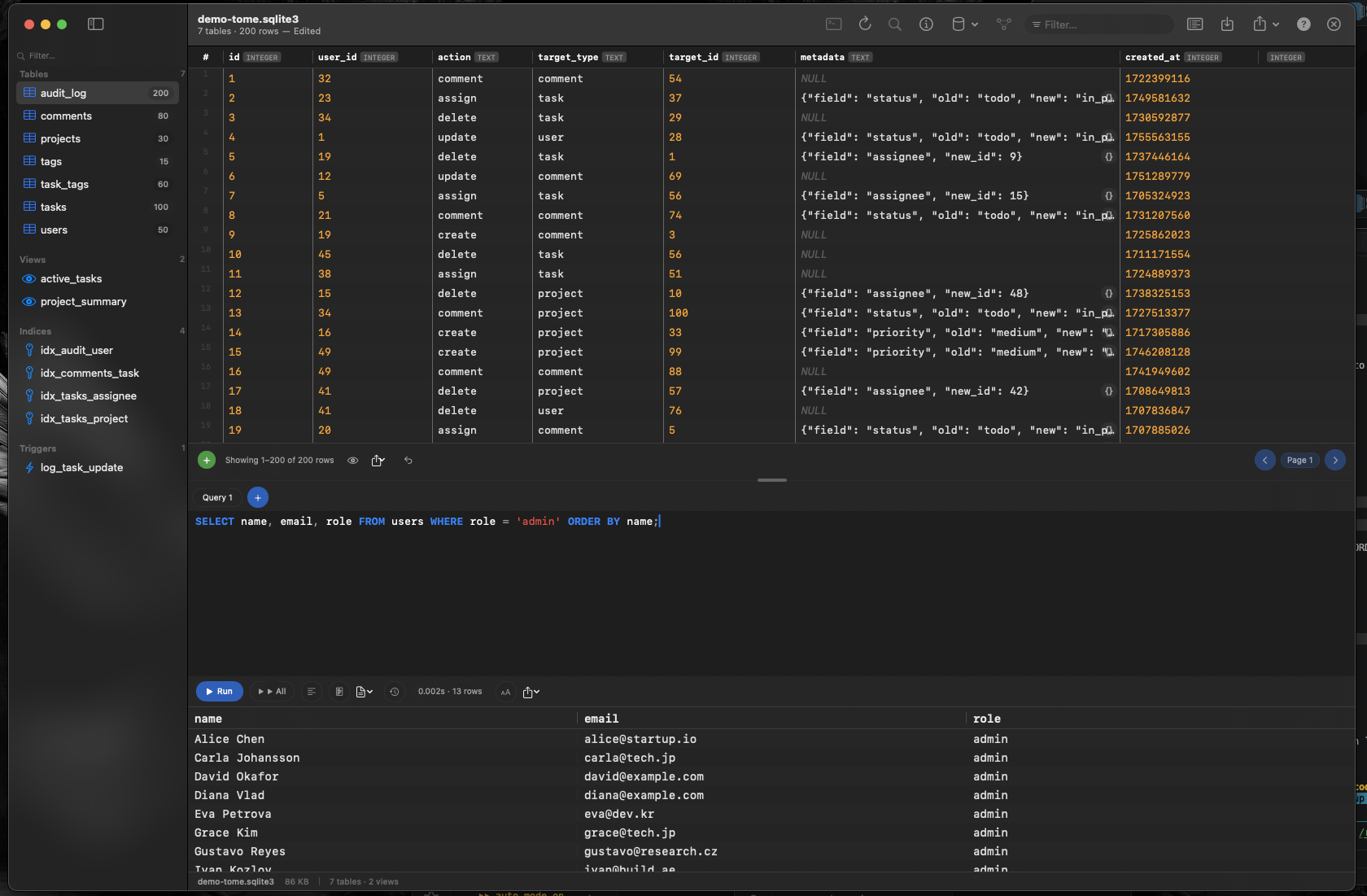
See the Real Data
When your app shows the wrong value, open the SQLite file in Tome and check the actual stored data. Is the value wrong in the database, or is it a fetch/display bug? Having visual access to the raw data answers this question in seconds.
Inspect Relationships and Metadata
Browse the Z_PRIMARYKEY table to see how Core Data tracks entity types and primary keys. Check foreign key columns to verify relationships are stored correctly. Inspect Z_METADATA to see the model version hash.
Run Diagnostic Queries
Use Tome's SQL query editor to write joins across Core Data's Z-prefixed tables, filter for specific records, or check for orphaned rows that might indicate a migration issue. Syntax highlighting and auto-complete make it easier than running raw queries in Terminal.
Safe to Inspect, Easy to Find
For the Simulator, your app's SQLite file lives deep inside ~/Library/Developer/CoreSimulator/. For a macOS app, check ~/Library/Containers/ or ~/Library/Application Support/. Once you've located the file, drag it onto Tome's dock icon and start browsing.