You're building an iOS app that uses Core Data or raw SQLite for persistence. Something looks wrong in the UI — maybe a list isn't populating, or a value appears stale. You need to check the database. Xcode offers a data model editor and an Instruments profiler, but neither shows you the actual rows sitting in the SQLite file. So you open Terminal, hunt down the Simulator's container path, and start running SELECT * queries against Z-prefixed tables. This workflow breaks your concentration every time.
The iOS Developer's Database Problem
Every iOS Simulator run stores its data under ~/Library/Developer/CoreSimulator/Devices/, nested inside a UUID-named directory. The path changes when you reset the simulator or switch devices. Even if you bookmark the location, the next Xcode update might shuffle things. Finding the right .sqlite file is half the battle.
Once you locate it, the sqlite3 CLI gives you raw text output. Core Data's Z-prefixed table and column names make manual queries confusing. There's no auto-complete for column names, no visual grid to scan rows, and no way to quickly edit a test value without writing a full UPDATE statement. Most developers waste minutes on this dance multiple times per day.
Third-party tools like DB Browser for SQLite work but feel foreign on macOS — Qt-based interfaces with wrong keyboard shortcuts and non-native file dialogs. DBeaver and DataGrip are full database IDEs, overkill for inspecting a local SQLite file.
Tome: A SQLite Browser Built for Your Mac Workflow
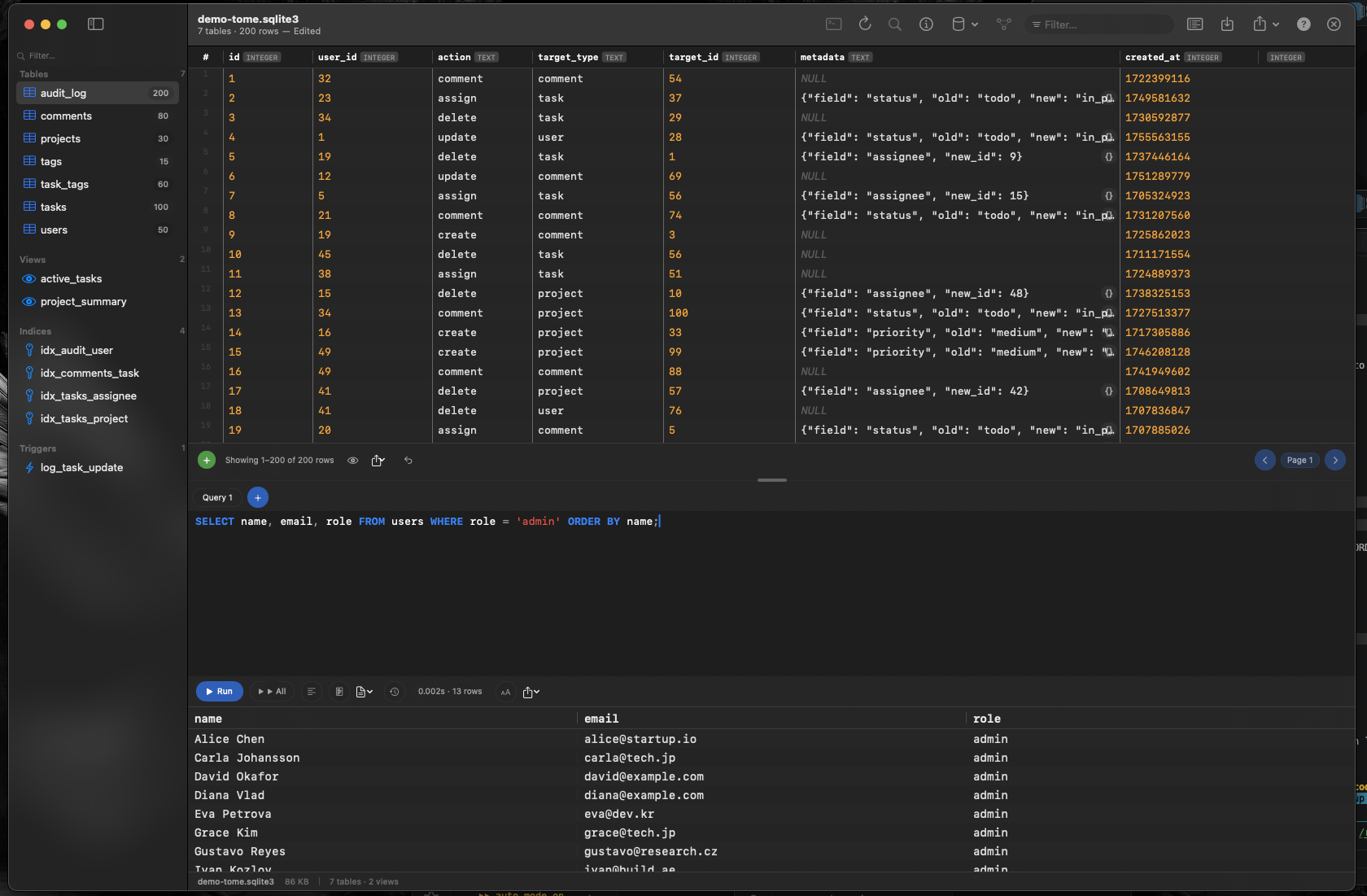
Tome is a native macOS SQLite browser that fits naturally into an iOS developer's workflow. Open the Simulator's .sqlite file and instantly see every table, view, and index. Browse Core Data's Z-prefixed tables in a scrollable grid. Edit values inline to set up test scenarios without writing SQL.
Inspect Core Data Stores Visually
Core Data's SQLite tables use Z-prefixed names that are hard to parse in Terminal. In Tome, every table appears in the sidebar — click one and see all rows with properly aligned columns. Match ZUSER and ZPOST tables back to your managed object model at a glance.
Edit Test Data Without Rebuilding
Need to change a value to reproduce a bug? Click the cell in Tome and type the new value. No need to write an UPDATE statement or re-run your app's seeding logic. Insert rows to test edge cases or delete records to simulate a clean state.
Run Diagnostic Queries
Tome's SQL editor with syntax highlighting and auto-complete lets you write joins, aggregations, and filtered queries against your app's data. Verify relationships, count records, or search for specific values — all without leaving the app.