Every Mac ships with the sqlite3 command-line tool. For developers comfortable in Terminal, it's a reliable way to run quick queries. But there's a point where the CLI stops being efficient and a GUI becomes faster — the trick is knowing where that line is. Using the wrong tool for the task wastes time in both directions.
When the Command Line Wins
The sqlite3 CLI excels at scripted operations. If you're writing a shell script that needs to extract a value from a database, the CLI pipes directly into other commands. One-liner queries are fast: sqlite3 app.db "SELECT count(*) FROM users;" gives you an answer without launching anything. For automation, backups with .dump, and quick checks in an existing Terminal session, the CLI is the right tool.
It's also available everywhere. No installation needed, no app to download. If you're SSH'd into a remote machine or working in a CI pipeline, the CLI is all you have — and it works fine for targeted queries where you know the schema.
When the CLI Fails You
The CLI breaks down for exploration. When you open an unfamiliar database and need to understand its schema, running .tables and .schema tablename repeatedly is slow. Wide tables wrap in the terminal. There's no scrolling through results — output just flies past. Editing data means writing UPDATE statements with precise WHERE clauses, risking accidental bulk updates if you make a typo.
For anyone who isn't a developer — data analysts, designers, QA testers — the CLI is effectively unusable. And even for developers, browsing more than a few tables visually is simply faster in a GUI.
Tome: The GUI Side of the Equation
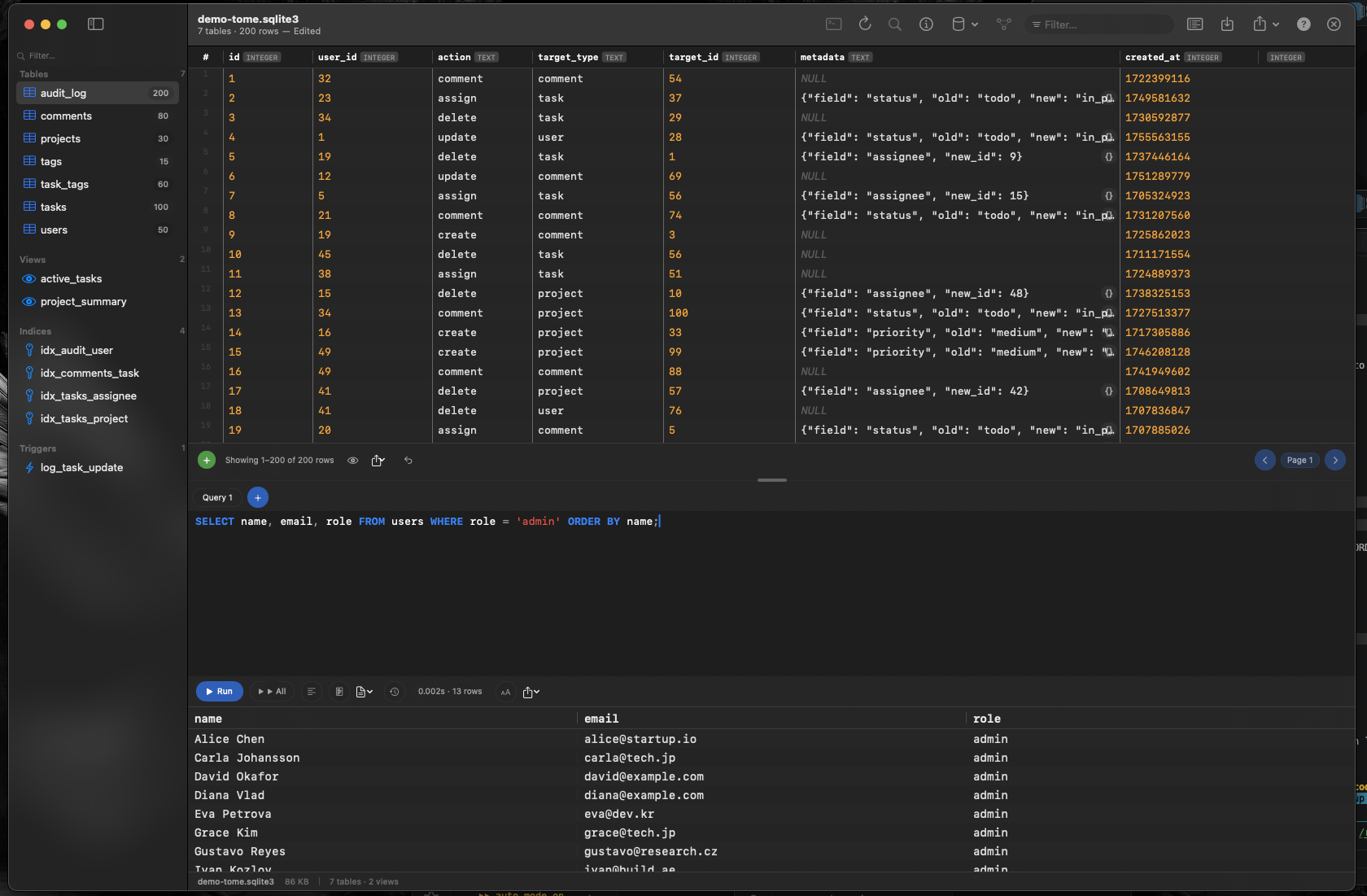
Tome fills the GUI role as a native macOS SQLite browser. It's not a replacement for the CLI — it's the complement. Use the CLI for scripting and quick checks; use Tome for browsing, editing, and understanding databases visually.
Explore Unfamiliar Schemas
Open any database and see every table, view, index, and trigger in the sidebar. Click through tables to understand the schema, scan sample data, and figure out relationships — all without typing a single command.
Edit Safely
Click a cell to change its value. No UPDATE statement, no WHERE clause to get wrong. Insert and delete rows with a click. The risk of accidental bulk changes disappears when each edit targets exactly the cell you clicked.
Query With Assistance
When you do write SQL, Tome's query editor offers syntax highlighting and auto-complete. It's the middle ground between the bare CLI and a full database IDE — just enough assistance to write queries faster without the overhead of enterprise tooling.