WhatsApp stores your chat messages, media references, and contact data in a SQLite database. Whether you've extracted a backup from an iPhone using a tool like iMazing, retrieved a ChatStorage.sqlite file from an iTunes backup, or pulled a msgstore.db from an Android backup, you now have a database file on your Mac. Double-clicking it does nothing useful. You need a way to open it and read the conversations inside.
Why This Is Harder Than It Should Be
WhatsApp's SQLite databases use their own schema. Messages live in tables like ZWAMESSAGE (iOS) or messages (Android), with columns for sender, timestamp, text content, media type, and status. Timestamps are stored in non-standard formats — iOS uses Core Data's epoch (seconds since 2001-01-01), while Android uses Unix milliseconds. Contacts are referenced by JID strings, not readable names.
Opening the file in Terminal with sqlite3 gives you raw access, but reading chat messages as unformatted rows of text with encoded timestamps and JID identifiers is practically useless for most people. You need a visual interface to make sense of the data.
Android backups add another complication: the msgstore.db.crypt15 file is encrypted. You need to decrypt it first using your key file before any SQLite browser can open it. Once decrypted, though, it's a standard SQLite database.
Browse WhatsApp Data With Tome
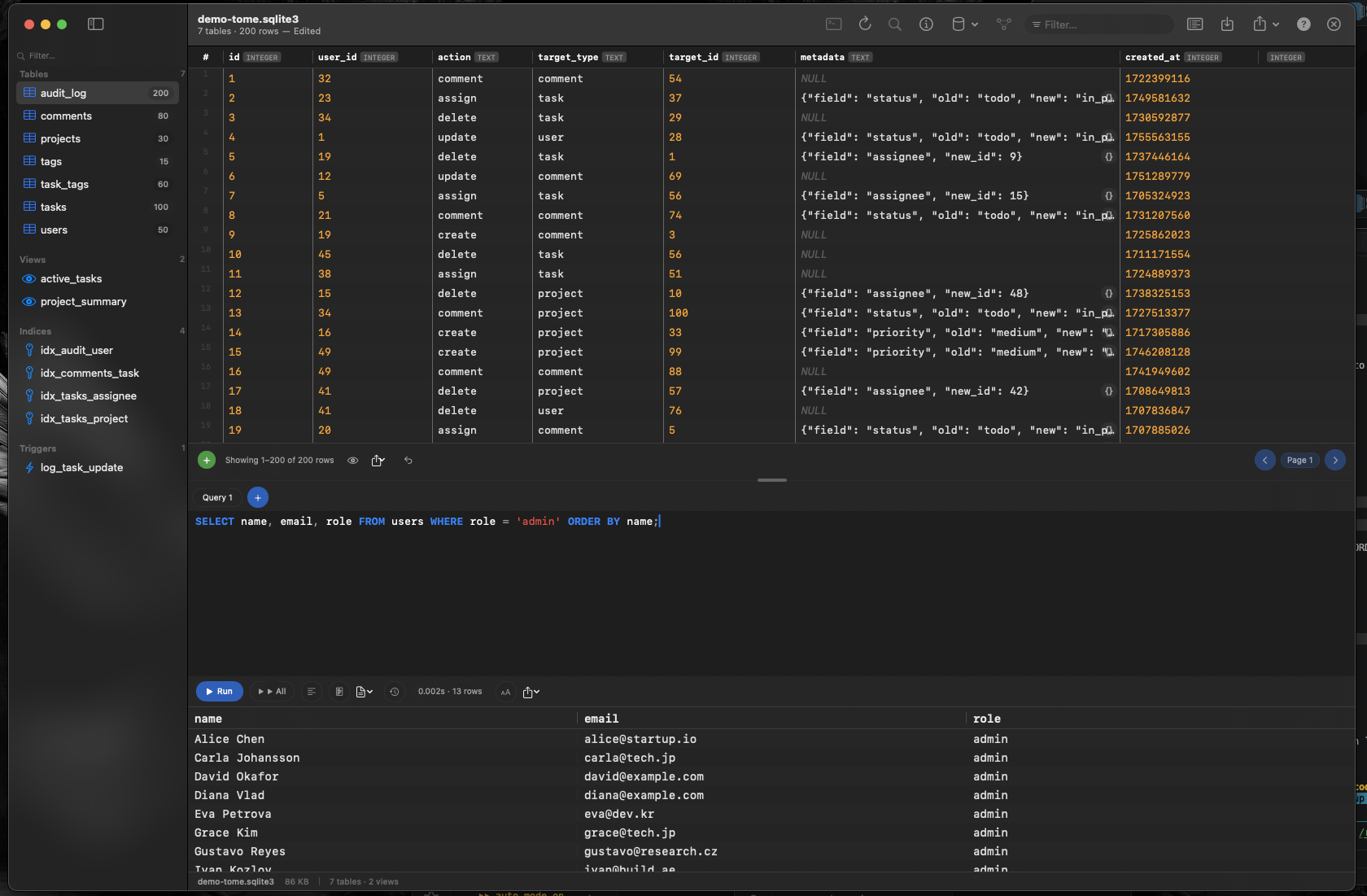
Tome opens WhatsApp's SQLite database files like any other database. Drag the extracted ChatStorage.sqlite or decrypted msgstore.db onto Tome and see every table in the sidebar. Click the messages table to browse your chat history in a scrollable grid.
Read Messages in Context
Browse the messages table to see text content, sender identifiers, timestamps, and media references. Sort by date to read conversations chronologically. Use Tome's SQL editor to filter messages by contact or date range.
Search Across Conversations
Need to find a specific message? Write a quick query in Tome's SQL editor with auto-complete: SELECT * FROM ZWAMESSAGE WHERE ZTEXT LIKE '%keyword%'; Results appear in a native grid you can scroll and sort — far more practical than grep in Terminal.
Your Data Stays on Your Mac
Unlike web-based SQLite viewers that require uploading your database, Tome runs entirely locally. Your WhatsApp messages never leave your machine. Open, browse, query, and close — everything happens on your Mac.