Chrome stores all cookies in a SQLite database file called Cookies (no extension) located at ~/Library/Application Support/Google/Chrome/Default/Cookies. You can view cookies for a single site through Chrome DevTools, but if you want to search across all cookies, analyze tracking patterns, or audit what data sites have stored, you need to open the actual database file. Chrome doesn't offer a way to browse its complete cookie store visually.
The DevTools Limitation
Chrome's Application tab in DevTools shows cookies per domain for the currently loaded page. This works for debugging a specific site's cookies but falls short when you want to see all cookies across all sites, search for a specific cookie name used by multiple domains, or count how many tracking cookies are present. You'd need to visit every site individually and inspect each one — not practical.
The database approach gives you the full picture. But opening Chrome's Cookies file with sqlite3 in Terminal means reading rows of host keys, cookie names, values, expiration timestamps (in Chrome's epoch format — microseconds since January 1, 1601), and encrypted values as raw text. Chrome encrypts cookie values on macOS, so the encrypted_value column contains binary blobs that aren't readable directly. The metadata columns — host, name, path, expiration, flags — are still readable and often what you actually need.
Browse Chrome Cookies With Tome
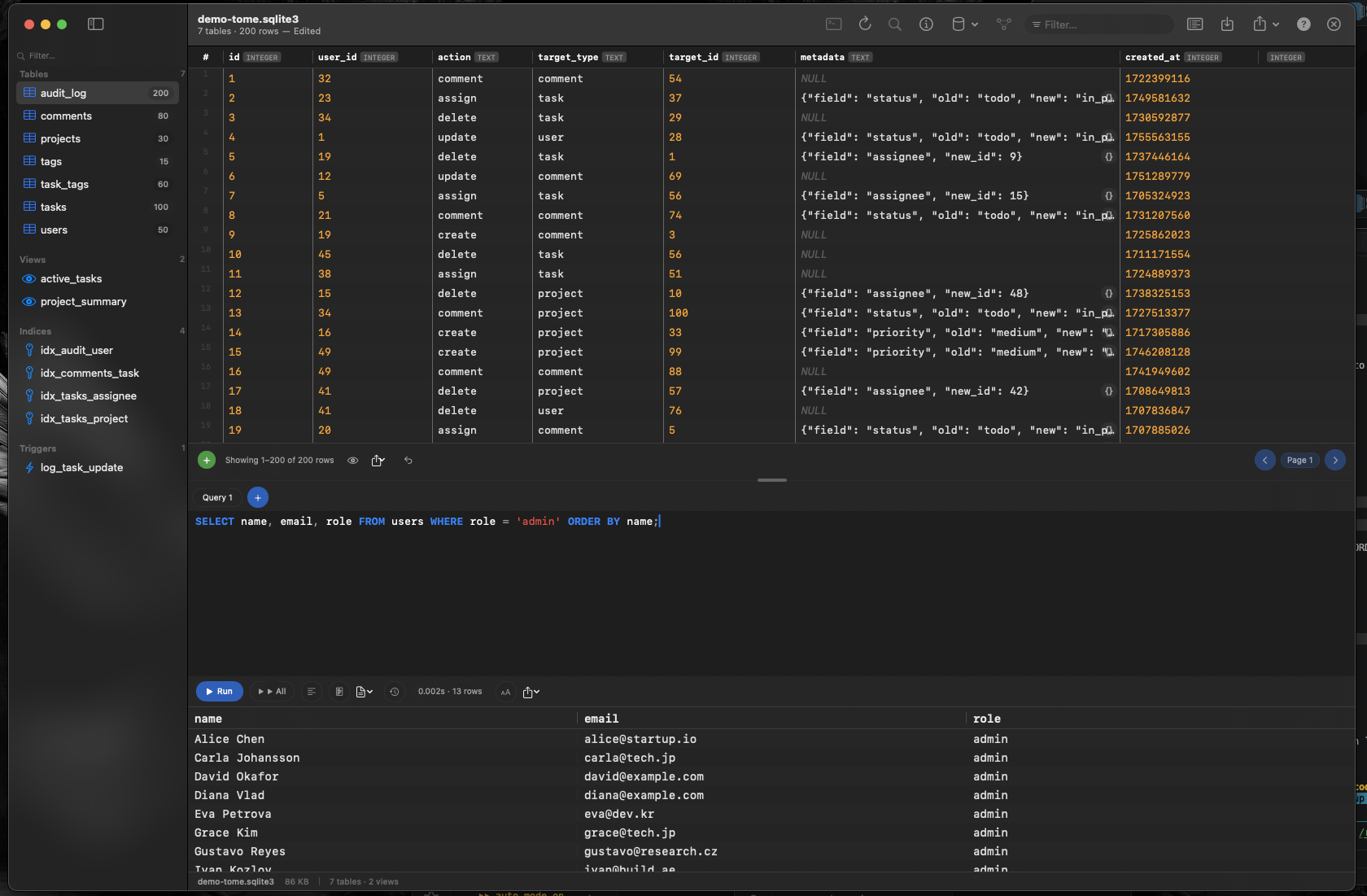
Tome opens Chrome's Cookies database file and displays the cookies table in a scrollable, sortable grid. Close Chrome first (it locks the file), then open ~/Library/Application Support/Google/Chrome/Default/Cookies in Tome.
Search Across All Domains
Use Tome's SQL editor to find cookies by name, host, or pattern. A query like SELECT host_key, name, path FROM cookies WHERE name LIKE '%_ga%'; reveals every Google Analytics cookie across all sites you've visited — something DevTools can't show you in one view.
Audit Cookie Metadata
Browse the cookies table to see which domains set persistent cookies, which use secure flags, and which have SameSite attributes. Sort by expiration date to find cookies that persist for years. This information is all in the clear even though values are encrypted.
Inspect Other Chrome Databases
Chrome's profile directory contains other SQLite databases too: History, Login Data, Web Data, and Favicons. Each can be opened in Tome for visual inspection — useful for understanding what data Chrome stores locally.