Every app on your Mac that persists data locally — notes, bookmarks, messages, health records, to-do lists — likely stores it in a SQLite database tucked inside~/Library/or~/Library/Containers/. Maybe you want to see what data an app collected. Maybe you need to recover something that was deleted from the UI. Maybe you're debugging your own app and need to verify what was actually written to disk. Whatever the reason, macOS gives you no built-in way to inspect these files visually.
Encontrar e Abrir Bancos de Dados de Aplicativo É Tedioso
First, you need to locate the file. Sandboxed apps store their data in~/Library/Containers/com.developer.appname/Data/, while non-sandboxed apps may use~/Library/Application Support/. The Library folder is hidden by default — you need to use Finder's "Go to Folder" or navigate via Terminal. Once you find the .sqlite or .db file, you're stuck usingsqlite3in Terminal, reading raw query output with no visual structure.
For iOS apps running in the Simulator, the path is even deeper:~/Library/Developer/CoreSimulator/Devices/followed by a UUID, then another nested path to the app's Documents or Library folder. Finding the right database among dozens of simulator device folders is a scavenger hunt.
Inspecione Qualquer Banco de Dados de Aplicativo com Tome
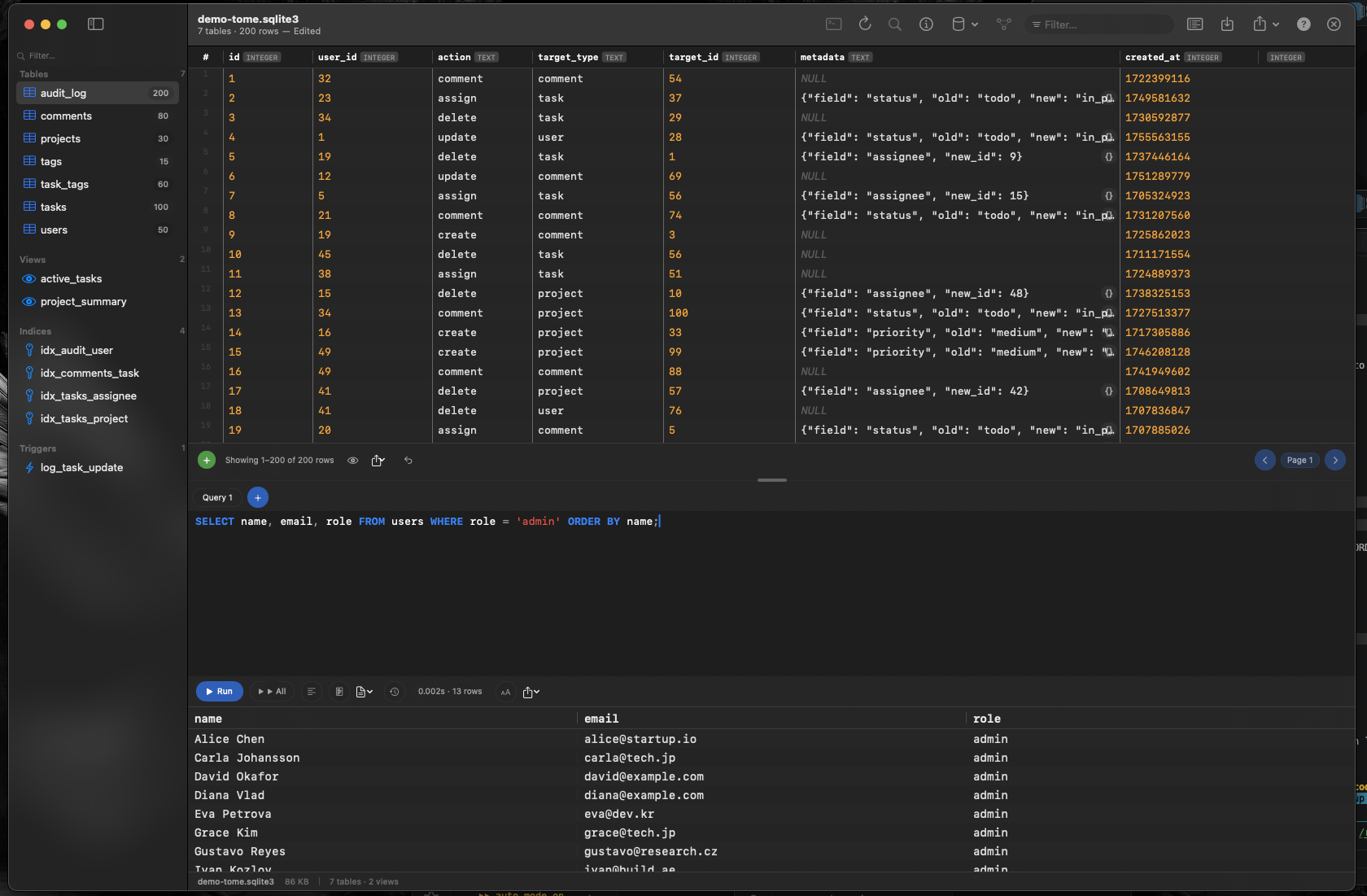
Tomelets you open any SQLite database file and immediately see its contents — tables, views, indexes, triggers, and row data — in a native macOS interface. Once you've located the file, just drag it onto Tome or use File → Open.
Entenda O Que um Aplicativo Armazena
Navegue em cada tabela para ver exatamente quais dados o aplicativo persiste. Os nomes das colunas revelam o design do esquema. Os dados de linha mostram os valores reais. Sem adivinhação, sem comandos Terminal — apenas clique nas tabelas na barra lateral e role pelo seu conteúdo.
Depure a Camada de Dados do Seu Próprio Aplicativo
Se você está desenvolvendo um aplicativo macOS ou iOS que usa SQLite ou Core Data, Tome permite verificar se suas gravações chegaram corretamente. Verifique que as relações estão intactas, inspecione colunas geradas automaticamente e execute consultas diagnósticas com destaque de sintaxe e preenchimento automático.
Recuperar ou Exportar Dados
Precisa de um registro que foi excluído da interface de um aplicativo, mas pode ainda existir no banco de dados? Abra o arquivo no Tome e pesquise a tabela relevante. Se os dados estiverem lá, você pode lê-los diretamente ou usar uma consulta SQL para extrair exatamente o que precisa.