You need to change a single value in a SQLite database. Maybe a flag needs flipping, a username needs correcting, or test data needs adjusting. The built-in way to do this on Mac is to open Terminal, run sqlite3, write an UPDATE statement with the exact WHERE clause to target the right row, and hope you didn't make a typo that changes the wrong records. For one value. In 2026.
Why Terminal-Based Editing Is Risky
Writing UPDATE statements manually is fine when you know exactly what you're doing. But it's dangerously easy to forget a WHERE clause and update every row in the table, or to misspell a column name and get a silent error. There's no undo in the sqlite3 CLI — once the statement executes, the change is permanent unless you remembered to start a transaction.
Creating new tables is equally tedious. You have to write out the full CREATE TABLE statement with column names, types, and constraints — syntax that's easy to get wrong when you're prototyping and iterating quickly.
For developers who think in SQL, this is manageable. For everyone else — and for developers who just want to make a quick edit without the risk — there should be a better way.
Edit SQLite Databases Visually With Tome
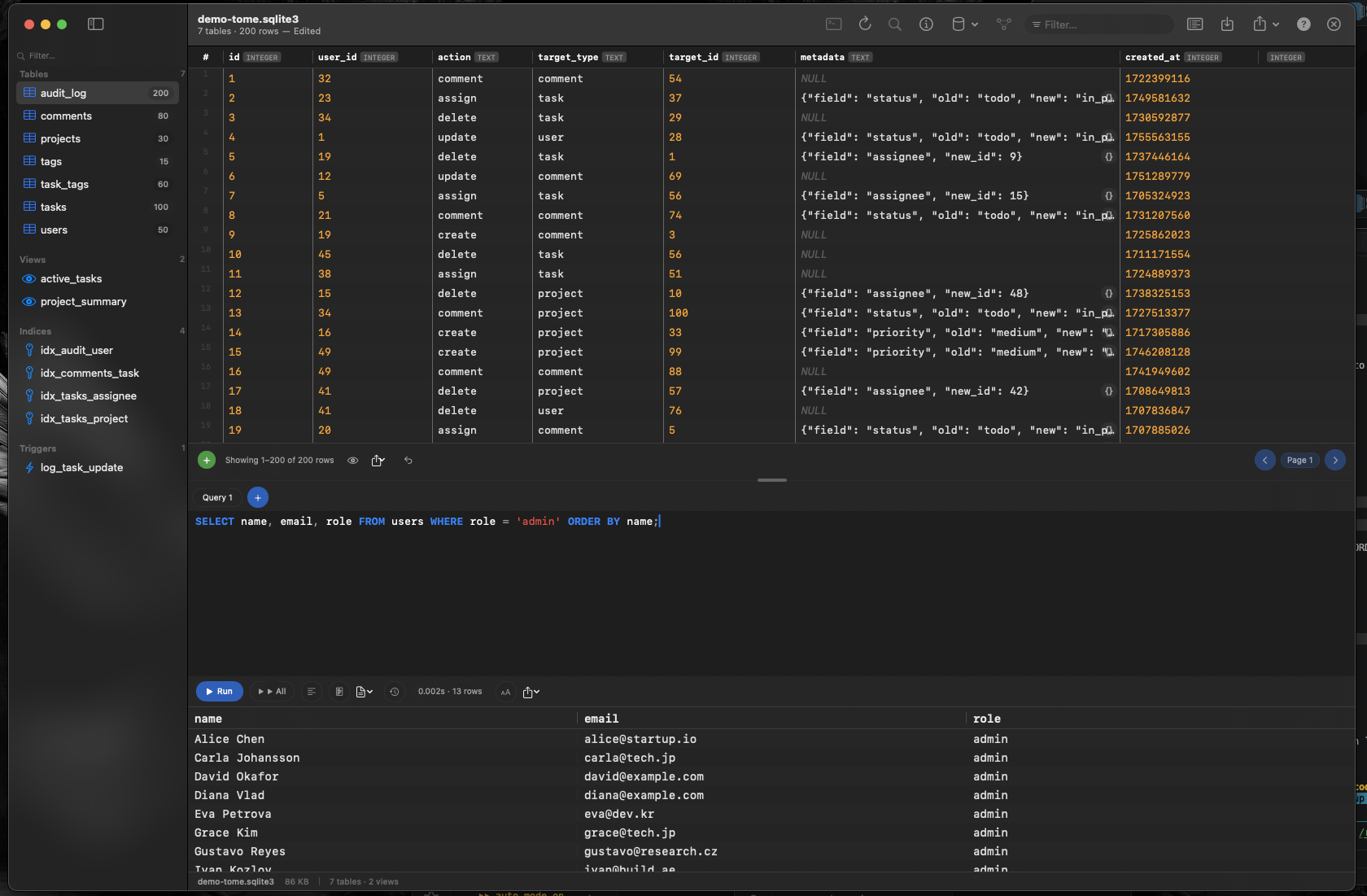
Tome lets you edit SQLite databases on Mac the way you'd edit a spreadsheet. Open the database, click a cell, change the value. No SQL required for basic edits.
Inline Cell Editing
Click any cell in a table to edit its value directly. Change text, numbers, or dates without writing an UPDATE statement. The change targets exactly the row you clicked — no risk of a missing WHERE clause affecting other records.
Insert and Delete Rows
Add new rows to any table with a single click. Delete selected rows just as easily. Tome handles the INSERT and DELETE SQL behind the scenes so you can focus on your data, not your syntax.
Create Tables Visually
Need a new table? Tome's visual table editor lets you define columns, types, and constraints in a form. No need to write CREATE TABLE statements from memory — just fill in the fields and Tome generates the correct SQL.
SQL Editor for Complex Operations
When you do need SQL — for joins, aggregations, or batch updates — Tome's query editor is ready with syntax highlighting and auto-complete for your table and column names.