You have a .sqlite3 file — maybe exported from a Django project, pulled from an iOS app container, or downloaded from a colleague. You double-click it on your Mac and get the "no application set to open" dialog, or worse, it opens in a text editor and shows binary gibberish. macOS simply doesn't know what to do with SQLite files out of the box.
The Default Options Are All Bad
Without installing anything, your only option is Terminal. Open it, navigate to the file's directory, and type sqlite3 yourfile.sqlite3. From there you can run commands like .tables and SELECT * FROM tablename; — but the output is plain text with no formatting, no scrolling, and no way to edit data visually.
If you're a developer comfortable in Terminal, this works for quick checks. But for anything beyond a simple query — browsing multiple tables, editing values, understanding a schema — it's slow and error-prone. And if you're not a developer, it's a non-starter.
Some people try online SQLite viewers that run in the browser. These require uploading your database file to a server, which raises obvious privacy concerns — especially if the database contains user data or credentials.
Open .sqlite3 Files With a Double-Click Using Tome
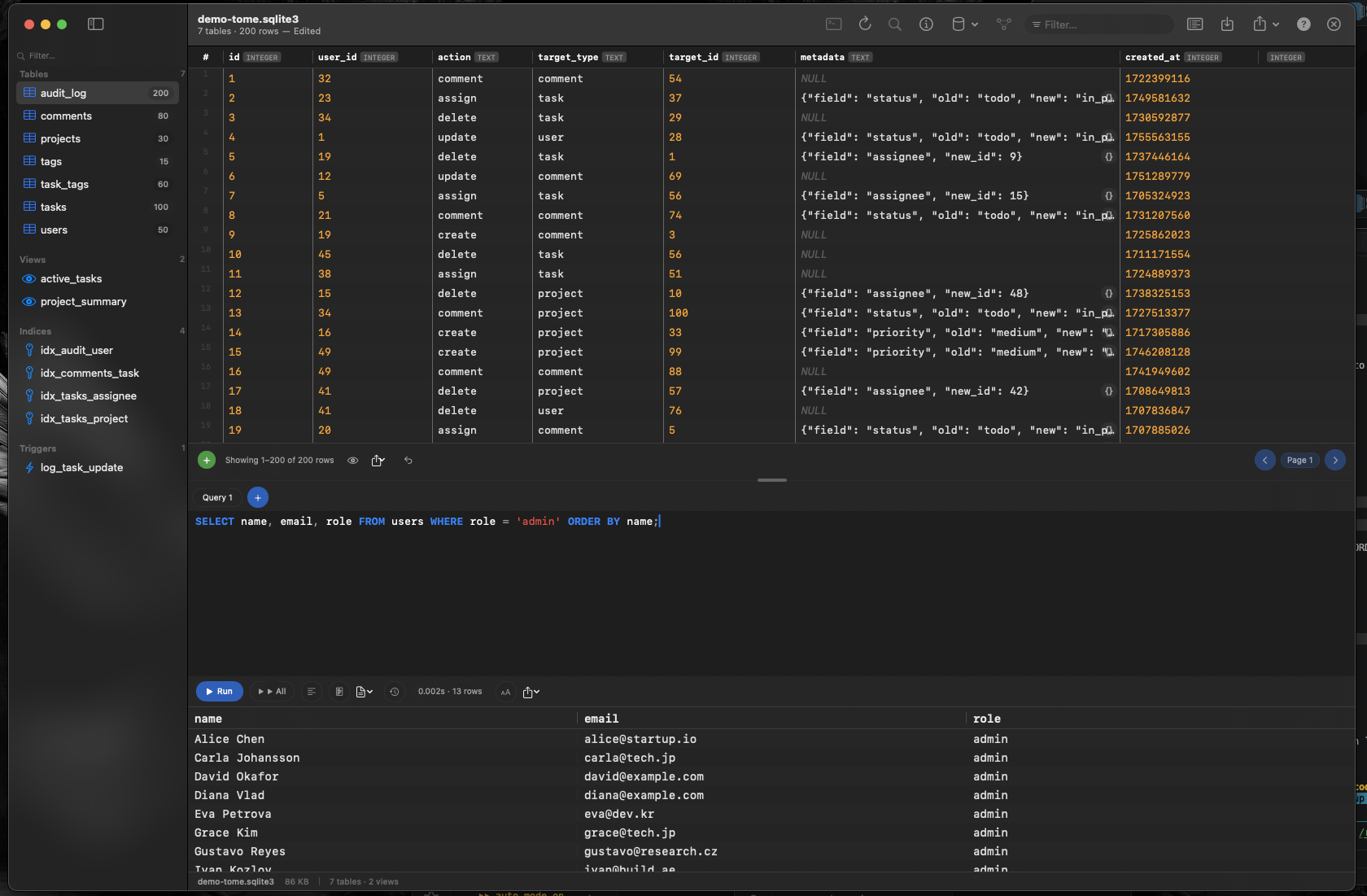
Tome registers itself as a handler for .sqlite3, .sqlite, and .db files on macOS. After installing it, you can double-click any SQLite file in Finder and it opens directly in Tome — tables listed in the sidebar, data displayed in a scrollable grid, ready to browse.
No Terminal Required
Browse every table, view, index, and trigger visually. Scroll through rows the way you would in a spreadsheet. Click column headers to understand your schema. Everything is visual, immediate, and requires zero command-line knowledge.
Edit Data Without SQL
Need to change a value? Click the cell and type. Need to add a row? Click insert. Need to remove records? Select and delete. For more complex operations, Tome includes a SQL query editor with syntax highlighting and auto-complete — but for everyday tasks, you'll rarely need it.
Your Data Stays Local
Tome is a native macOS app. Your database file never leaves your machine. No uploads, no cloud processing, no privacy concerns. Open, browse, edit, close — everything happens locally.