You deleted a photo from your iPhone, so it is gone forever, right? Unfortunately, that is not how it works. Deleted photos leave behind multiple traces that can be recovered by anyone from a curious family member to a forensic specialist. Understanding where deleted photos actually go is the first step toward real privacy.
The Recently Deleted Album
When you delete a photo from the Photos app, it moves to the Recently Deleted album. This album keeps deleted photos for up to 30 days before permanently removing them. During that window, anyone with access to your unlocked phone can open Photos, tap Albums, scroll to Utilities, and find every photo you thought you had deleted.
Starting with iOS 16, Apple added Face ID or passcode protection to the Recently Deleted album. This is a welcome improvement, but it uses the same passcode as your device lock screen. If someone knows your iPhone passcode, or if you hand them your unlocked phone, they can open the Recently Deleted album with no extra barrier.
iCloud Photo Sync Complications
If you have iCloud Photos enabled, the situation becomes more complex. Deleting a photo from your iPhone also deletes it from iCloud, but only after the same 30-day Recently Deleted period applies across all synced devices. That means:
- The deleted photo may still be visible on your iPad, Mac, or any other device signed into the same Apple ID.
- If another device is offline at the time of deletion, the photo remains there until that device connects to iCloud and syncs.
- Shared Albums that include the photo retain their own copy independently of your deletion.
Even after the 30-day period, Apple may retain data on their servers for a period as part of their backup and infrastructure processes. While Apple states that permanently deleted photos are removed from iCloud, the exact timeline and process are not fully transparent.
iTunes and Finder Backups
If you have ever backed up your iPhone to a Mac or PC using iTunes or Finder, those backup files contain a snapshot of your photo library at the time of the backup. Deleting a photo from your phone does not delete it from existing backups. Anyone with access to your computer and the backup password (or an unencrypted backup) can browse those photos using free tools like iMazing or iExplorer.
Data Recovery Software
Even after a photo disappears from the Recently Deleted album, the underlying data may still exist on your device's storage. When you delete a file, your iPhone marks that storage space as available but does not immediately overwrite it. Data recovery tools can scan for these remnants and reconstruct deleted photos.
Consumer tools like Dr.Fone, PhoneRescue, and Tenorshare UltData are widely available and can recover recently deleted content from both the device and backups. While success rates vary depending on how much new data has been written to the device since deletion, recovery is often possible for days or even weeks after deletion.
Forensic Recovery
Law enforcement agencies use professional-grade forensic tools like Cellebrite UFED and GrayKey that go far deeper than consumer software. These tools can extract data from locked devices, recover deleted files from storage chips, and reconstruct file fragments that ordinary software would miss. If your device is subject to a forensic examination, virtually anything that was not encrypted before deletion is potentially recoverable.
Why Deleting Is Not Enough
The core problem is that deletion is not destruction. It is reclassification. Your phone changes the status of the storage space from "occupied" to "available," but the actual data remains until it is overwritten. Between the Recently Deleted album, iCloud sync, device backups, and storage-level recovery, a deleted photo can persist in multiple locations simultaneously.
The Only Reliable Solution: Encryption Before Storage
If you want a photo to be truly private, it should never exist in an unencrypted state on your camera roll in the first place. The most effective approach is:
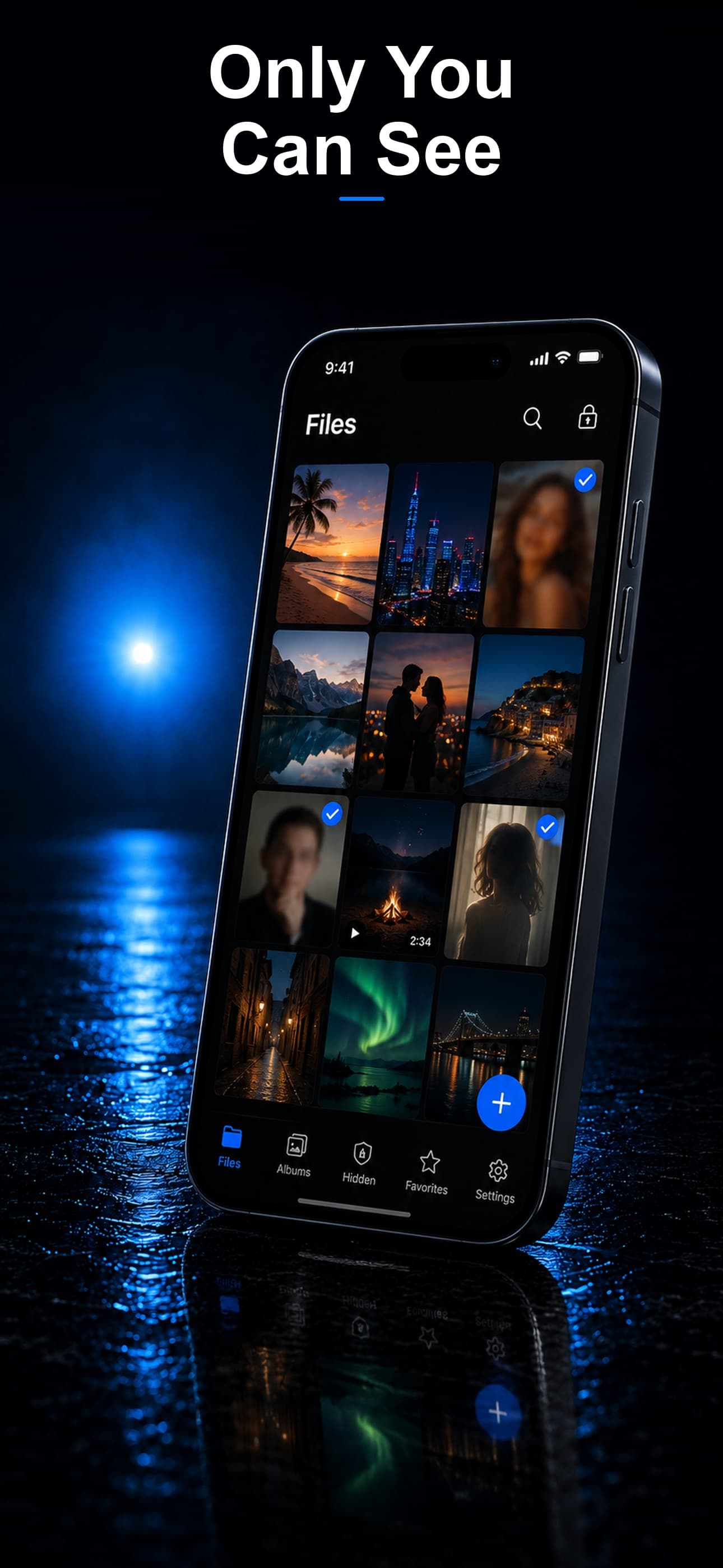
- Import photos directly into an encrypted vault so they bypass the standard Photos app.
- Use AES-256 encryption, which renders the file unreadable without the decryption key, even if someone recovers the raw data from storage.
- Keep everything on-device to avoid cloud sync creating additional copies on remote servers.
- Delete the original from your camera roll after importing it into the vault, so the only copy that exists is the encrypted one.
What About Secure Erase?
Some people ask about "secure erase" options that overwrite deleted data with random bytes. On modern iPhones with solid-state storage and wear-leveling algorithms, traditional secure erase methods are unreliable. The storage controller may redirect writes to different physical locations, leaving the original data intact. Apple removed the "Erase All Content and Settings" secure wipe option for individual files years ago. Full-disk encryption at the hardware level provides some protection, but individual file deletion remains imperfect.
Protecting Yourself Going Forward
The takeaway is simple: if a photo is private, it should live inside an encrypted container from the moment it exists. Delete-and-hope is not a privacy strategy. An encrypted vault ensures that even if the raw data is recovered, it is nothing but unreadable noise without the encryption key.
Stash encrypts every file with AES-256 the moment you import it, stores everything on-device with zero cloud sync, and disguises itself as an ordinary calculator on your home screen. If someone recovers data from your device, they find encrypted blobs that are mathematically impossible to read. Download Stash from the App Store and make sure your deleted photos are actually private.