Whether you want to keep a dating app out of sight, protect a banking app from curious children, or conceal a private vault, there are several ways to hide apps on your iPhone. Apple has gradually added more options over the years, but each method has trade-offs. This complete guide covers every available approach in 2026, from built-in iOS features to dedicated disguise apps that make an app truly invisible.
Why People Hide Apps
There is no single reason why someone wants to hide an app. Common motivations include:
- Personal privacy: Keeping health, finance, or dating apps away from people who borrow your phone.
- Parenting: Hiding settings or purchase-related apps from children.
- Minimalism: Decluttering your home screen by removing apps you rarely use.
- Security: Making sensitive apps harder to find if your phone is lost or stolen.
- Avoiding judgment: Not everyone needs to know which apps you use, and that is perfectly valid.
Method 1: Remove from Home Screen (Keep in App Library)
Starting with iOS 14, you can remove an app from your home screen without deleting it. The app continues to live in the App Library, which is accessible by swiping left past your last home screen page.
- Long-press the app icon until the context menu appears.
- Tap "Remove App."
- Select "Remove from Home Screen."
The app disappears from your home screen but remains searchable via Spotlight and accessible in the App Library. This is the simplest method, but it provides minimal privacy since anyone who swipes to the App Library or uses search can still find it.
Method 2: Hide an Entire Home Screen Page
If you have a group of apps you want to conceal, you can hide an entire home screen page:
- Long-press an empty area of your home screen until icons start jiggling.
- Tap the page indicator dots at the bottom.
- Uncheck the page you want to hide.
- Tap Done.
The page and all its apps vanish from your home screen. They still appear in the App Library and Spotlight search, so this method is convenient for organization but does not provide true privacy.
Method 3: Bury Apps in Folders
A classic approach is to create a folder, fill the first page with innocent apps, and tuck the app you want to hide on the second or third page of that folder. Most people never swipe through folder pages, so the app is out of casual sight. However, this is security through obscurity at best. Anyone who looks carefully will find it, and the app still shows up in Spotlight search.
Method 4: Use Screen Time to Restrict Apps
Screen Time can effectively lock apps behind a passcode:
- Go to Settings, then Screen Time, then App Limits.
- Add a limit for the specific app or its category.
- Set the time limit to 1 minute.
- Once the limit is reached, the app greys out and requires a Screen Time passcode to open.
This approach does lock the app, but the icon remains visible on your home screen with a dimmed appearance. It also shows an hourglass indicator, which can draw attention rather than divert it. It is better suited for parental controls than for true concealment.
Method 5: Hidden Apps in iOS 18 and Later
With iOS 18, Apple introduced a dedicated Hidden category in the App Library. You can long-press an app, select "Require Face ID," and then choose "Hide and Require Face ID." The app disappears from the home screen and moves to a locked Hidden folder at the bottom of the App Library. Opening that folder requires Face ID or your device passcode.
This is a significant improvement, but the Hidden folder itself is visible in the App Library. Anyone who knows where to look can see that you have hidden apps, even if they cannot open the folder without your face or passcode. The label "Hidden" is not exactly subtle.
Method 6: Disguised Vault Apps (The Most Effective Approach)
None of the methods above make an app truly invisible. They all leave traces, whether in the App Library, Spotlight, or purchase history. Disguised vault apps take a fundamentally different approach: instead of hiding an app, they disguise it as something else entirely.
A disguised vault app appears on your home screen as an ordinary utility, such as a calculator, a fitness tracker, or a music player. The icon, the name, and even the interface all match the disguise. There is no "Hidden" folder to find, no dimmed icon, and no evidence that a vault exists at all. Enter the correct passcode inside the disguised interface, and the vault opens. Enter the wrong one, and you just see a functioning calculator.
Why Disguise Beats Hiding
Hiding moves the problem from one place to another. The app still exists in a findable location. Disguising eliminates the problem entirely. No one looks twice at a calculator on your home screen. There is nothing to search for, nothing to unlock, and nothing that hints at a vault.
Comparing All Methods
- Remove from Home Screen: Easy but visible in App Library and Spotlight.
- Hide Home Screen Page: Convenient but still searchable.
- Folder Burying: Low effort but easily discovered.
- Screen Time Restriction: Locks the app but the dimmed icon is conspicuous.
- iOS 18 Hidden Folder: Requires Face ID but the "Hidden" label is visible.
- Disguised Vault App: Completely invisible in plain sight with no trace of a vault.
Going Beyond Hiding
If your goal is genuine privacy rather than simple tidiness, consider what happens after someone finds the app. Built-in iOS methods do not encrypt your files. A disguised vault app not only hides itself but also encrypts everything inside with AES-256 encryption, adds a decoy vault for plausible deniability, and captures intruder selfies when someone enters the wrong passcode.
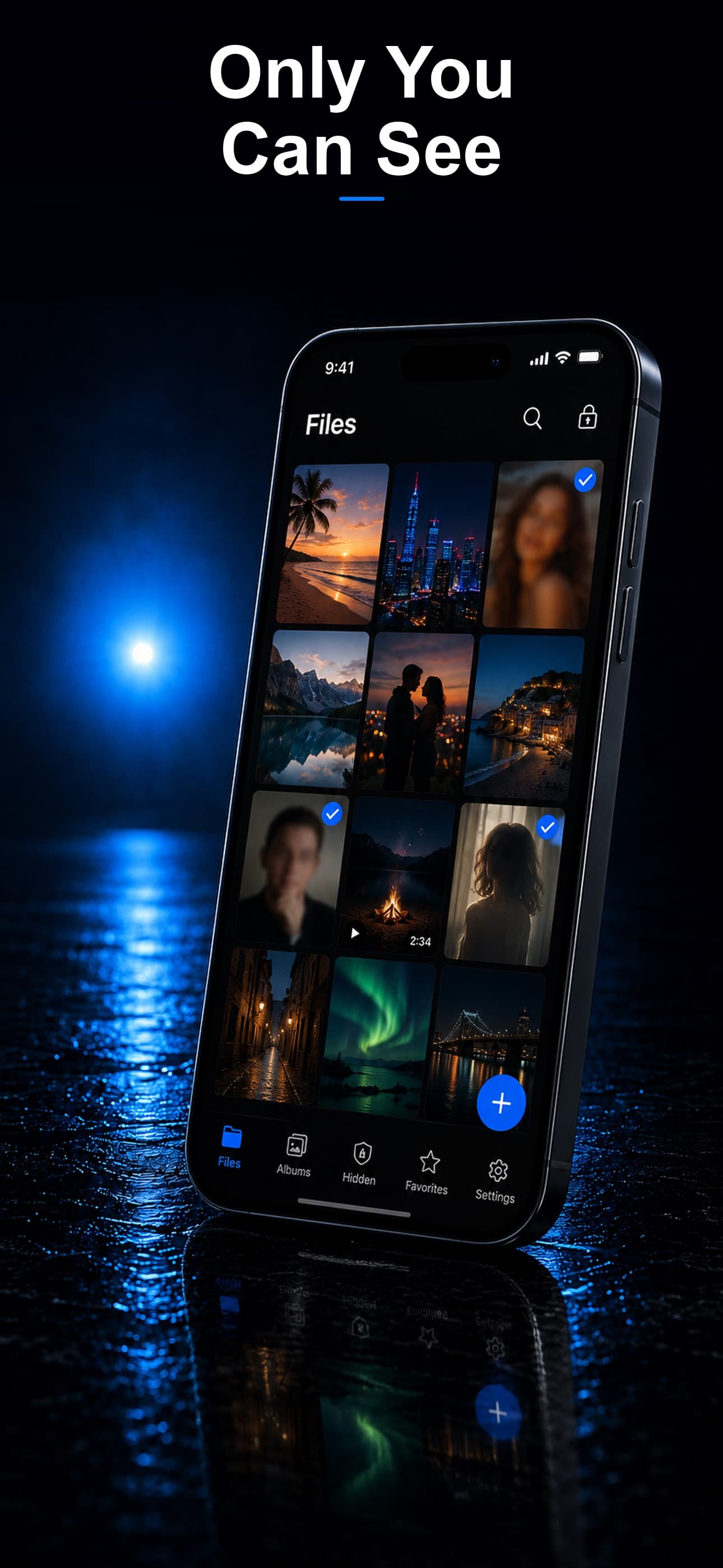
Stash combines all of these features into a single app that looks like an ordinary calculator, fitness tracker, or music player on your home screen. Your photos, videos, and documents are encrypted on-device, and there is zero trace of the vault in your App Library, Spotlight, or anywhere else. If you want the most effective way to hide apps and protect what is inside them, download Stash from the App Store and see the difference a true disguise makes.