iCloud Photos is convenient. It automatically syncs your entire photo library across your iPhone, iPad, Mac, and the web. But that convenience comes with a cost: every photo you take is uploaded to Apple's servers, stored in a data center you do not control, and accessible from any device signed into your Apple ID. If you want to keep certain photos truly private, you need to understand how iCloud works and how to prevent specific images from ever reaching the cloud.
How iCloud Photos Works
When iCloud Photos is enabled, your iPhone automatically uploads every photo and video to Apple's iCloud servers. These files are then synced to all devices using the same Apple ID. The system works seamlessly, which is exactly why it is a privacy concern. You have no granular control over which photos sync and which stay local. It is all or nothing.
Apple encrypts iCloud Photos in transit and at rest, but this is not end-to-end encryption for most users. Apple holds the encryption keys, which means:
- Apple employees with sufficient access could theoretically view your photos.
- Apple can and does comply with law enforcement requests for iCloud data when presented with valid legal process.
- If your Apple ID is compromised, an attacker can access your entire photo library via iCloud.com.
Advanced Data Protection
Apple introduced Advanced Data Protection in late 2022, which extends end-to-end encryption to iCloud Photos along with other data categories. When enabled, Apple no longer holds the decryption keys. However, this feature is opt-in, not on by default, and many users have never enabled it. Even with Advanced Data Protection, all your photos still live on Apple's servers, and any device signed into your Apple ID can access them.
Method 1: Disable iCloud Photos Entirely
The most straightforward way to keep photos off iCloud is to turn off iCloud Photos:
- Open Settings on your iPhone.
- Tap your name at the top, then iCloud, then Photos.
- Toggle off "Sync this iPhone."
When you disable iCloud Photos, new photos stay on your device only. Be aware that if you previously had iCloud Photos enabled, you will be given the option to download all photos to your device or remove them. Choose to download if you want to keep your library local.
The downside is that you lose the convenience of cross-device sync and automatic cloud backup for all of your photos, not just the private ones.
Method 2: Remove Individual Photos from iCloud
Unfortunately, Apple does not offer a way to exclude individual photos from iCloud sync while keeping the feature enabled for everything else. If iCloud Photos is on, every photo goes to the cloud. There is no "do not sync this photo" toggle.
Your only option is to delete the photo from your camera roll (which deletes it from iCloud after 30 days) and store it somewhere else. But where you store it matters enormously.
Method 3: Use the Hidden Album
Moving a photo to the Hidden album does not prevent it from syncing to iCloud. The Hidden album is synced across devices just like the rest of your library. It is hidden from the main view but not from the cloud. This is a common misconception that gives people a false sense of security.
Method 4: Save to Files App Instead of Photos
You can save images to the Files app on your device instead of the Photos app. If you save them to "On My iPhone" rather than iCloud Drive, they will not sync to the cloud. However, files stored this way are not encrypted beyond the standard iOS file protection, and they appear in a regular file browser that anyone with access to your device can navigate.
Method 5: Use an On-Device Encrypted Vault
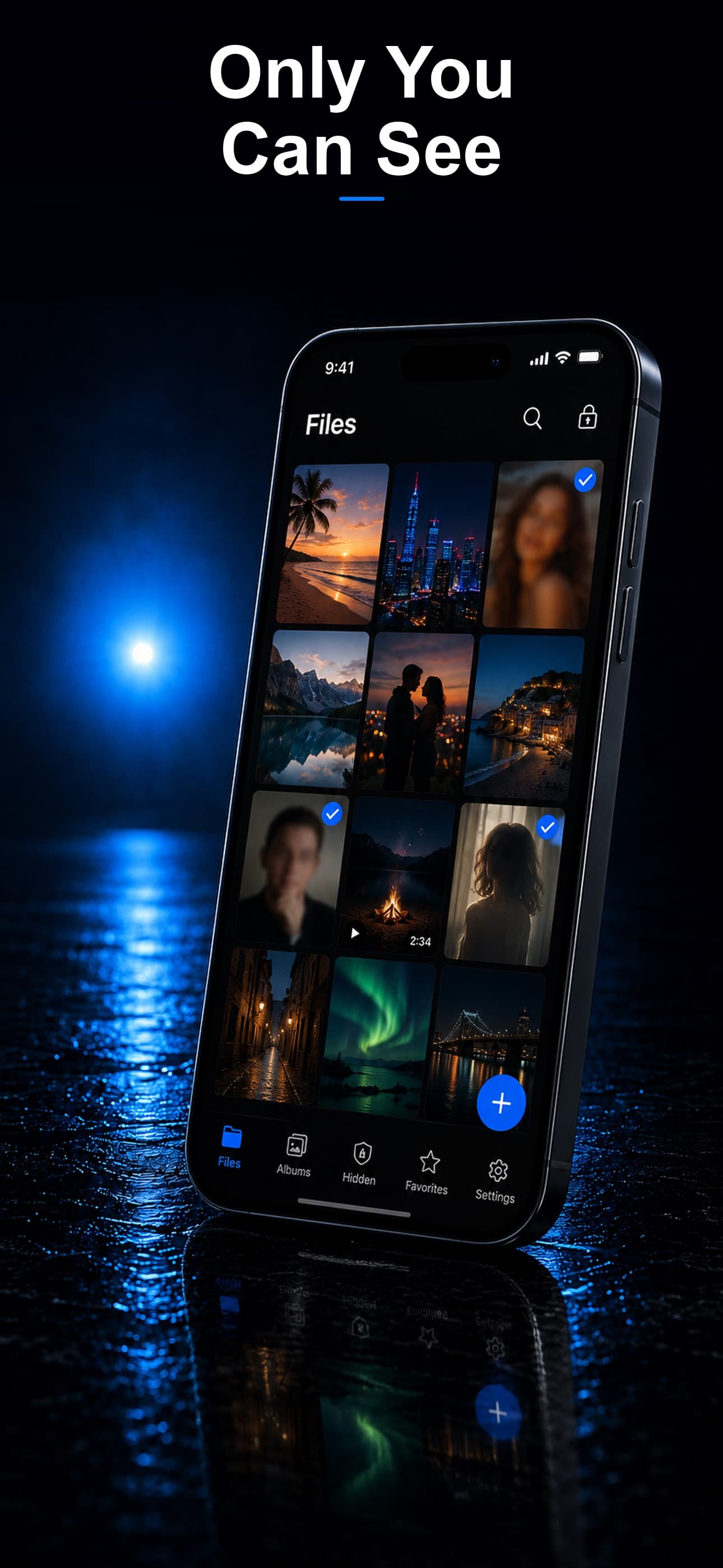
The most effective approach is to move private photos into an encrypted vault that stores everything locally on your device with zero cloud connectivity. This method ensures:
- No cloud upload: The photos never leave your device.
- No sync to other devices: Only the device holding the vault has access.
- No server-side copies: There is nothing on Apple's servers or any third-party servers.
- Encryption at the file level: Even if someone extracts data from your device, encrypted files are unreadable.
The Workflow for Maximum Privacy
If you want to keep iCloud Photos enabled for everyday photos but protect sensitive ones from the cloud, follow this workflow:
- Take the photo normally or receive it via message.
- Open your vault app and import the photo directly from the camera roll.
- Return to Photos and delete the original.
- Empty the Recently Deleted album to remove the cloud-synced copy immediately.
The photo now exists only inside the encrypted vault on your device. It was briefly on iCloud during the time between capture and deletion, so for maximum security, you can use the vault app's built-in camera to capture photos directly into the encrypted container without ever touching the camera roll or iCloud.
Shared Albums and My Photo Stream
Even if you disable iCloud Photos, check two additional settings:
- Shared Albums: Photos you add to shared albums are stored on iCloud regardless of your iCloud Photos setting. Disable Shared Albums in the same settings area if you want no cloud presence.
- My Photo Stream (legacy): This older feature uploaded recent photos to iCloud temporarily. Apple discontinued it in 2023, but verify it is off on older devices.
Keep Your Private Photos Off the Cloud
iCloud Photos is an excellent service for everyday use, but it is not designed for privacy. It syncs everything, and Apple controls the keys for most accounts. If you have photos that should never leave your device, an on-device encrypted vault is the only reliable solution.
Stash stores every file locally on your iPhone with AES-256 encryption and zero cloud sync. Your photos never touch Apple's servers, and the app disguises itself as an ordinary calculator so no one even knows a vault exists. Download Stash from the App Store and keep your most private photos entirely off the cloud.