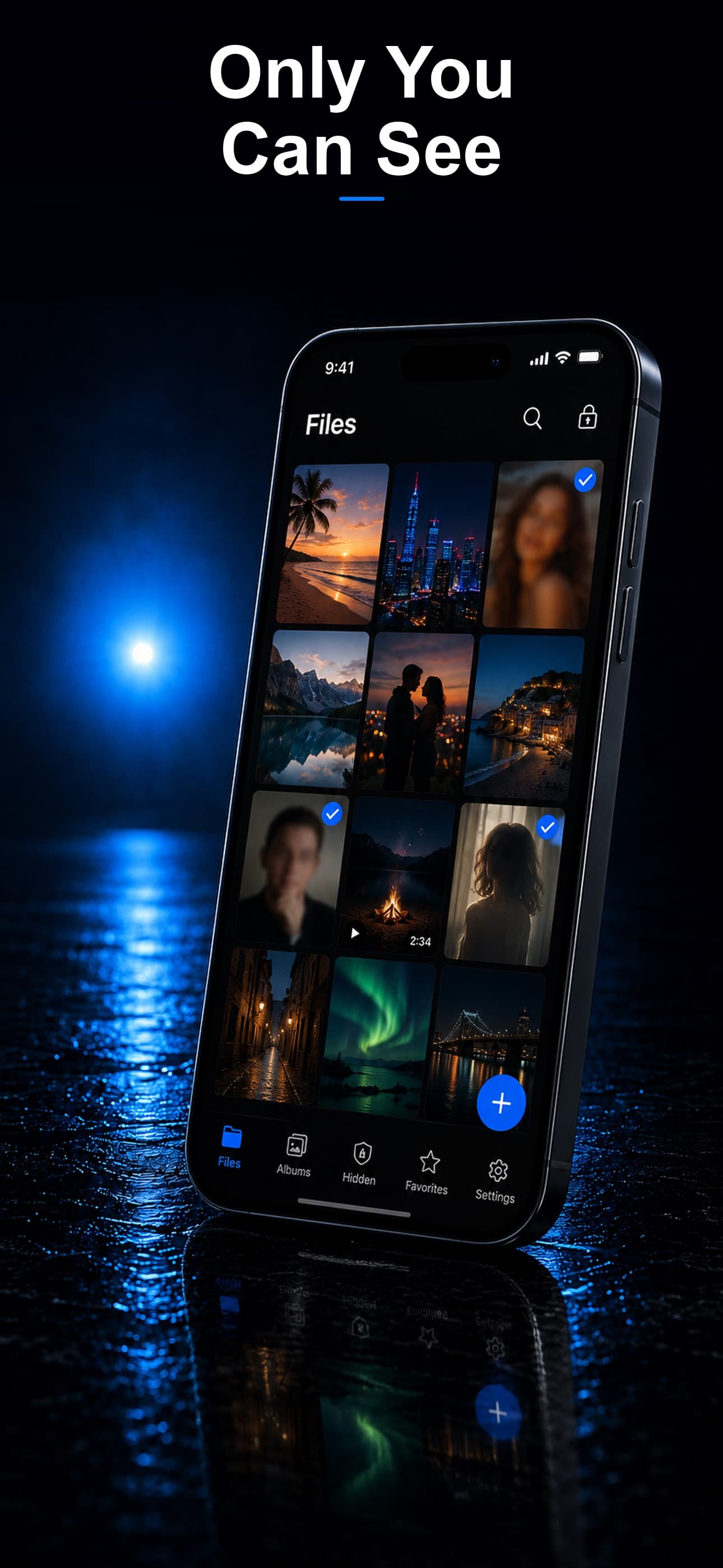
Your iPhone contains some of your most personal moments, yet by default, anyone who gets past your lock screen can freely browse your entire photo library. If you want an extra layer of protection for specific photos, you have several options ranging from built-in iOS features to purpose-built vault apps. Here is every method available in 2026, along with the real-world strengths and weaknesses of each.
Method 1: The Hidden Album (iOS 16 and Later)
Apple introduced the Hidden album years ago, but it originally offered no real protection since anyone could simply open the album and view its contents. Starting with iOS 16, the Hidden album requires Face ID, Touch ID, or your device passcode to open.
How to Use It
- Open Photos and select the photo you want to hide.
- Tap the share icon or the three-dot menu.
- Select "Hide."
- Confirm by tapping "Hide Photo."
The photo moves to the Hidden album under Utilities. To access it, you need to authenticate with Face ID or your passcode.
Limitations
The Hidden album uses the same passcode as your lock screen. If someone knows your iPhone passcode, they can unlock the Hidden album as well. There is no option to set a separate password. Additionally, the Hidden album is clearly labeled "Hidden" in the Albums tab, making its existence obvious to anyone who looks. The photos inside are not encrypted beyond the standard iOS file-level encryption, which is tied to your device passcode.
Method 2: Lock Photos in the Notes App
A lesser-known trick involves saving photos inside password-protected notes:
- Open Notes and create a new note.
- Tap the camera icon and choose "Choose Photo or Video."
- Select the photos you want to protect.
- Tap the share icon on the note and select "Lock."
- Set a separate password or use Face ID.
This method allows you to set a password that is different from your device passcode, which is an advantage over the Hidden album. However, it is not designed for photo management. Browsing through locked notes to find specific photos is cumbersome, there is no thumbnail view, and the photos are stored as note attachments rather than in an organized gallery. It works in a pinch but is impractical for more than a handful of images.
Method 3: Shortcuts Automation
Some users create Shortcuts automations that move photos to a specific folder and require authentication to view them. While creative, these setups are fragile, complicated to configure, and break easily with iOS updates. They also lack any encryption beyond what iOS provides by default. This is a hobbyist solution, not a reliable privacy method.
Method 4: Third-Party Vault Apps
Dedicated vault apps are purpose-built for protecting photos with a separate password and, critically, their own encryption layer. The best vault apps provide:
- A separate passcode that is completely independent from your device lock screen.
- AES-256 encryption applied to each file individually, not just the app's container.
- On-device storage so photos never travel to a cloud server.
- A gallery interface designed for browsing, organizing, and managing protected media.
- Disguised app icons so the vault itself does not attract attention.
What to Look For
Not all vault apps are equal. Some claim to protect your photos but only move them to a hidden folder without encryption. Others upload your files to their servers for "backup," introducing cloud risks. When choosing a vault app, verify the following:
- The app explicitly states AES-256 encryption (not just "military-grade security" with no specifics).
- Files are stored on-device only, unless you explicitly opt into cloud backup.
- The app does not require an account or email to function.
- The app includes intruder detection to alert you if someone tries to guess your passcode.
Comparing the Approaches
- Hidden Album: Convenient but uses the same passcode as your lock screen and is visibly labeled "Hidden."
- Notes Lock: Allows a separate password but is clunky for managing photos.
- Shortcuts: Creative but fragile and encryption-free.
- Vault Apps: Purpose-built with independent passwords, real encryption, and gallery interfaces.
Beyond Password Protection: Layers of Privacy
A password is only the first layer. True photo protection involves multiple elements working together:
- Disguise: If no one knows the vault exists, no one tries to break in.
- Encryption: Even if someone bypasses the password, encrypted files are unreadable.
- Decoy vault: A secondary password opens a fake vault with harmless content.
- Intruder detection: Failed password attempts trigger a silent front-camera capture.
The Strongest Option for iPhone
If you want genuine password protection for your photos rather than the partial solutions iOS offers natively, a dedicated vault app is the clear winner. Stash combines AES-256 encryption, a fully separate passcode, three disguise modes (calculator, fitness tracker, and music player), a decoy vault, intruder detection, and 100 percent on-device storage. Your photos are encrypted the moment they enter the vault, and the app itself is invisible among your ordinary utilities. Download Stash from the App Store and give your most private photos the protection they deserve.