Sending a photo feels instant and simple, but behind that simplicity lies a chain of servers, databases, and logs that can preserve your image long after you intended it to disappear. Whether you are sharing personal photos, confidential documents, or anything you want to keep between you and the recipient, how you send matters as much as what you send. This guide covers the most secure methods for sending photos privately in 2026.
Understanding the Risks of Photo Sharing
Before choosing a method, understand what can go wrong:
- Server storage: Most messaging platforms store media on their servers, sometimes indefinitely, even after you delete the message from your device.
- Metadata exposure: Photos contain EXIF metadata including the date, time, GPS coordinates, camera model, and sometimes your name. Sending a photo can reveal your exact location.
- Screenshots and saves: No technology can prevent a recipient from screenshotting or saving a photo. Technical privacy is necessary but not sufficient; you also need to trust the recipient.
- Backup capture: Even if a message is deleted, it may persist in the recipient's iCloud backup, Google backup, or local backup.
- Network interception: On unsecured networks, unencrypted transmissions can be intercepted and read.
Method 1: Signal (Best Overall for Messaging)
Signal is widely regarded as the gold standard for private messaging. Its security model provides:
- End-to-end encryption using the Signal Protocol, meaning only you and the recipient can see the message. Signal's servers never have access to your content.
- Disappearing messages that automatically delete after a set time (from 30 seconds to 4 weeks).
- View-once media that can only be opened once before it disappears.
- No metadata collection: Signal stores virtually no metadata about your communications.
- Open source: The code is publicly auditable, so security claims are verifiable.
To send a photo privately on Signal, open a conversation, tap the attachment icon, select your photo, and optionally enable the "view once" toggle (the circle icon with a 1) before sending. For ongoing conversations, enable disappearing messages in the conversation settings.
Limitation: Both you and the recipient must have Signal installed. The recipient can still screenshot the photo (Signal notifies you on some platforms, but cannot prevent it).
Method 2: AirDrop (Best for In-Person Sharing)
AirDrop uses a combination of Bluetooth and peer-to-peer WiFi to transfer files directly between Apple devices without going through any server. The transfer is encrypted and point-to-point.
- Open the photo in your Photos app or Files app.
- Tap the share icon and select AirDrop.
- Choose the recipient's device.
Advantages: No server involvement, no cloud storage, encrypted transfer, works without an internet connection.
Limitations: Requires physical proximity (about 30 feet). Apple devices only. The original file is transferred with all metadata intact, including location data. After the transfer, the photo is a regular file on the recipient's device with no self-destruct capability.
Method 3: Encrypted Email
Standard email is not secure for photo sharing. Emails are typically stored unencrypted on mail servers and can be read by the email provider, intercepted in transit, or accessed via a compromised account. However, encrypted email services improve this significantly:
- ProtonMail: End-to-end encrypted when both sender and recipient use ProtonMail. For non-Proton recipients, you can send password-protected emails that the recipient opens via a secure link.
- Tutanota: Similar E2E encryption for Tutanota-to-Tutanota emails, with password-protected options for external recipients.
Attach your photo to the email as usual. If using a password-protected option, share the password through a different channel (such as a phone call or Signal message, not in the same email).
Limitation: Email is asynchronous and lacks the real-time experience of messaging. Attachments may be size-limited. Once the recipient downloads the attachment, it is a regular file on their device.
Method 4: Self-Destructing Messages
Several platforms offer messages that automatically delete after being viewed or after a set time:
- Signal: Disappearing messages and view-once media (described above).
- iMessage: No built-in self-destruct, but you can manually use "Undo Send" within 2 minutes of sending.
- WhatsApp: "View Once" photos that disappear after being opened, plus disappearing messages. However, WhatsApp stores data on Meta's servers and backups may not be encrypted by default.
- Telegram: "Secret Chats" offer E2E encryption and self-destructing media. Note that regular Telegram chats are not E2E encrypted and are stored on Telegram's servers.
Self-destructing messages add a layer of protection but are not foolproof. Recipients can screenshot, use screen recording, or photograph the screen with another device. Treat self-destruct as a convenience feature, not a security guarantee.
Method 5: Strip Metadata Before Sending
Regardless of which method you use, consider stripping metadata from photos before sending them. Photo metadata (EXIF data) can reveal:
- GPS coordinates where the photo was taken.
- Date and time of capture.
- Device model and camera settings.
- Editing software used.
- Sometimes your name or Apple ID.
To strip metadata on iPhone:
- When sharing from Photos, tap the "Options" link at the top of the share sheet and disable "Location" and "All Photos Data."
- Use a dedicated metadata removal app for more thorough scrubbing.
- Take a screenshot of the photo (which creates a new image without the original's metadata) as a quick workaround, though this reduces quality.
Method 6: Encrypted File Sharing Services
For larger files or when you need to share with someone who does not use the same messaging app:
- Tresorit Send: End-to-end encrypted file sharing with link expiration and access limits.
- OnionShare: Creates a temporary, anonymous Tor-based file server on your device. The recipient accesses the file through a Tor browser, and the server shuts down after the download.
- Firefox Send (or forks): Simple encrypted file sharing with a link that expires after a set number of downloads or time period.
Best Practices for Private Photo Sharing
- Choose the right tool for the sensitivity level. A casual private photo might be fine over iMessage. Highly sensitive content warrants Signal with view-once enabled.
- Strip metadata before sending any photo that could reveal your location or identity.
- Verify the recipient. Make sure you are sending to the right person. Autocomplete errors in messaging apps have caused countless accidental shares.
- Discuss expectations. If you do not want a photo saved or shared, say so explicitly. Technology cannot replace trust.
- Secure your own copies. After sending, your copy of the photo remains on your device and in your camera roll. Store sensitive originals in an encrypted vault rather than your regular photo library.
Protect the Photos You Keep
Sharing photos privately is only half the equation. The photos that stay on your phone need protection too. If your device is compromised, lost, or stolen, every unsecured photo in your camera roll is exposed.
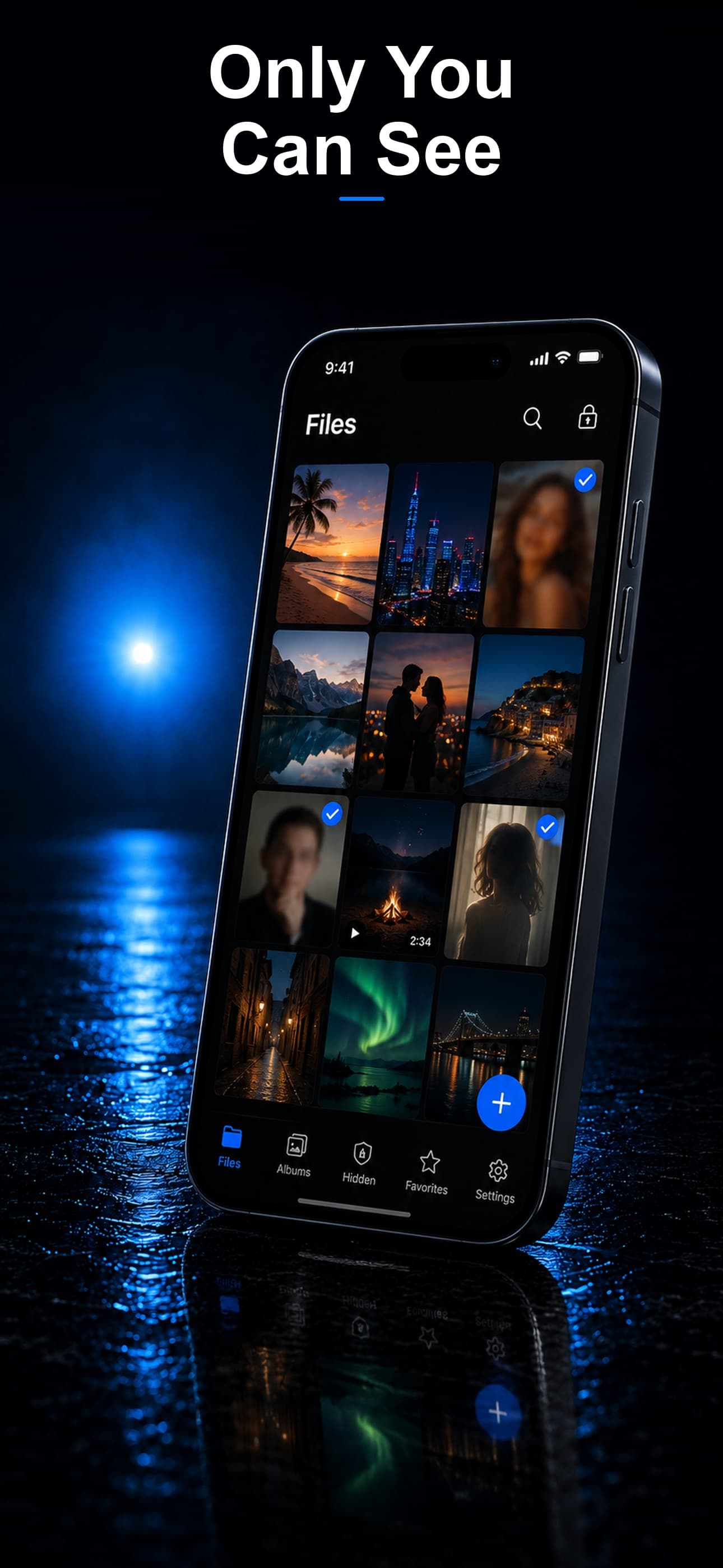
Stash keeps your most sensitive photos encrypted with AES-256 on your device, hidden behind a disguised interface that looks like an ordinary calculator. Before you send a private photo, import it into Stash. After you send it, delete it from your camera roll and let the encrypted vault copy be the only version that exists. Download Stash from the App Store and protect both the photos you share and the ones you keep.