You open a private browsing tab, search for something personal, close the tab, and assume there is no trace. But private browsing is one of the most misunderstood features in technology. Tens of millions of people use incognito or private mode every day without understanding what it actually does — and more importantly, what it does not. This article breaks down the reality of private browsing and explores what true on-device browsing privacy looks like.
What Private Browsing Actually Does
When you open a private or incognito tab in Safari, Chrome, or Firefox, the browser makes a few specific promises:
- No browsing history: The sites you visit will not appear in your browser history after you close the private tab.
- No saved cookies: Cookies created during the session are deleted when you close the tab.
- No saved form data: Usernames, passwords, and form entries from the session are not remembered.
- No cached files: Temporary files like images and scripts are not stored on your device after the session.
These protections are real, but they are limited to a very specific scope. Private browsing protects against someone who picks up your phone and checks your browser history. That is essentially the extent of it.
What Private Browsing Does NOT Do
Here is where the misunderstanding gets serious. Private browsing does not protect you from:
Your Internet Service Provider (ISP)
Your ISP sees every website you connect to, regardless of whether you are in private mode. They log your DNS requests and can see the domains you visit. Incognito mode changes nothing about this.
Your Employer or Network Administrator
If you are on a work or school network, the network administrator can monitor your traffic. Private browsing offers zero protection against network-level monitoring.
The Websites Themselves
Websites can still see your IP address, browser fingerprint, and session activity. They can still track you using techniques like browser fingerprinting, which identifies you based on your device's unique combination of settings, fonts, screen resolution, and installed plugins.
Downloaded Files
If you download a file during a private session, the file remains on your device after you close the tab. The download history might be cleared, but the file itself stays in your Downloads folder.
Bookmarks and Screenshots
Any bookmarks you create during a private session are saved permanently. Screenshots taken during the session remain in your Photos app. These are not cleaned up when the private tab closes.
Device-Level Forensics
Advanced forensic tools can sometimes recover traces of private browsing sessions from device memory, especially if the device has not been restarted since the session.
The Safari and Chrome Specifics
Safari Private Browsing on iPhone
Safari's private browsing mode on iPhone prevents history, cookies, and autofill from being saved. Starting with iOS 17, Safari also locks private tabs behind Face ID or Touch ID when you switch away. However, Safari's private mode still allows your ISP and network administrator to see your activity, and does not encrypt your browsing data at the device level.
Chrome Incognito on iPhone
Chrome's incognito mode works similarly, but with an important difference: Chrome may still sync some data to your Google account depending on your settings. Google settled a multi-billion dollar lawsuit in 2024 related to data collection during incognito sessions. While changes have been made since, the incident highlighted that "private" did not mean what users assumed.
What True On-Device Browsing Privacy Looks Like
If your goal is to prevent someone who has access to your phone from finding traces of your browsing activity, you need more than an incognito tab. You need a browser that:
- Exists inside an encrypted container: The browser itself, its cache, its cookies, and any temporary files should live within an encrypted vault.
- Is not visible as a browser: If someone does not know the browser exists, they cannot look for its traces.
- Leaves no artifacts outside the vault: No history entries, no suggestions, no cached thumbnails visible to other apps or system processes.
- Clears everything automatically: When you close a browsing session, every trace is wiped from the encrypted container.
How Stash's Built-In Browser Differs
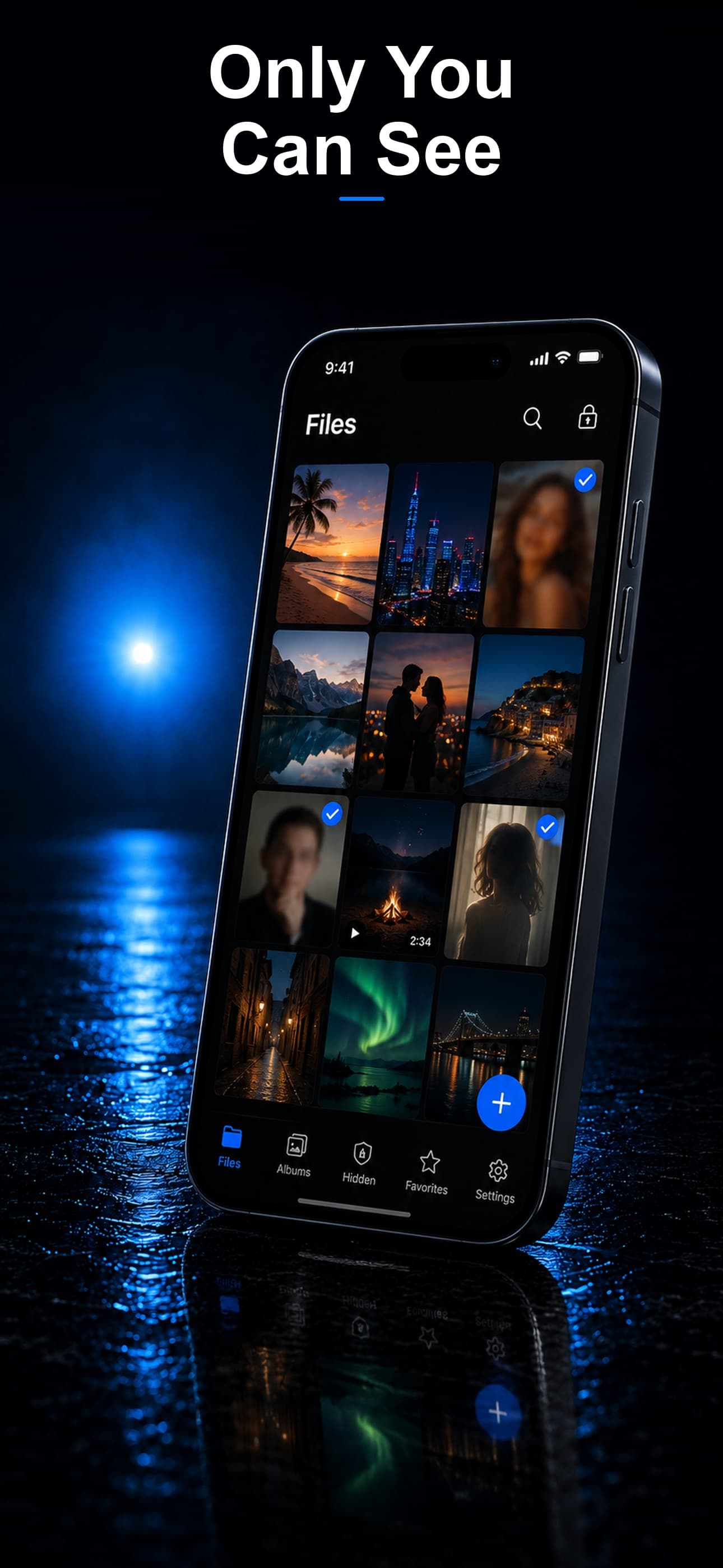
Stash includes a private browser that operates inside the encrypted vault. This is fundamentally different from a regular private browsing mode:
- The browser is only accessible after unlocking the vault with your passcode.
- All browsing data stays inside the AES-256 encrypted container.
- When you close the browser, the session data is destroyed within the vault.
- Since the entire app is disguised as a calculator, fitness tracker, or music player, there is no visible browser app on your device at all.
- No browsing suggestions, history entries, or cached data will ever appear in your iPhone's system-wide search or app suggestions.
Practical Recommendations
For everyday browsing where you just do not want a history entry, Safari or Chrome private mode is sufficient. But if you are browsing content that you genuinely need to keep private — whether it is medical research, legal information, financial planning, or anything else personal — you need a solution that operates inside an encrypted environment.
Standard private browsing keeps things out of your history. A vault-based browser keeps things out of existence on your device entirely. Download Stash from the App Store and browse without leaving any trace, not just in your history, but anywhere on your device.