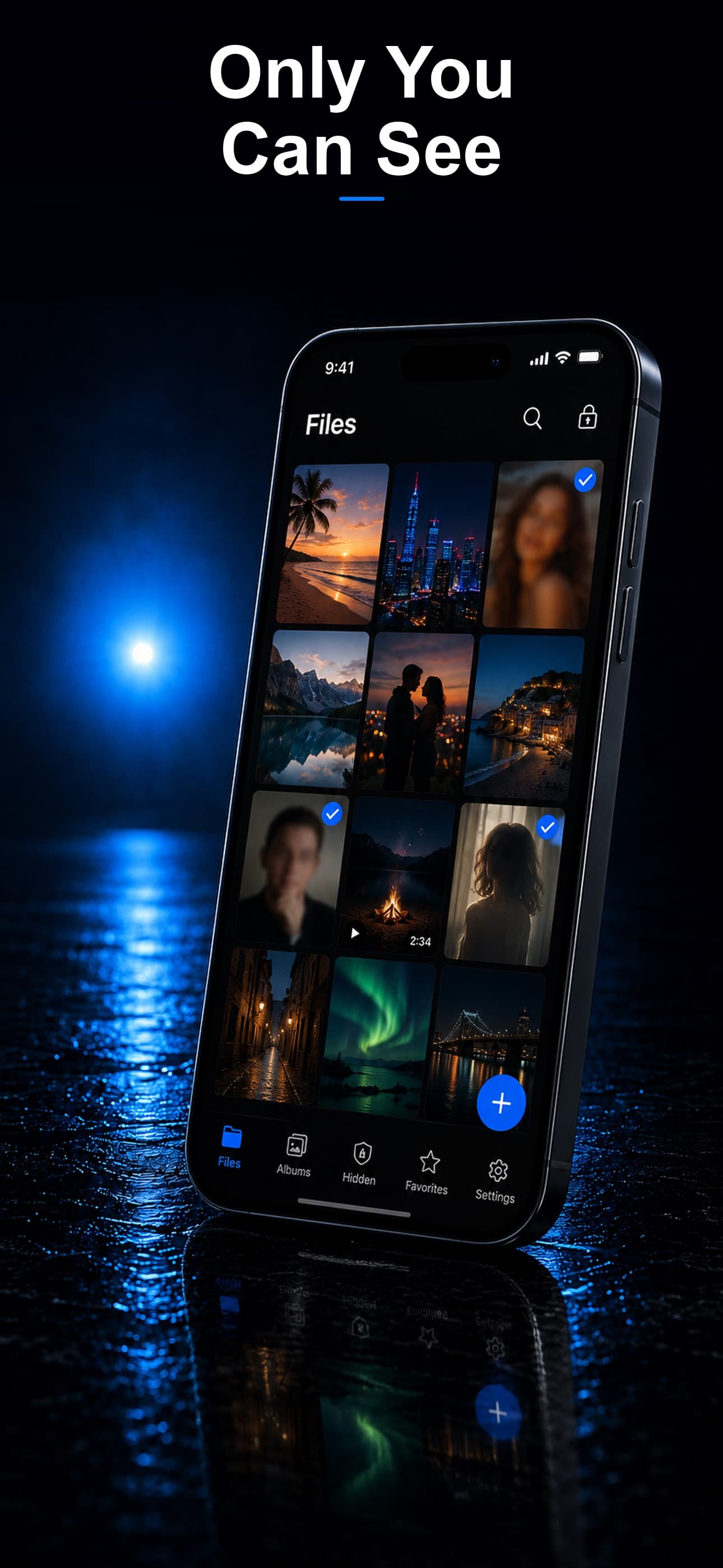
When people think about vault apps, they usually think about hiding photos. But what about the tax return PDF you downloaded, the audio recording of a doctor's appointment, the scanned copy of your passport, or a confidential work spreadsheet? Your iPhone holds far more sensitive files than just photos, and most of those files have zero protection beyond your lock screen. Here is how to change that.
The Problem with iPhone File Storage
Apple's Files app is a capable file manager, but it was not designed for privacy. Every file in your Files app is accessible to anyone who can unlock your iPhone. There is no way to password-protect individual files or folders. There is no encryption layer beyond the device-level encryption that applies to the entire phone.
This means:
- A child who knows your device passcode can browse your tax documents.
- A friend you hand your phone to can see your downloaded bank statements.
- A repair technician with access to your unlocked phone can browse any file on the device.
- If your device is compromised, all files are equally exposed.
What Types of Files Need Extra Protection?
You might be surprised by how many sensitive files accumulate on a phone over time:
- Identity documents: Scanned passports, driver's licenses, birth certificates, Social Security cards.
- Financial records: Tax returns, bank statements, investment account details, cryptocurrency wallet information.
- Medical records: Test results, prescriptions, insurance documents, therapy notes.
- Legal documents: Contracts, settlement agreements, court filings, power of attorney documents.
- Work files: Confidential client information, unreleased projects, proprietary data covered by NDAs.
- Personal content: Journal entries, private letters, personal audio recordings, creative work you are not ready to share.
Apple's Built-In Options
Files App
The Files app organizes and stores files but offers no per-file or per-folder encryption. It is essentially an open filing cabinet protected only by your device passcode.
Notes App with Locking
You can lock individual notes in the Notes app with a separate password. This works for text and embedded images, but it is impractical for managing multiple file types. You cannot lock a PDF, spreadsheet, or audio file directly in Notes. The interface was designed for notes, not file management.
iCloud Drive
iCloud Drive provides cloud storage with Apple's encryption, but the files are stored on Apple's servers. With Advanced Data Protection enabled, your files are end-to-end encrypted. Without it, Apple holds the decryption keys. Even with it, you are trusting Apple's infrastructure and policies.
Why a Dedicated Encrypted File Vault Is Better
A dedicated vault app designed for file storage addresses every limitation of Apple's built-in tools:
Any File Type
Unlike photo-only vaults or the Notes app, a proper file vault handles every format: PDFs, DOC and DOCX files, spreadsheets, presentations, audio recordings, video files, ZIP archives, and more. If your iPhone can store it, the vault can encrypt it.
Separate Authentication
The vault uses its own passcode, independent of your device lock screen. Knowing your iPhone passcode does not grant access to the vault. This is a critical distinction that separates vault-level security from device-level security.
Per-File Encryption
Each file is individually encrypted using AES-256, the same standard used by financial institutions and government agencies. Even if someone somehow accessed the vault's storage container, every file within it would be individually encrypted and unreadable.
No Cloud Dependency
A well-designed file vault keeps everything on your device. There are no server copies, no sync processes, and no third-party access. Your sensitive documents never leave your iPhone.
Organized and Searchable
A good vault app lets you organize files into folders, add labels or tags, and search for files by name. It should feel like a proper file manager, not a feature bolted onto a photo app.
Stash: A Complete Encrypted File Vault
Stash: Secret File Vault was built from the ground up to handle more than just photos. Here is what it offers for file storage:
- Universal file support: Import and encrypt any file type your iPhone can handle.
- AES-256 encryption: Every file is individually encrypted on your device.
- Three disguise modes: The app appears as a calculator, fitness tracker, or music player, so no one knows you have a file vault.
- Decoy vault: A secondary passcode opens a fake vault with harmless content.
- Intruder detection: Failed passcode attempts are logged with encrypted selfies.
- Private browser: Browse the web from within the encrypted vault with no traces left on your device.
- On-device only: Your files never touch a server.
How to Get Started
Migrating your sensitive files to an encrypted vault is straightforward:
- Download and set up Stash. Choose your disguise mode and set your passcode.
- Open the vault and use the import function to bring in files from the Files app, Photos app, or other sources.
- Organize your imported files into folders within the vault.
- Delete the originals from the Files app and Photos app.
- Empty the Recently Deleted folders to remove the final unencrypted copies.
From that point forward, your sensitive files exist only inside the encrypted vault, accessible only with your passcode, and invisible to anyone who does not know the vault exists.
Your private files deserve more than a lock screen. Download Stash from the App Store and give every sensitive file on your iPhone the encryption it needs.