Think about how you actually use a JSON formatter or a UUID generator. You do not open it, admire the interface, and settle in for a session. You open it, do one small thing, and close it — the entire interaction lasting a handful of seconds. That usage pattern is a poor fit for a Dock icon, which implies an app you switch into and spend time in, and a much better fit for the menu bar, which is built for exactly this kind of quick, in-and-out interaction.
Dock-based apps also compete for space with everything else you have open — Cmd-Tab cycles through them, Mission Control groups their windows, and finding the right one among a dozen open apps takes a moment of visual scanning. A menu bar icon sits in a fixed, predictable location that never gets buried.
Why Location Matters More Than It Seems
The value of a developer utility is inversely related to how much friction stands between you and using it. A tool that takes ten seconds to open costs more than the ten seconds — it costs the mental context you lose stepping out of your current task to go find it. Menu bar placement minimizes that cost by keeping the tool visually present and one click away at all times, without occupying screen real estate or Dock space while you are not using it.
41 Tools, One Menu Bar Icon
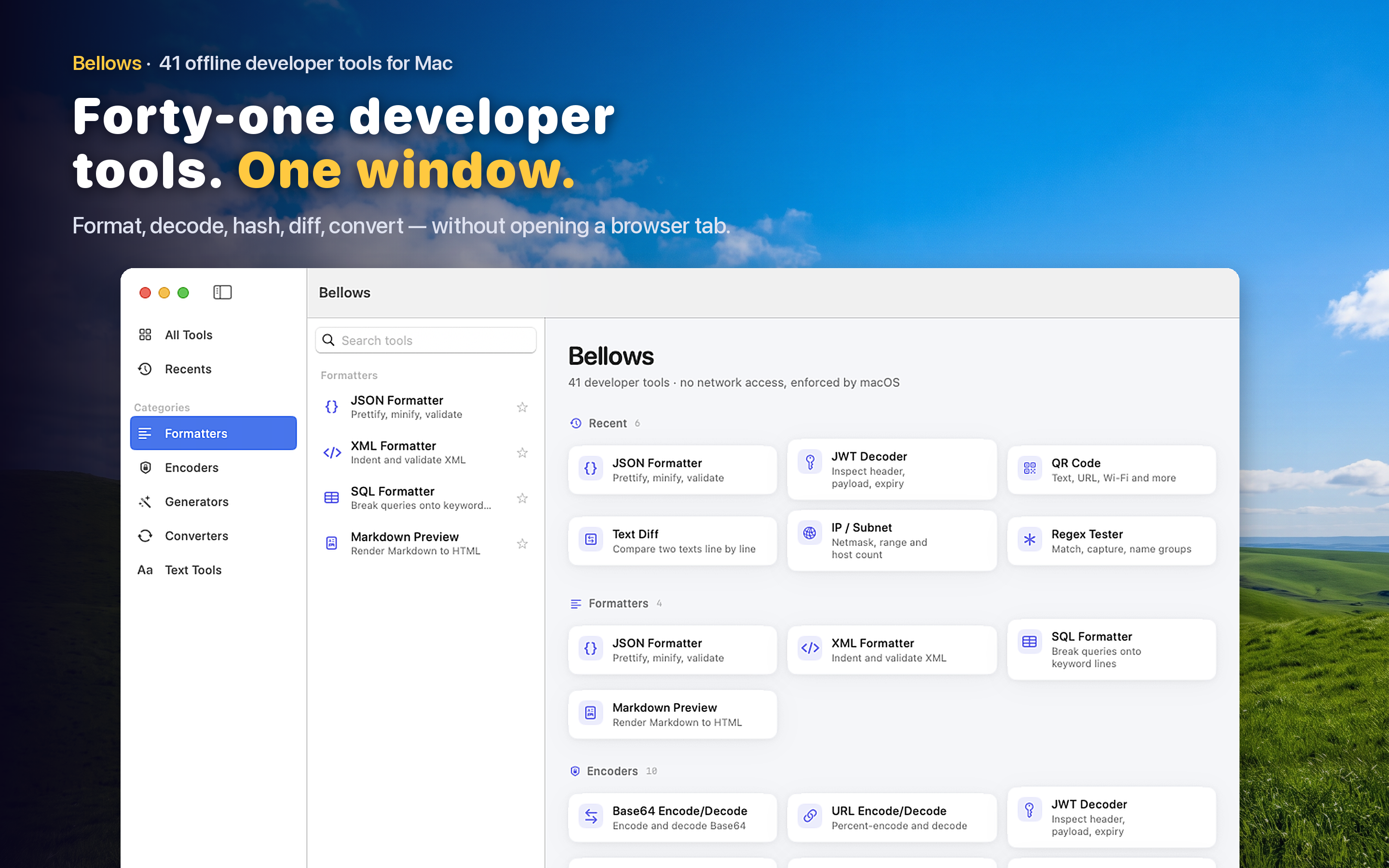
Bellows lives in your menu bar and gives you access to 41 developer tools — formatters, encoders, generators, converters, and text tools — without ever needing a Dock icon or a dedicated window. Click the icon, pick a tool from the sidebar, do what you need, and it gets out of your way again.
Zero Dock Footprint
For developers who keep a lean Dock with only the apps they use for extended sessions — an editor, a browser, a terminal — a menu bar utility fits the philosophy naturally. It is there when needed and invisible otherwise.
Standalone Window When You Need It
Some tasks — testing several regex patterns in a row, or converting a batch of colors — benefit from a persistent window instead of a menu bar dropdown. Bellows supports both modes, so quick lookups stay in the menu bar while longer sessions get a proper window alongside your editor.
Recents Keep Your Common Tools on Top
With 41 tools available, the ones you use most should not require the same amount of searching as the ones you use rarely. Recently used tools surface automatically, so your daily habits shape the interface over time rather than the other way around.