The Photos app stores your entire library in a single package file — Photos Library.photoslibrary — that can grow to well over 100 GB if you've been shooting photos and video for years, especially 4K video from an iPhone. macOS treats this package as a single opaque item in Finder (right-click and "Show Package Contents" to peek inside), and Photos itself gives you almost no tools to understand its own storage footprint beyond a vague iCloud optimization toggle.
What's actually inside the library package
- Originals — your full-resolution photos and videos, the largest component by far
- Masters and derivatives — edited versions kept alongside originals so edits stay non-destructive
- Thumbnails and previews — cached smaller versions generated for fast browsing
- Database files — the index that powers search, faces, and memories
- Shared library data — content synced from iCloud Shared Photo Library, if enabled
4K and ProRes video from recent iPhones is usually the single biggest driver of library size — a few minutes of 4K60 footage can be several hundred MB, and it adds up fast across hundreds of clips.
Seeing the size without breaking your library
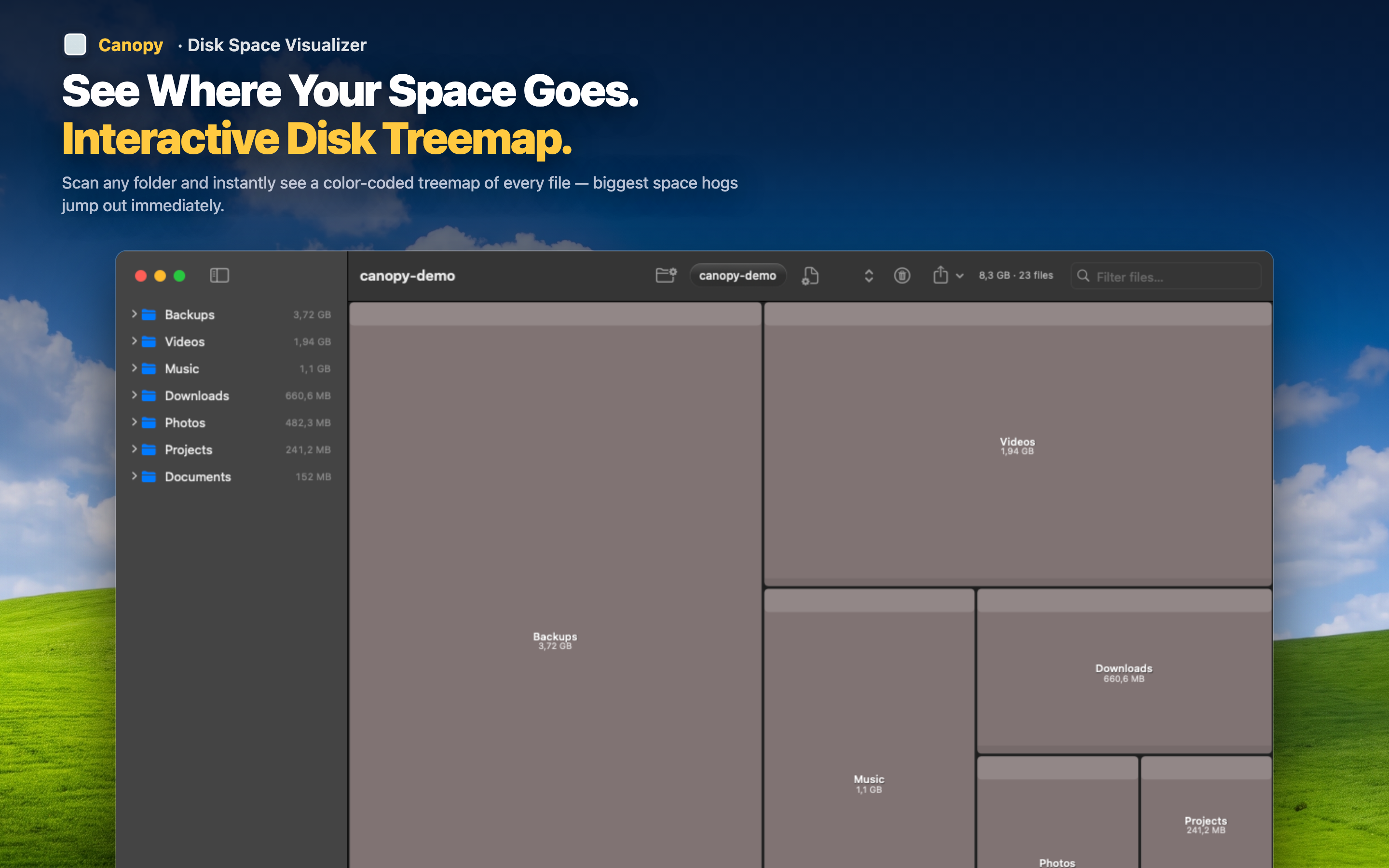
Canopy can scan the Photos Library package like any other folder, showing you its total size relative to the rest of your disk and letting you see the internal structure — Originals, Masters, resources — as proportional blocks, without you needing to manually dig through package contents in Finder.
Understand scale before you act
Seeing that your library is, say, 180 GB out of a 512 GB drive puts the "Optimize Mac Storage" toggle in Photos (which offloads originals to iCloud and keeps lightweight previews locally) into context — you'll know exactly how much you stand to reclaim.
Don't manually edit the package
It's worth noting: never delete files directly from inside the Photos Library package structure — that can corrupt your library. Use Photos' own tools (or iCloud optimization) for actual cleanup; use the treemap purely to understand size.
Check the rest of your disk too
While you're investigating, scan your whole drive to see how Photos compares to other space consumers like old backups or caches — sometimes the real quick win is elsewhere.