Apple Mail downloads and caches every attachment you open — PDFs, images, videos, presentations — into a local support folder, and it keeps them there indefinitely by default, even for emails you've long since archived or forgotten about. Over years of use, especially with a heavy work inbox where people constantly email large files, this cache can quietly grow to 10, 20, even 40+ GB.
Where Mail actually stores this data
Mail's downloaded attachments and message data live in ~/Library/Mail/, organized by account and mailbox. This folder isn't something Mail's own interface lets you browse or manage directly — there's no "clear attachment cache" button, no size indicator per mailbox, nothing. The only built-in hint is in System Settings' Storage > Mail category, which shows a size but, like most storage categories on macOS, gives you no breakdown of what's actually inside.
Why it's easy to overlook
- You never see the local cache directly — Mail just shows you the message and attachment as if it's always available
- It grows continuously with normal email use, with no natural point where you'd think to check it
- Deleting an email doesn't necessarily immediately clear its cached attachment data
Seeing exactly how much Mail has accumulated
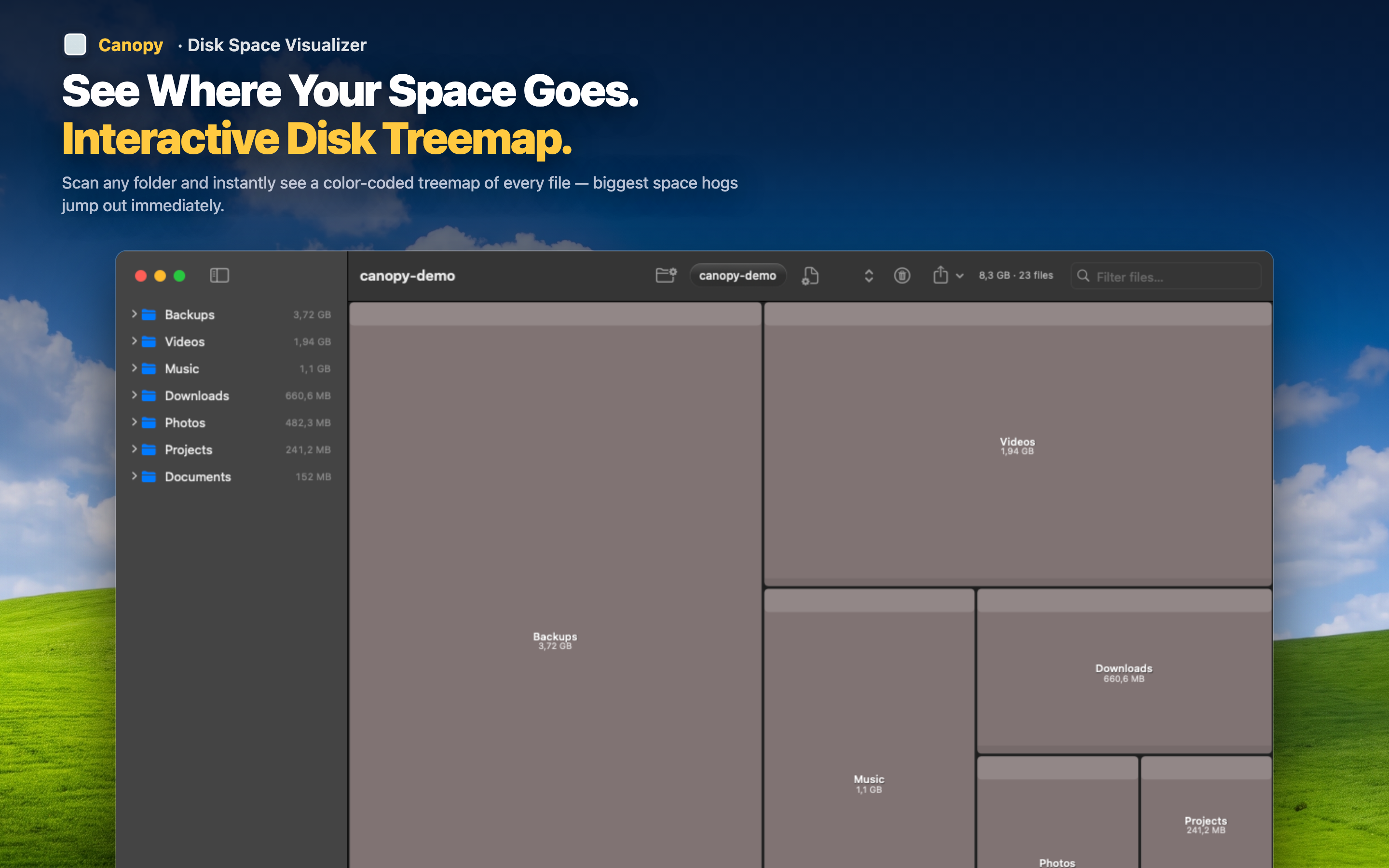
Canopy can scan ~/Library/Mail alongside the rest of your drive, showing the size of Mail's data proportionally in the treemap so you can see at a glance whether it's a meaningful contributor to your storage problem or a non-issue.
Decide if it's worth addressing
If Mail's folder turns out to be a small fraction of your used space, you can stop worrying about it and focus on bigger items elsewhere in the treemap. If it's genuinely large, that's useful information before you go digging into account settings.
Use Mail's own settings for cleanup
Rather than manually deleting files inside ~/Library/Mail (which can corrupt your mailbox), adjust each account's attachment download settings or use Mail > Preferences to manage cache behavior, then rescan with Canopy to confirm the change actually reduced disk usage.