If you've ever backed up an iPhone or iPad to your Mac using Finder (or iTunes on older macOS), that backup lives locally in ~/Library/Application Support/MobileSync/Backup/. Each backup can be 5-30 GB depending on how much is on the device, and macOS doesn't automatically delete old ones when you get a new phone or stop using a device. It's common to find backups for iPhones you sold or recycled years ago, still sitting there, still full-sized.
Why these backups are easy to forget
- They're not visible in Finder's normal browsing — buried inside a Library subfolder most people never open
- Each backup is named by device identifier, not device name, so you can't tell which is which without opening Finder's device management screen
- New backups don't overwrite old ones from a different device — each device gets its own backup, kept indefinitely
- Once you switch to iCloud backup, local backups don't get cleaned up automatically
The built-in way to manage them (and its limits)
You can go to Finder, select your currently connected device, and click "Manage Backups" to see a list and delete old ones. This works, but only shows backups Finder recognizes as associated with connected or previously managed devices — it doesn't give you a broader sense of how much total space backups are consuming relative to everything else on your drive.
Seeing backups in context
Canopy scans the MobileSync/Backup folder along with your entire drive, showing each backup as a proportionally sized block so you can see exactly how large they are compared to other space consumers — useful for deciding whether backups are actually your biggest issue or a secondary concern.
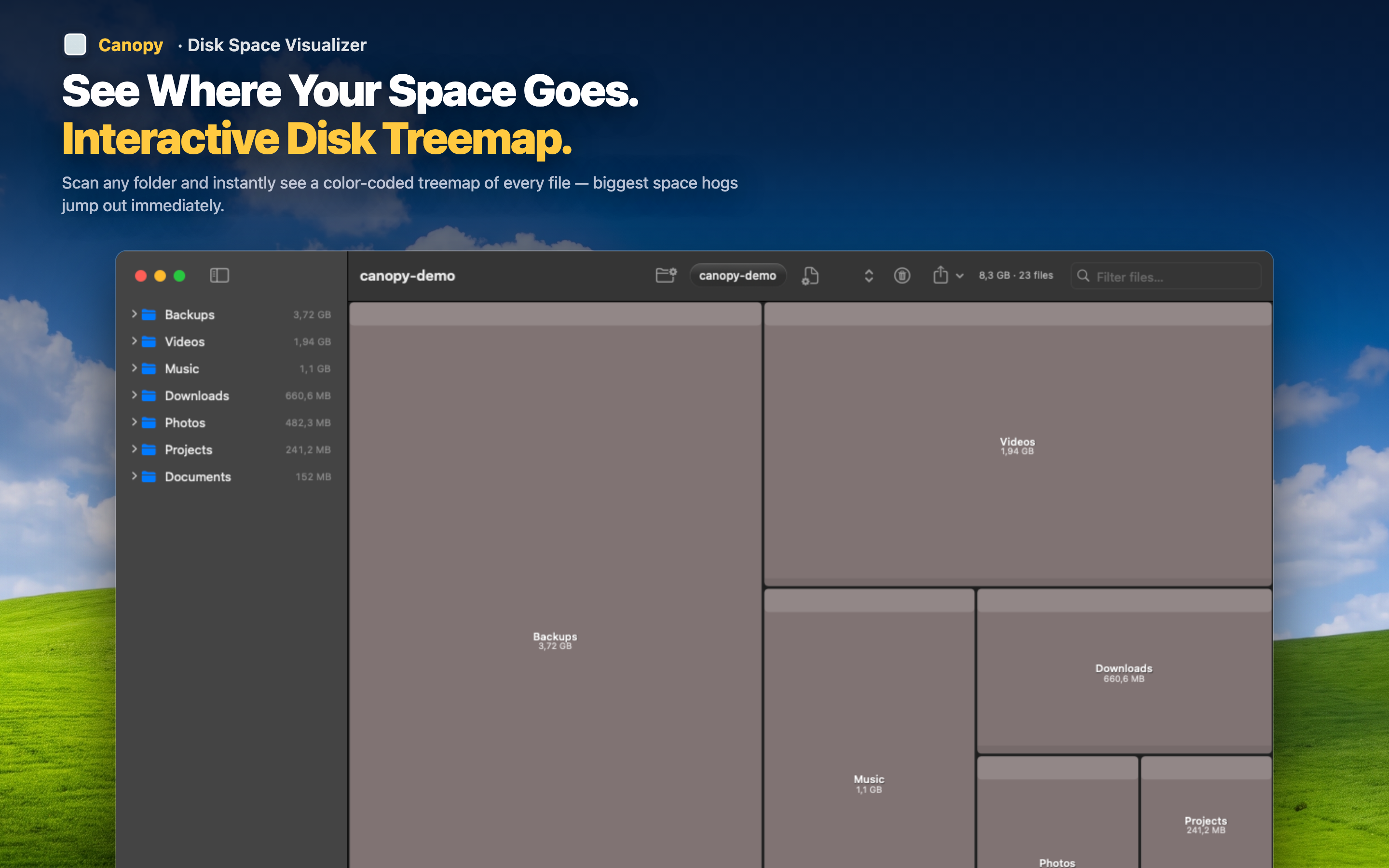
Identify old, unneeded backups
If you can confirm a backup belongs to a device you no longer own or have since backed up to iCloud instead, it's generally safe to remove.
Delete directly, or via Finder
You can delete a backup folder directly from the Canopy treemap, or use Finder's Manage Backups screen if you want device names rather than folder identifiers — either way, rescanning afterward confirms the space was freed.