Sometimes seeing your disk usage on screen isn't enough — you need a record of it. Maybe you're documenting storage for an IT audit, handing off a shared Mac and want to note its state beforehand, tracking down what's changed between two points in time, or just want a snapshot before a big cleanup so you have something to reference if you delete the wrong thing. macOS itself offers essentially nothing here — there's no built-in way to export a storage report of any kind.
Why you might need a disk usage export
- IT documentation — recording storage state on managed or shared machines
- Before/after comparisons — proving a cleanup actually reclaimed the space it should have
- Handoff records — documenting a Mac's contents before reassigning or reselling it
- Personal reference — a visual snapshot of your drive to look back on, or a spreadsheet of file sizes for your own records
Terminal commands like du can technically produce a text file, but formatting it into something readable or presentable takes extra work, and it gives you no visual component at all.
Two export formats, two purposes
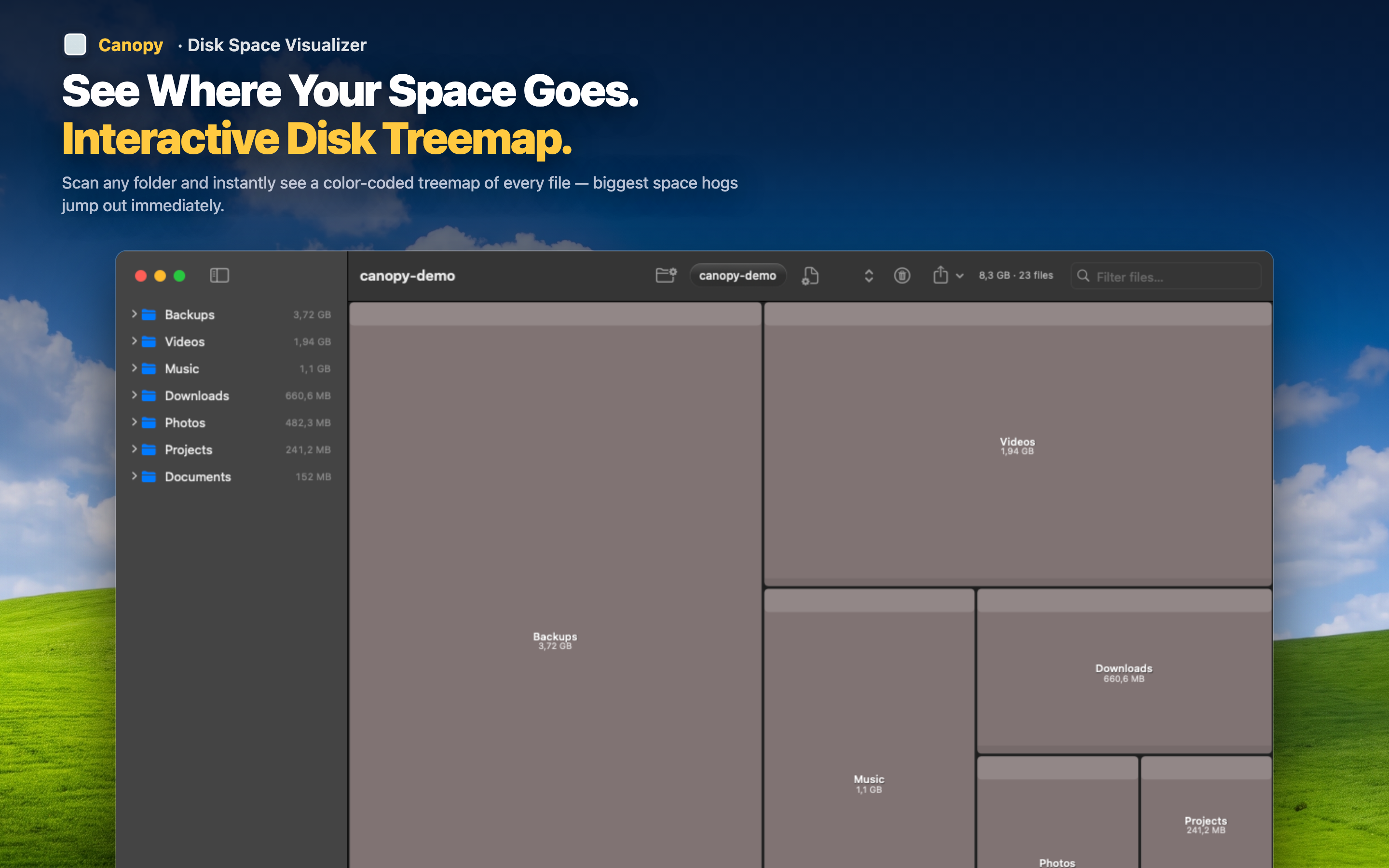
Canopy can export your disk scan in two ways: as a PNG image of the treemap itself, or as a CSV file listing files and their sizes — covering both the visual and the data-driven use case.
PNG for visual documentation
Exporting the treemap as an image gives you a shareable, at-a-glance record of your disk's state — useful for a quick visual comparison later, or for including in a report where a picture communicates faster than a spreadsheet.
CSV for data and analysis
Exporting as CSV gives you the underlying file and folder data in a format you can open in Numbers, Excel, or any spreadsheet tool — sort it, filter it, or archive it for future reference.
Use both together
Export a PNG before a big cleanup as a visual "before" snapshot, then export a CSV afterward to confirm exactly which files were removed and how much space each one accounted for.