Your Mac just refused to save a file because the disk is full. Maybe Xcode won't build, or Final Cut can't export, or macOS itself is sluggish because it has no room for swap. You need space back — now — but you're staring at a storage bar that says "System Data: 45 GB" with no way to see what's inside.
Deleting random files is risky. You might trash something important. You need to see exactly what's large and what's disposable.
Common space hogs most people forget about
Before reaching for any tool, here are the usual suspects:
- Old iOS/iPadOS backups — stored in
~/Library/Application Support/MobileSync/Backup/, often 10-30 GB each - Xcode derived data and archives — can accumulate 20+ GB in
~/Library/Developer/ - Docker images and volumes — the Docker.raw file can balloon to 60+ GB
- Application caches — Slack, Spotify, Chrome caches in
~/Library/Caches/ - Old .dmg installers — sitting in Downloads, often 1-5 GB each
- Time Machine local snapshots — macOS keeps these when your backup drive is disconnected
The problem is knowing which of these applies to your Mac specifically, and finding the items that are actually large on your drive.
See what to delete with a disk map
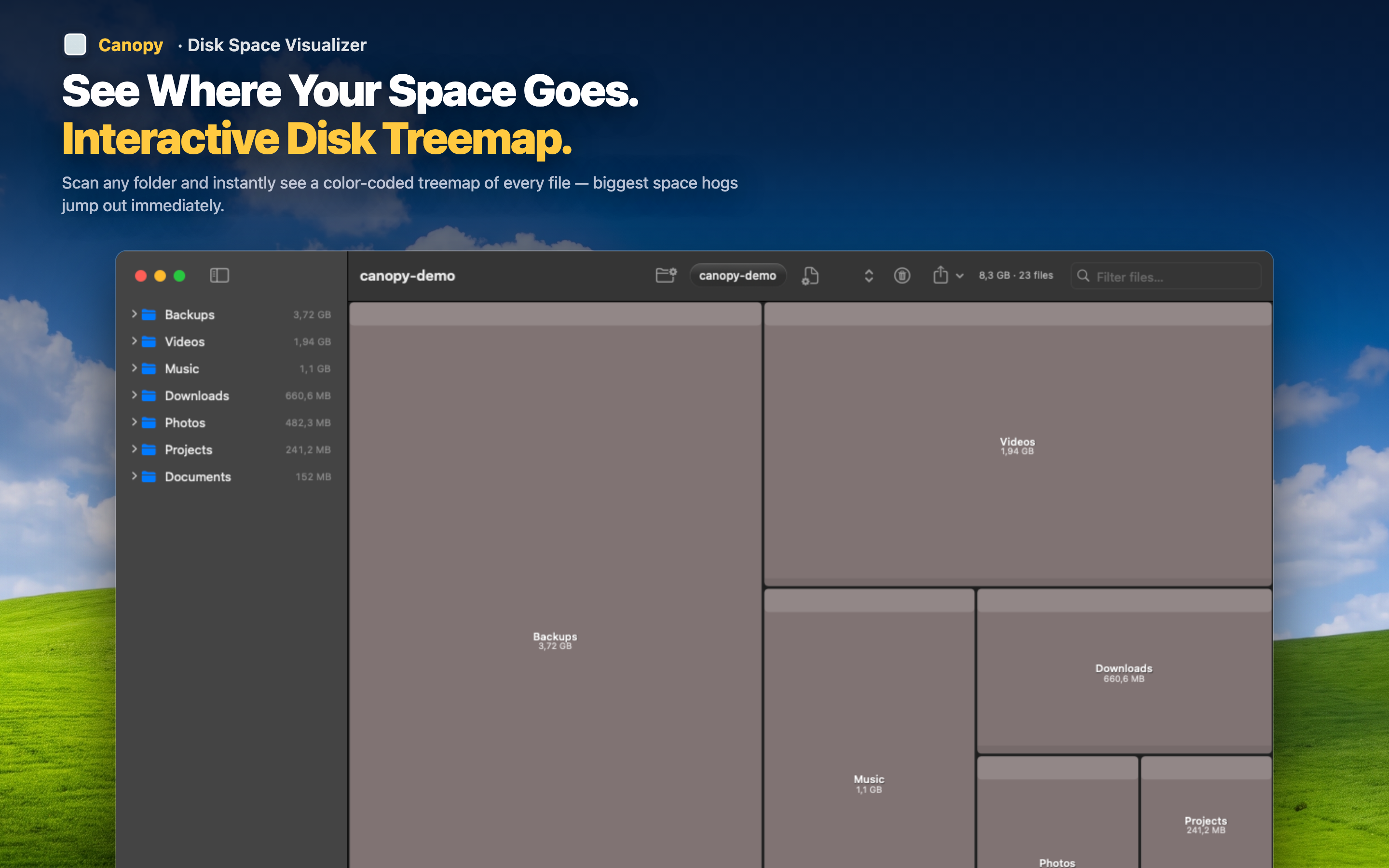
Canopy scans your drive and builds an interactive treemap that shows every file proportional to its size. Instead of guessing, you see your actual disk laid out visually — the largest items dominate the view.
Triage by size
The treemap makes triage effortless. The biggest rectangles are your biggest wins. Often you'll find one or two items — an old backup, a forgotten VM, a bloated cache — that account for 30+ GB. Delete those and you're breathing again.
Delete directly from the map
Once you identify a file you don't need, delete it right from the treemap. No switching to Finder, no hunting for the path. Identify, confirm, delete — all in one place.
Verify you reclaimed enough
After deleting, rescan to confirm the freed space. The updated treemap shows your new disk layout instantly, so you know exactly how much room you recovered.