You need to free up space on your Mac, and the fastest way is to find the largest files and decide which ones can go. Simple enough in theory — but macOS doesn't make this as straightforward as it should be.
You'd think Finder search with a size filter would solve this. It kind of does, but it misses files in Library folders, skips hidden directories, and doesn't give you a sense of proportions. You end up with a flat list and no context for where these files live or how they relate to each other.
Methods that partially work
Finder search with size filter
Open Finder, press Cmd+F, add a "File Size is greater than" filter. This finds large files in user-accessible locations, but it won't surface items in ~/Library, application support folders, or system directories — which is often where the biggest space hogs hide.
Terminal with find or du
Running find / -size +1G or du -sh * | sort -rh in Terminal gives you raw data, but it's hard to interpret. You get a wall of text with no visual context. For technical users it works; for everyone else, it's impractical.
Storage Management (System Settings)
The built-in storage management tool in System Settings shows broad categories and lets you review large files in Documents. But it only covers a subset of your drive and doesn't show you application caches, developer files, or container data.
The visual approach: see large files instantly
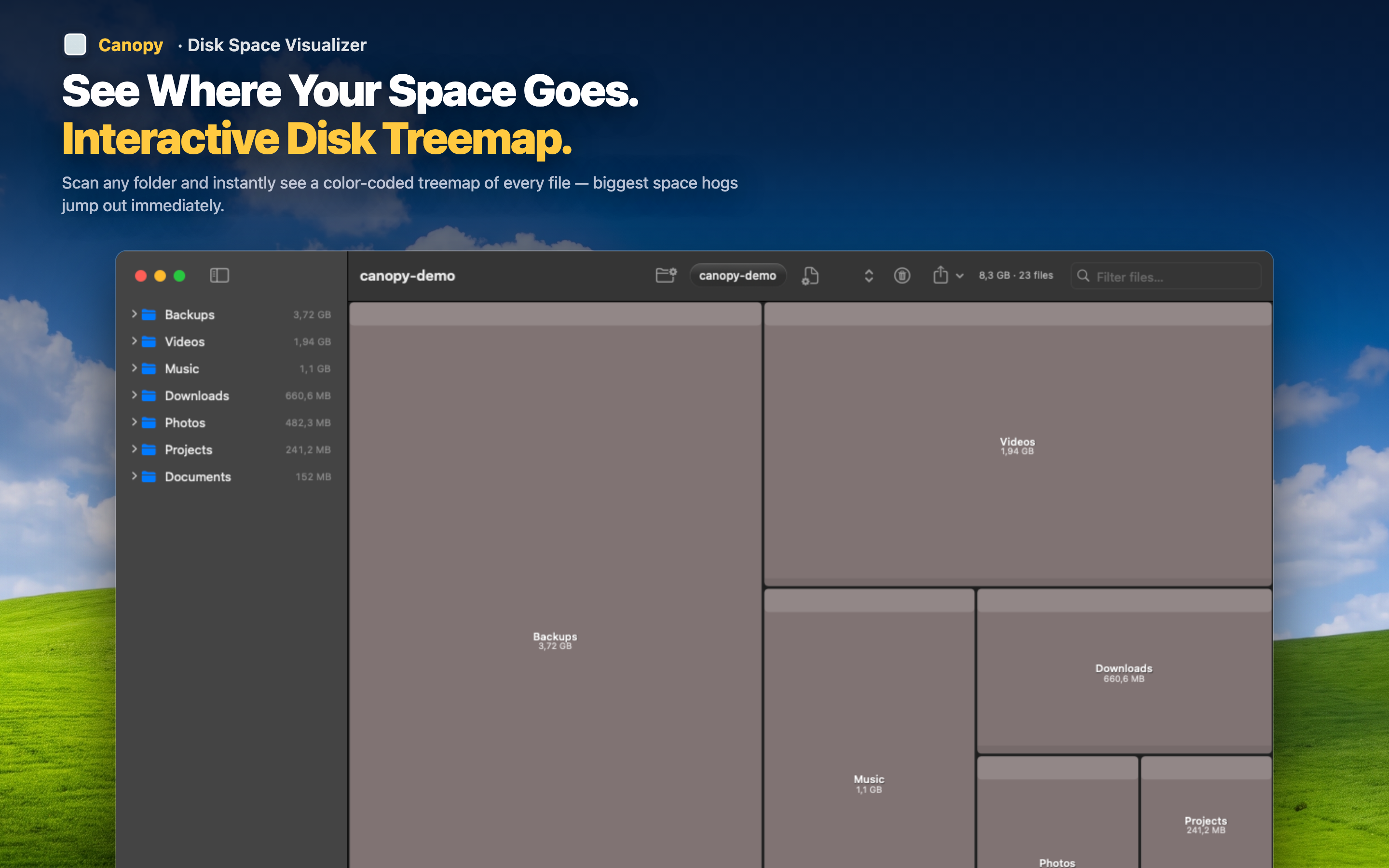
Canopy scans your drive and shows every file as a proportionally sized block in an interactive treemap. Large files are literally the biggest things on screen — you don't need to search or sort, they're just visually obvious.
Nothing hidden
Unlike Finder search, the treemap includes Library folders, caches, developer directories, and application containers. If a file takes space, it shows up — proportionally sized so you immediately know how significant it is.
Context matters
A large file in a flat list means nothing without context. In a treemap, you see that the 8 GB file is inside a Docker container, or that five 2 GB files are all old Xcode archives in the same folder. Context turns "large file" into "thing I can safely delete."
Act immediately
Click a block to see its full path. Delete it from the map if you don't need it. No copying paths to Finder, no Terminal commands — find it and remove it in one place.