You open System Settings, click Storage, and there it is: "System Data" — 47 GB. Maybe more. You have no idea what it contains. macOS doesn't let you click into it. There's no breakdown, no file list, no explanation. Just a big purple bar consuming a quarter of your drive with no way to investigate.
This is genuinely one of the most frustrating things about macOS storage management. The system knows what's there, but it won't show you.
What actually lives in "System Data"
The System Data category is a catch-all for files that don't fit neatly into Applications, Documents, Photos, or other named categories. It typically includes:
- Application caches — browser caches, Slack data, Spotify offline files
- System caches and logs — macOS logs, diagnostic reports, update files
- Time Machine local snapshots — can be 10-30+ GB when your backup drive is disconnected
- Spotlight index — usually 1-3 GB
- Virtual machine files — Parallels, UTM, and Docker images
- iOS device backups — stored in Application Support, categorized as system data
- Developer data — Xcode derived data, simulators, archives
The reason it can balloon to 50+ GB is that many of these grow silently. A Docker.raw file can hit 64 GB without you noticing. Old iOS backups accumulate. Xcode derived data piles up with every build.
How to see what's actually inside
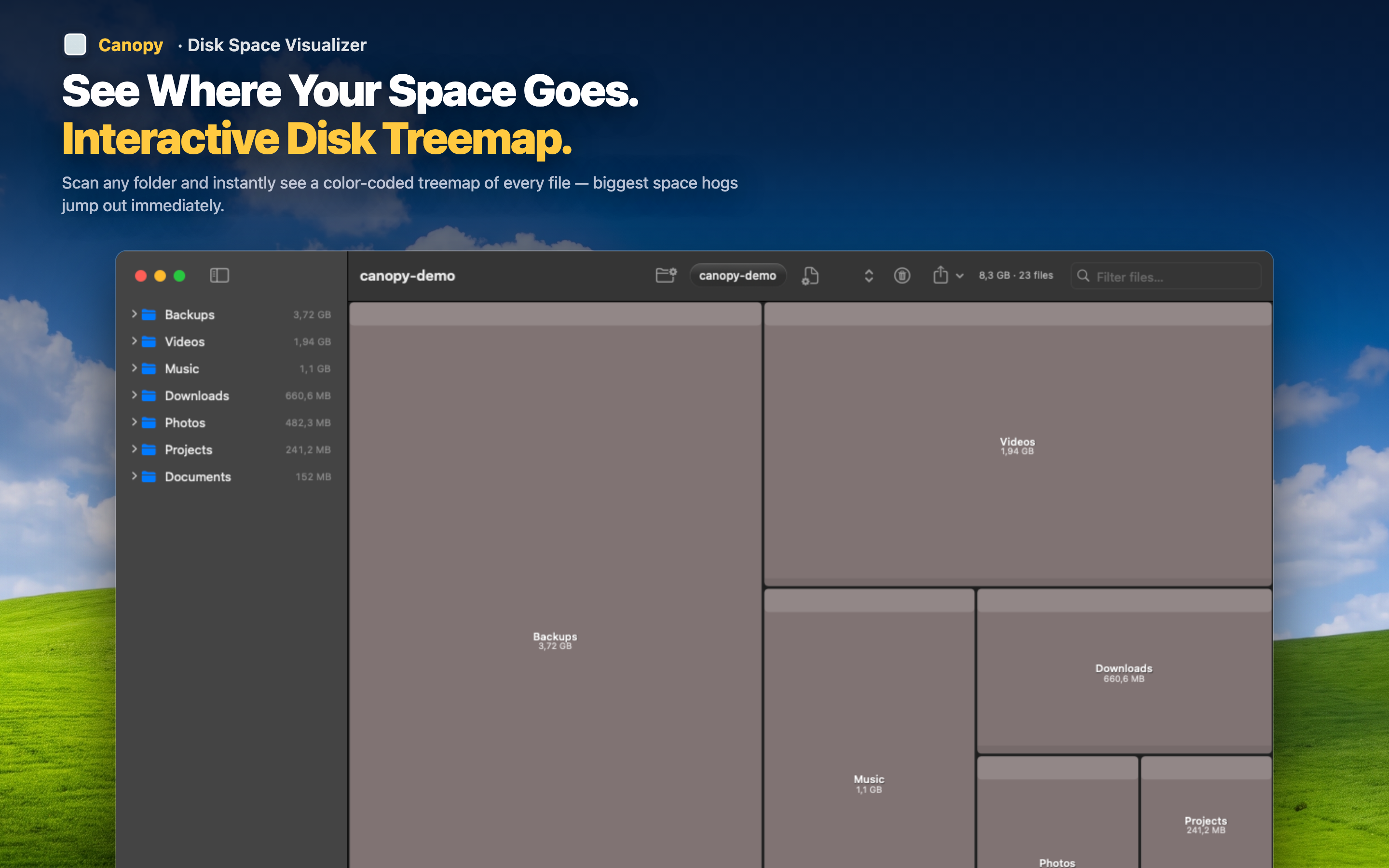
Canopy doesn't care about macOS storage categories. It scans the raw filesystem and shows you every file and folder proportionally in a treemap. The files that macOS lumps into "System Data" show up in their actual locations — ~/Library/Caches/, ~/Library/Application Support/, ~/Library/Developer/ — with their real sizes.
Find the actual culprits
Zoom into ~/Library and immediately see which application caches, support files, or containers are the largest. That mystery 47 GB breaks down into specific, identifiable items you can evaluate one by one.
Safely clean up
Once you can see the specific files — a 12 GB Slack cache, 8 GB of old Xcode archives, a 15 GB iOS backup from two phones ago — you can make informed decisions about what to delete. Remove items directly from the treemap, then rescan to confirm you freed the expected space.