You open a disk visualizer. It scans your drive. You see the treemap. There it is — a 9 GB folder full of old project files you'll never touch again. Now what? In most disk visualizers, you note the file path, open Finder, navigate to the location, find the file, and delete it there. Then you go back to the visualizer, rescan, and repeat.
This two-app workflow is tedious. Every time you switch to Finder, you lose context. You forget which blocks you already checked. The whole process takes three times longer than it should.
Why most visualizers don't include deletion
Deleting files is a destructive action, and many disk visualization tools were built as read-only viewers. GrandPerspective, for example, shows you the treemap but makes you act in Finder. This is safe but inconvenient — especially when you're cleaning up a full disk and need to evaluate and remove dozens of items.
The ideal workflow is: see it, evaluate it, delete it — all in one place, without context switching.
Canopy: visualize and delete in one workflow
Canopy lets you delete files and folders directly from the treemap. Find a space hog, confirm it's something you don't need, and remove it without leaving the app.
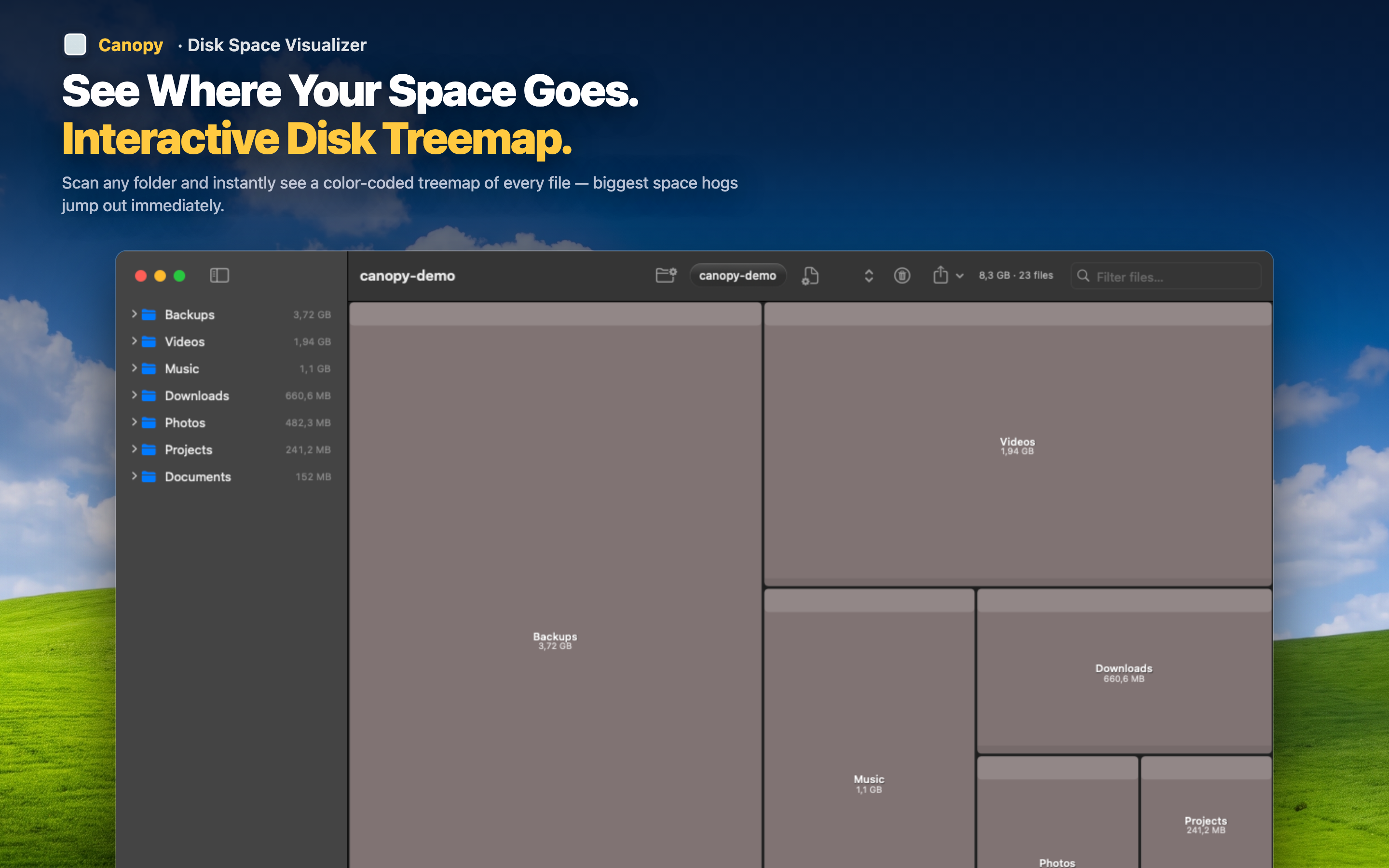
The cleanup workflow
- Scan — Canopy reads your drive and builds the treemap
- Identify — spot the largest blocks (they're visually obvious)
- Inspect — click a block to see its path, size, and type
- Delete — remove it directly from the map if you don't need it
- Repeat — the treemap updates, showing you the next biggest items
No Finder. No Terminal. No copying paths. One continuous workflow from discovery to deletion.
Safe by design
Deletion sends files to the Trash, not permanent removal. If you change your mind, retrieve them from Trash before emptying it. You get the convenience of in-app deletion with the safety net of macOS Trash.
Export before you clean
If you want a record of what was on your drive before cleanup, export the treemap as a PNG image or the file list as CSV. Useful for auditing or just keeping a snapshot of your disk state before a big purge.