You get a system alert: "Your startup disk is almost full." Then apps start crashing on launch, Photos refuses to sync, and Spotlight stops indexing new files. This isn't a cosmetic warning — macOS actively needs free space on your startup disk for virtual memory, temp files, and updates. When it runs out, things break.
The urgency makes people panic-delete things, which is the wrong move. You need to know what's actually large before you start removing anything.
Why the startup disk fills up faster than you'd expect
A few things eat startup disk space quietly over months:
- macOS update installers — downloaded update files can sit around at several GB each
- Time Machine local snapshots — created automatically, especially if your backup drive isn't always connected
- Application caches and logs — accumulate silently in the background
- Old backups and disk images — forgotten .dmg or .ipsw files in Downloads
- Development artifacts — Xcode derived data, simulators, node_modules folders
None of these show up clearly in System Settings' storage bar. You need to see the actual filesystem to know what to remove.
Find the exact files taking up your startup disk
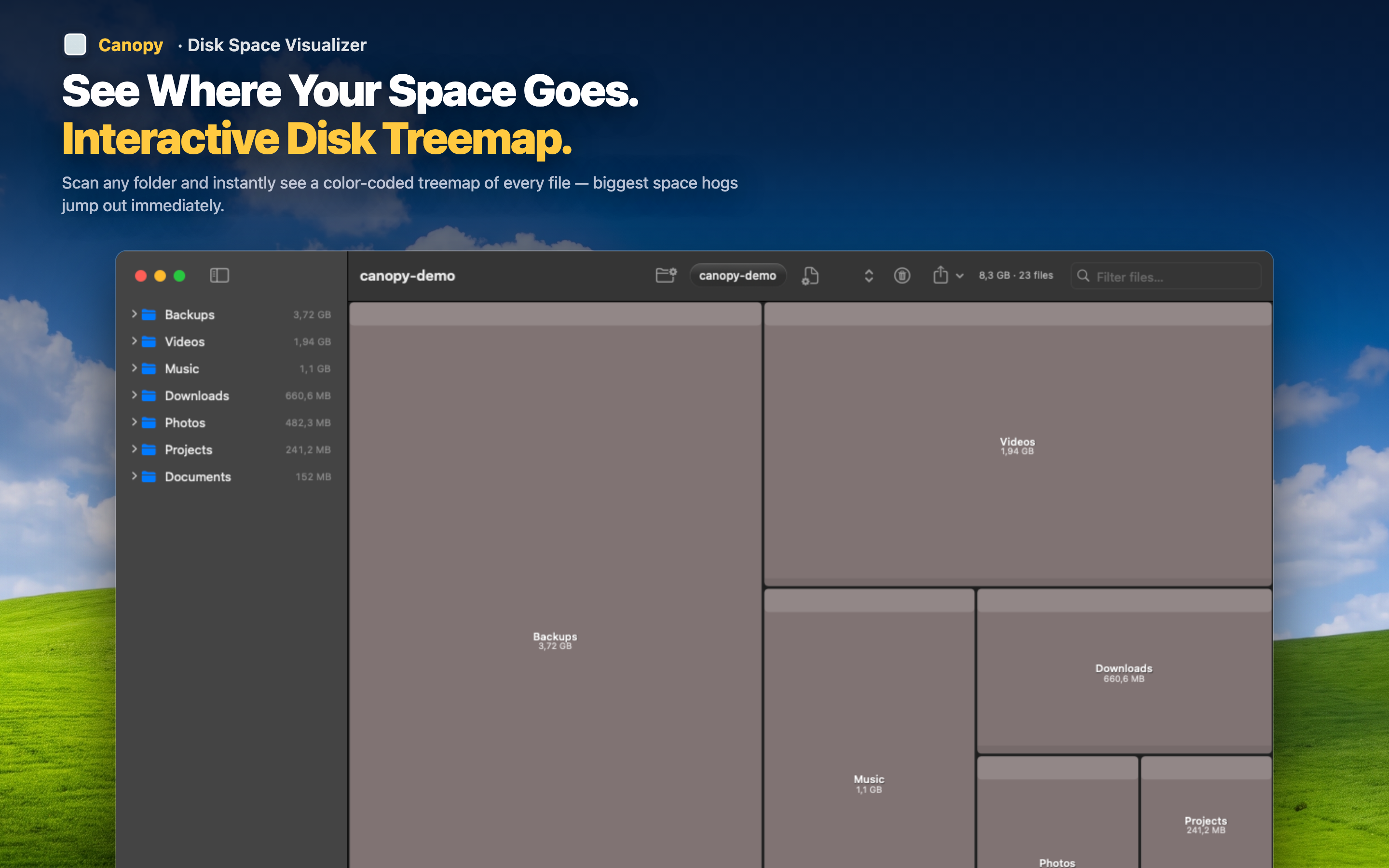
Canopy scans your entire startup disk and draws it as a color-coded treemap, with every file and folder sized proportionally to the space it uses. The largest items on your drive are immediately the largest blocks on screen — no digging, no guessing.
Free space in minutes, not hours
Instead of manually checking folder after folder, scan once and see the whole disk at a glance. Most people find that two or three items — an old backup, a bloated cache, a forgotten VM — account for the bulk of the problem.
Delete without leaving the app
Click a block, confirm it's safe to remove, and delete it directly from the treemap. Files go to Trash, so nothing is permanently lost if you change your mind.
Confirm the fix worked
Rescan after deleting to see your updated disk layout and confirm the startup disk warning is resolved before you need to reboot or update macOS.